HQbird Windows Installation Guide
This guide shows how to install HQbird 2027 on a Windows server with the
setup program hqbird2027-fbNN-setup-<version>.exe. It has two parts:
- Interactive installation: the Setup wizard, page by page.
- Command-line installation: a fully silent run, for scripts.
The update of an older HQbird, the maintenance mode of the setup, removal
and troubleshooting are in the full guide:
hqbird2027-windows-setup-guide.md.
The screenshots show the setup 2027.2.33 for Firebird 5.0 on a clean Windows 10. The setups for Firebird 2.5, 3.0 and 4.0 have the same pages. The screenshot of the silent run was taken with a test build.
1. Before you start
Select the setup. One setup installs one Firebird version:
| Setup | Firebird | Default port |
|---|---|---|
hqbird2027-fb50-setup-<version>.exe |
5.0 | 3050 |
hqbird2027-fb40-setup-<version>.exe |
4.0 | 3050 |
hqbird2027-fb30-setup-<version>.exe |
3.0 | 3050 |
hqbird2027-fb25-setup-<version>.exe |
2.5 | 3050 |
Requirements:
- Windows 10 or 11, or Windows Server 2016 or newer, 64-bit.
- An administrator account. The setup asks for elevation.
- No Internet connection is necessary. The setup contains all files.
What the setup installs:
| Component | Windows service | Default location |
|---|---|---|
| Firebird server (HQbird build) | FirebirdServerHQBirdInstanceFB5 |
C:\HQbird\Firebird50, port 3050 |
| HQbird agent (backups, monitoring, updates) | HQbirdFBAgent-fb50 |
C:\HQbird\fbagent-fb50 |
| HQbird Monitor (web console) | HQbirdMonitor-fb50 |
http://localhost:23050/ |
| fbmcp, the MCP server for AI clients (optional) | fbmcp |
C:\HQbird\fbmcp |
The working data of the agent and of HQbird Monitor go to C:\HQbirdData.
The names above are for Firebird 5.0. For Firebird 4.0 they contain fb40
and FB4, and so on.
Languages. The wizard has 8 languages: English, Brazilian Portuguese, German, Russian, Spanish, Polish, Turkish and Simplified Chinese. When you start the setup, it shows a language list. The language of Windows is selected.
2. Interactive installation
Start the setup file and accept the elevation prompt of Windows. Select the language and click OK.
Setup changes nothing on the computer before you click Install on the Ready to Install page. You can click Back on each page.
Step 1: Welcome
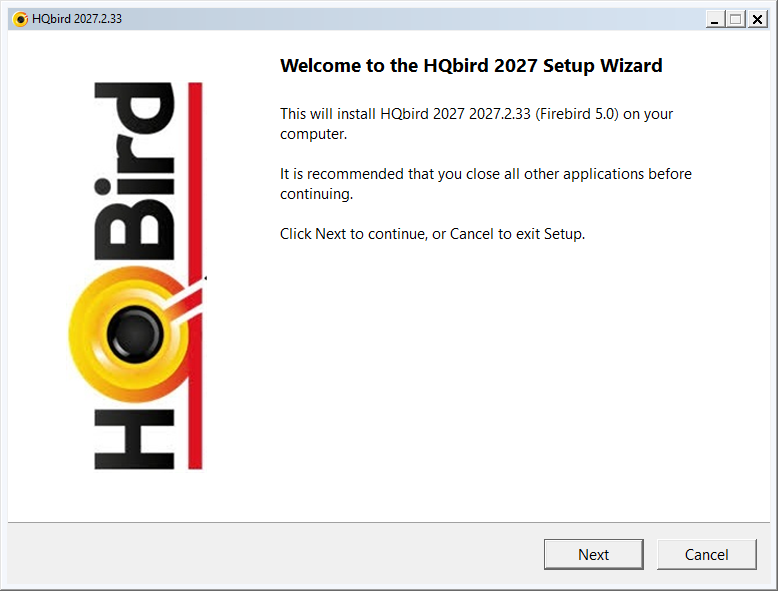
The page shows the HQbird version and the Firebird version. Click Next.
Step 2: License Agreement
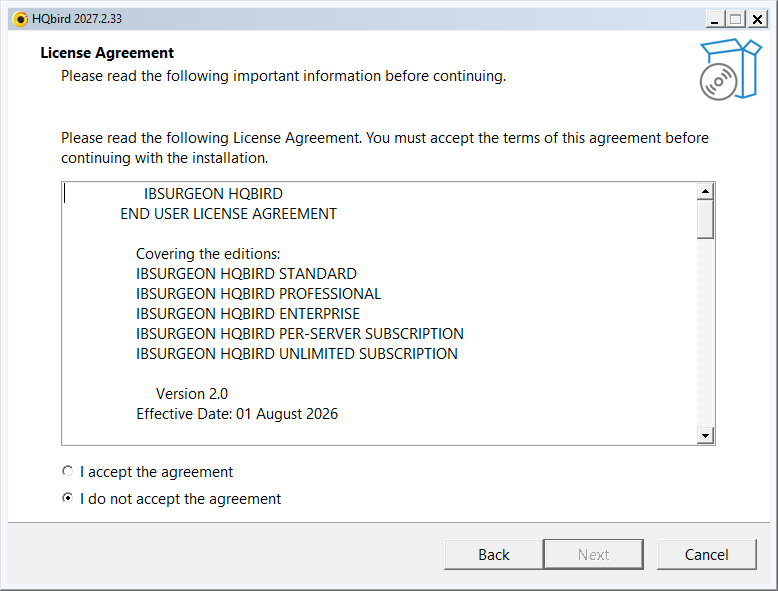
Read the agreement. Select I accept the agreement and click Next.
Setup then unpacks its files and checks the computer. This takes some seconds.
Step 3: Server check results
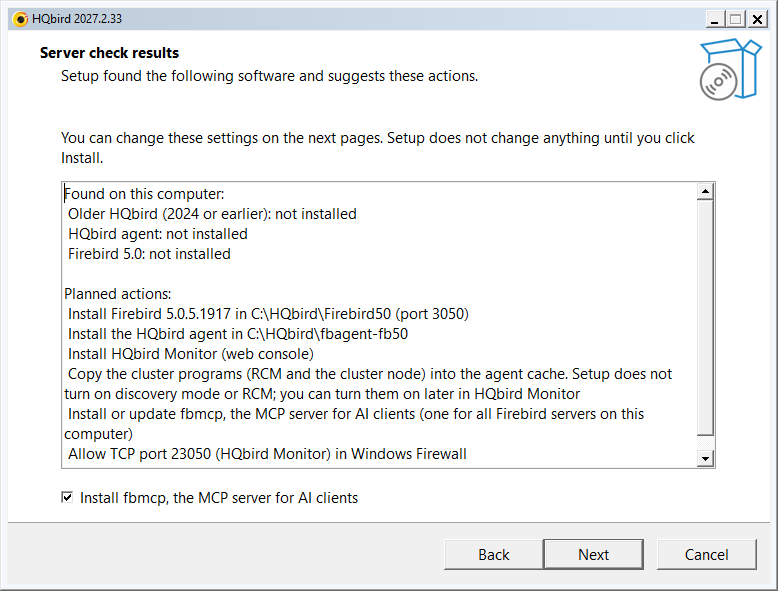
The page shows two lists:
- Found on this computer: an older HQbird, HQbird agents and Firebird servers.
- Planned actions: what Setup will install with the default settings.
Clear the check box Install fbmcp, the MCP server for AI clients if you do not want fbmcp. Click Next.
If Setup finds a Firebird of the same version or an older HQbird, the next
page is Installation type (update, or a new instance). See the
full guide hqbird2027-windows-setup-guide.md.
Step 4: Installation folders
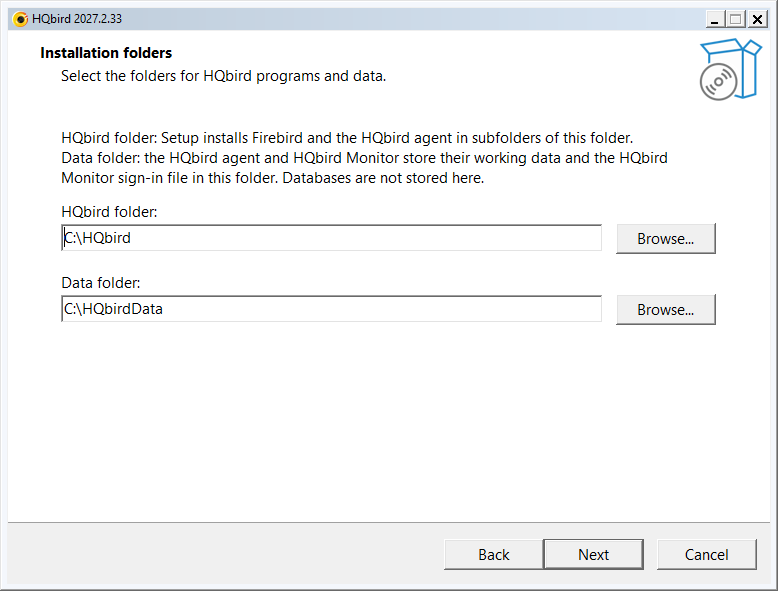
- HQbird folder: Firebird and the HQbird agent go into subfolders of this folder.
- Data folder: the working data of the HQbird agent and HQbird Monitor, and the HQbird Monitor sign-in file. Databases are not stored here.
Use two different folders.
Step 5: Firebird server
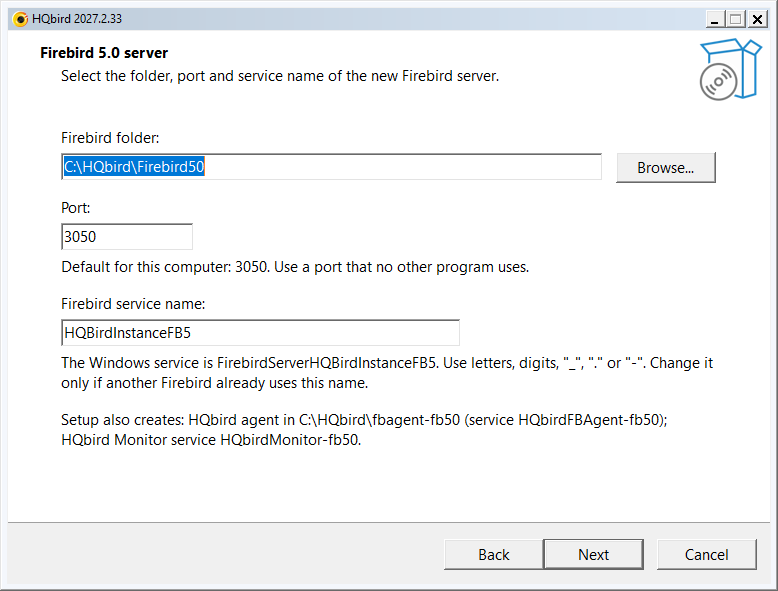
- Firebird folder: the default is
Firebird50in the HQbird folder. - Port: the default is 3050. Use a port that no other program uses.
- Firebird service name: change it only if another Firebird uses the same name.
The last lines show the folder and the service names of the HQbird agent and HQbird Monitor.
Step 6: SYSDBA password
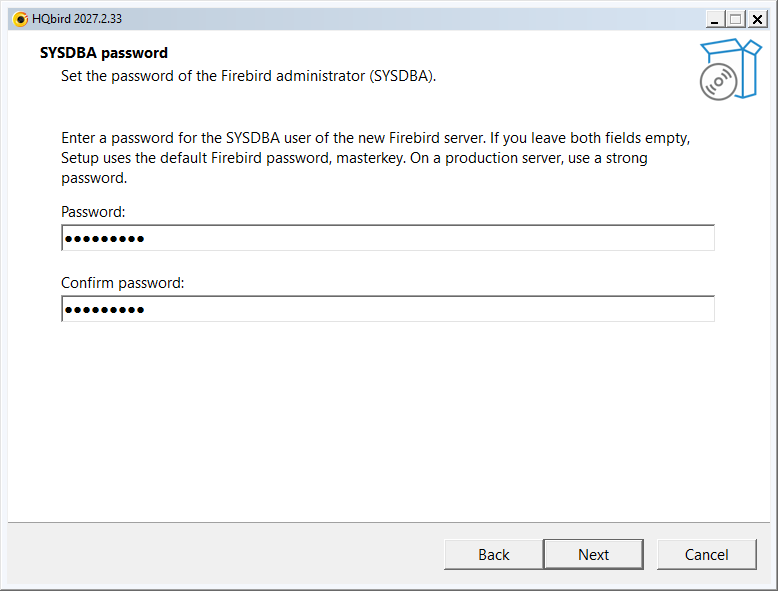
Enter the password of the Firebird administrator (SYSDBA) two times. If you
leave the two fields empty, Setup uses the default Firebird password
masterkey. On a production server, use a strong password.
Step 7: HQbird Monitor
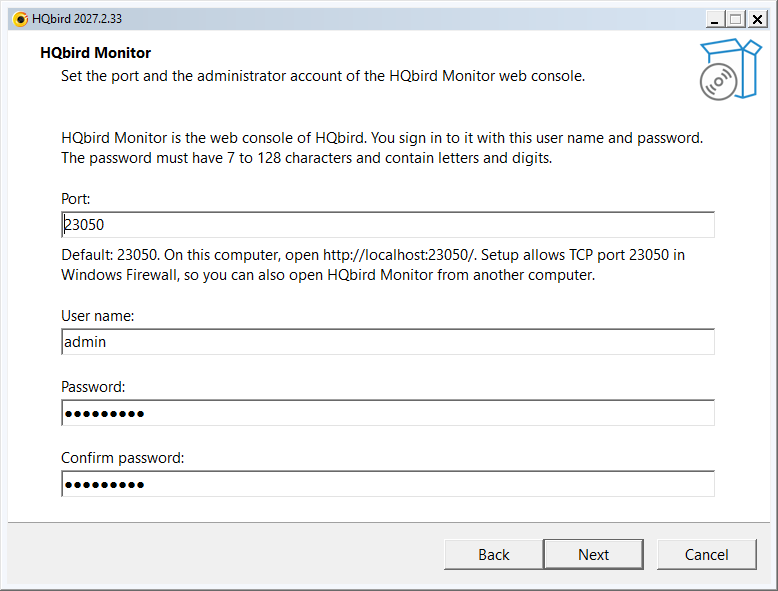
HQbird Monitor is the web console of HQbird.
- Port: the default is 20000 + the Firebird port (23050). Setup opens this port in Windows Firewall.
- User name: the default is
admin. - Password: 7 to 128 characters, with letters and digits. Enter it two times.
You sign in to HQbird Monitor with this user name and password.
Step 8: Server name
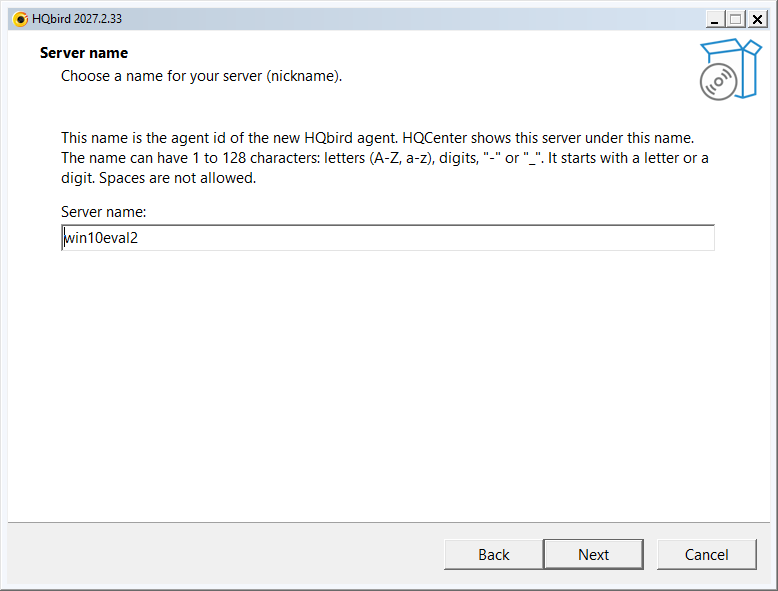
The server name is the agent id of the new HQbird agent. HQCenter shows the
server under this name. The default is the computer name in lowercase. The
name can have 1 to 128 characters: letters, digits, - or _.
Step 9: Replication and cluster setup (optional)
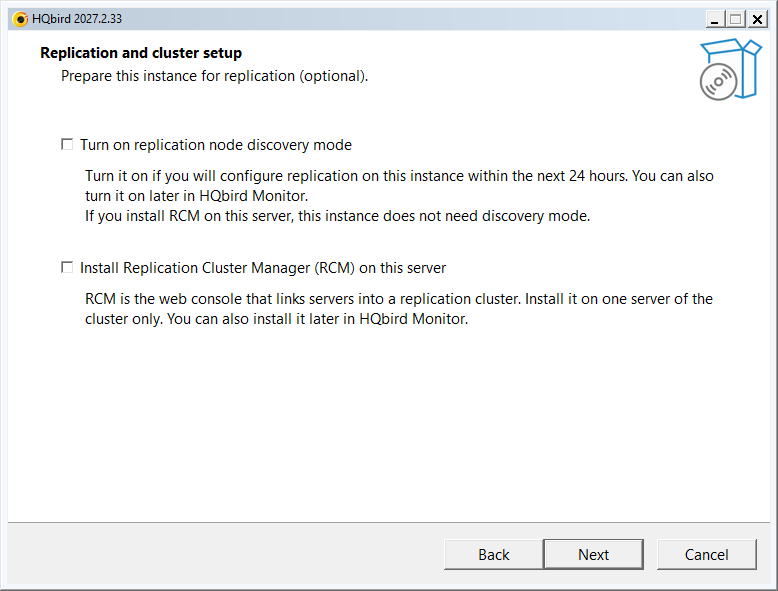
The two options are off by default. You can turn them on later in HQbird Monitor.
- Turn on replication node discovery mode: select it if you will configure replication on this instance in the next 24 hours.
- Install Replication Cluster Manager (RCM) on this server: RCM is the web console that links servers into a replication cluster. Install it on one server of the cluster only.
Step 10: Trial period (optional)
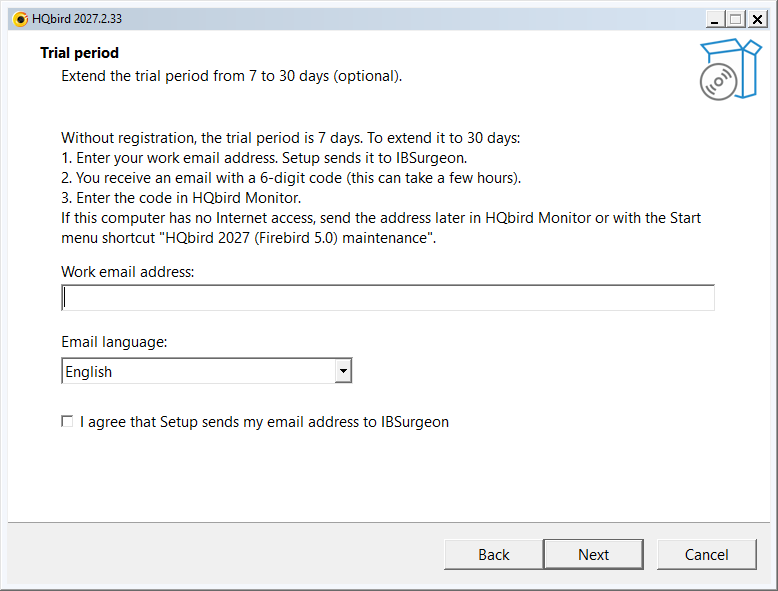
Without registration, the trial period is 7 days. To extend it to 30 days:
- Enter your work email address.
- Select the language of the email.
- Select I agree that Setup sends my email address to IBSurgeon.
You then receive an email with a 6-digit code. Enter the code in HQbird Monitor. To skip this step, leave the address empty and click Next.
Step 11: Automatic updates
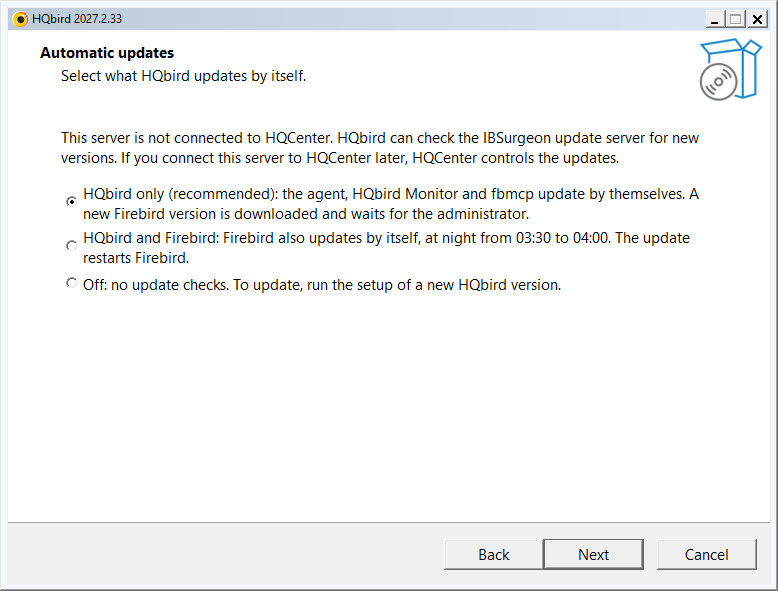
Setup shows this page when the server is not connected to HQCenter. HQbird can then check the IBSurgeon update server for new versions. Select what HQbird updates by itself:
- HQbird only (recommended): the HQbird agent, HQbird Monitor and fbmcp update by themselves. A new Firebird version is downloaded and waits for the administrator.
- HQbird and Firebird: Firebird also updates by itself, at night from 03:30 to 04:00. The update restarts Firebird.
- Off: no update checks. To update, run the setup of a new HQbird version.
You can change this setting later in HQbird Monitor. If you connect the server to HQCenter later, HQCenter controls the updates.
Setup skips this page when the folder of the setup contains attach.json.
Step 12: License file (optional)
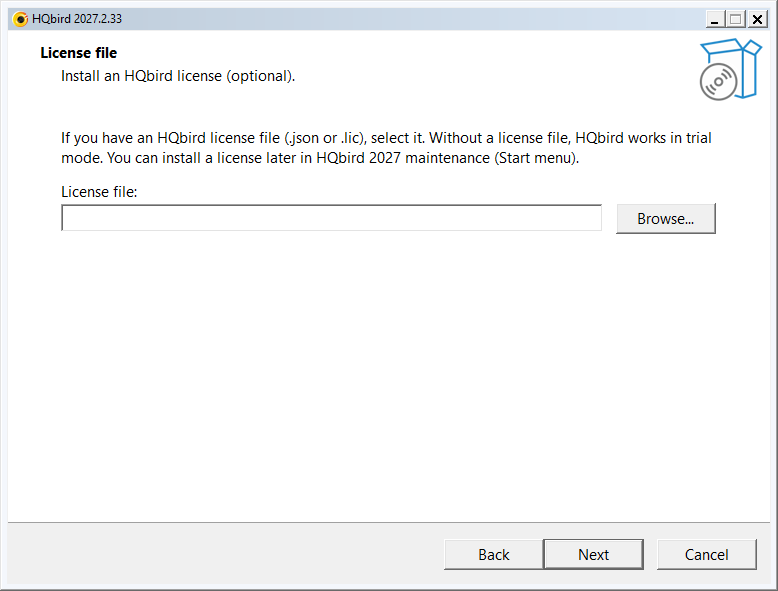
If you have an HQbird license file (.json or .lic), select it. Without
a license file, HQbird works in trial mode. You can install a license later
with the Start menu shortcut HQbird 2027 (Firebird 5.0) maintenance.
Step 13: Connect to HQCenter (optional)
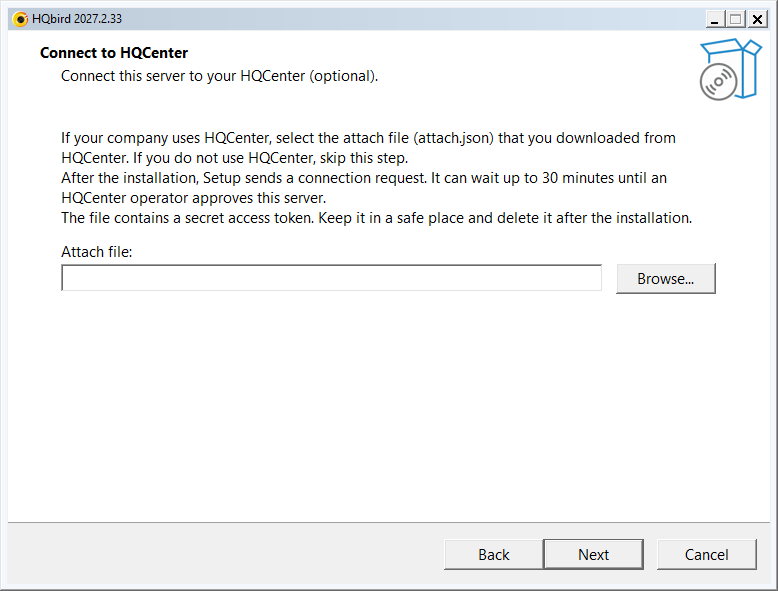
If your company uses HQCenter, select the attach file (attach.json) that
you downloaded from HQCenter. If not, skip this step. The file contains a
secret access token: delete it after the installation.
Step 14: Ready to Install
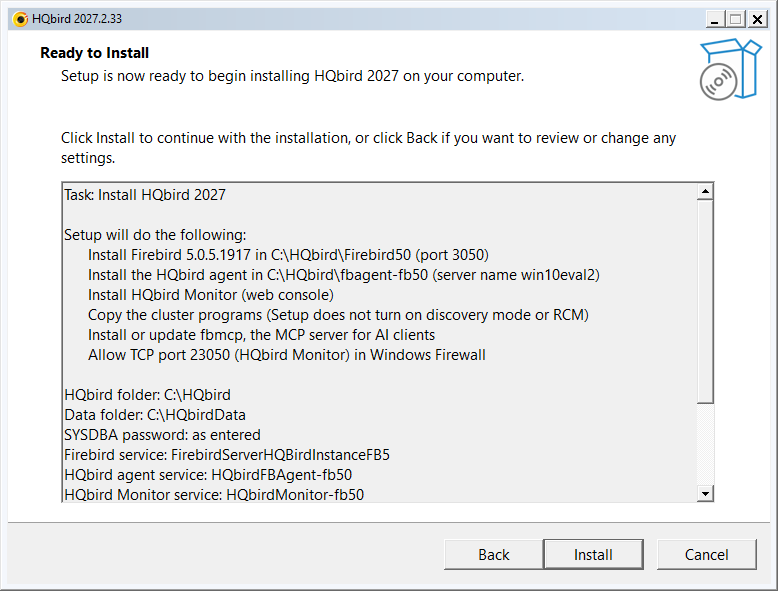
The page lists the task, the actions, the folders, the service names and the mode of automatic updates. Scroll the list to see all lines. Read the list. Click Back to change a setting, or Install to start.
Step 15: Installing
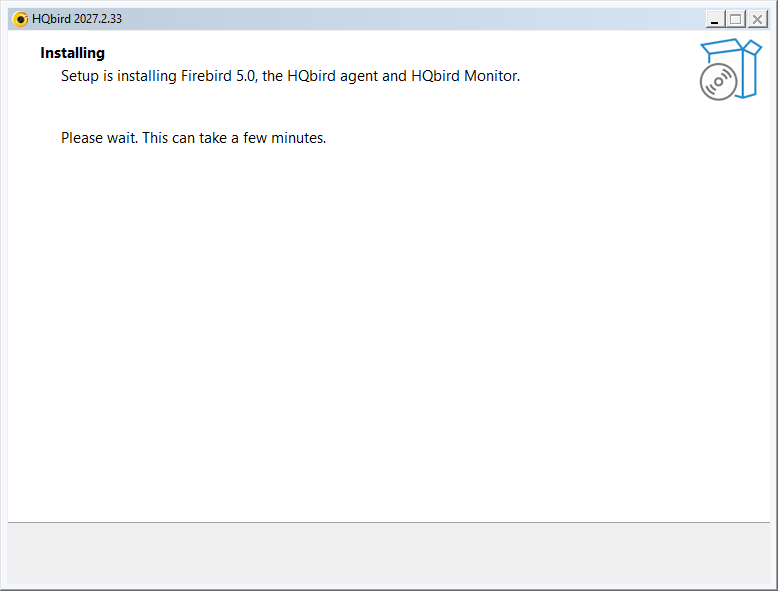
Setup installs Firebird, the HQbird agent and HQbird Monitor. This takes a few minutes. Do not close the window.
Step 16: Installation complete
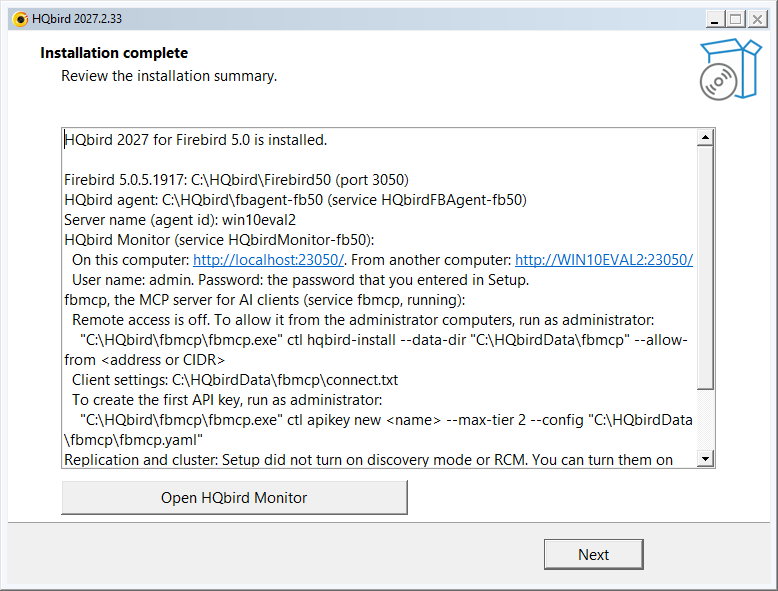
The summary shows:
- The Firebird version, folder and port.
- The HQbird agent folder, its service and the server name.
- The HQbird Monitor addresses: on this computer and from another computer.
- The user name of HQbird Monitor.
- Notes about fbmcp, replication and the optional steps.
Open HQbird Monitor opens the web console in the browser. Click Next.
Step 17: Finish
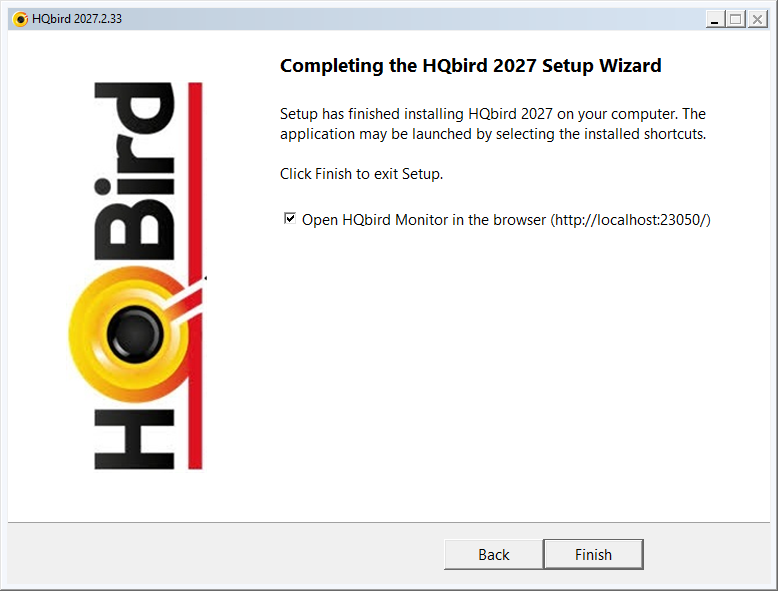
Keep Open HQbird Monitor in the browser selected to open the web console, and click Finish.
After the installation
- HQbird Monitor: open
http://localhost:23050/and sign in with the user name and password from step 7. - Start menu, group HQbird 2027: HQbird Monitor (Firebird 5.0, port 23050), HQbird documentation (Firebird 5.0), Connect to HQCenter (Firebird 5.0) and HQbird 2027 (Firebird 5.0) maintenance.
- Services:
FirebirdServerHQBirdInstanceFB5,HQbirdFBAgent-fb50andHQbirdMonitor-fb50run and start automatically. - Folders: programs in
C:\HQbird, working data inC:\HQbirdData.
3. Command-line installation (silent)
A silent run shows no window and asks no questions. Use it in scripts and for remote installation.
The command
Open a command prompt as administrator and run:
start /wait "" hqbird2027-fb50-setup-<version>.exe /VERYSILENT /SUPPRESSMSGBOXES /YES /LOG=C:\Temp\hqbird-setup.log
echo Exit code: %ERRORLEVEL%| Switch | Meaning |
|---|---|
/VERYSILENT |
No wizard and no progress window. The run accepts the license agreement |
/SUPPRESSMSGBOXES |
No message boxes |
/YES |
Answer the questions of Setup with yes (for example: stop Firebird) |
/LOG=<file> |
Write the Setup log. Always add it: the errors of a silent run are only in the log |
start /wait waits for the setup and puts its exit code into
%ERRORLEVEL%. Exit code 0 = installed.
Without more switches, Setup uses the defaults of the wizard: the folders
C:\HQbird and C:\HQbirdData, the Firebird port 3050, HQbird Monitor on
port 23050, no trial email, no license file, automatic updates of HQbird
only. The passwords are different
from the wizard:
- SYSDBA: Setup generates a password. Give your own with
/SYSDBAPASSFILE=. - HQbird Monitor: the user
adminwith a generated password. The password is inC:\HQbirdData\config\access.properties(administrators only). Give your own with/HQMLOGIN=and/HQMPASSFILE=.
Example: silent installation with your passwords
cd /d C:\Temp
echo Sysdba-2027-Pass>sysdba.txt
echo Monitor-2027-Pass>hqm.txt
start /wait "" hqbird2027-fb50-setup-<version>.exe /VERYSILENT /SUPPRESSMSGBOXES /YES /SYSDBAPASSFILE=sysdba.txt /HQMLOGIN=admin /HQMPASSFILE=hqm.txt /LOG=C:\Temp\hqbird-setup.log
echo Exit code: %ERRORLEVEL%
del sysdba.txt hqm.txt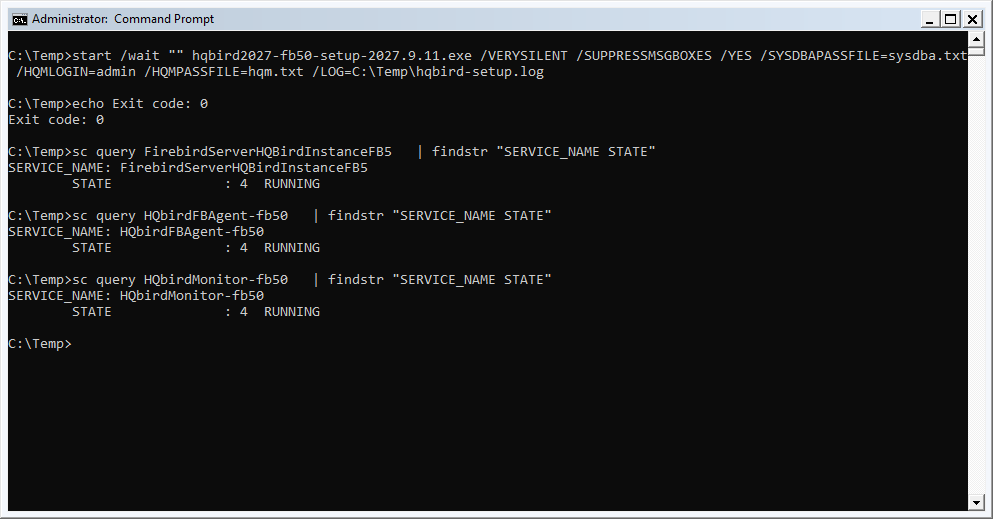
Notes:
- A password file is a UTF-8 text file. Setup reads its first line.
- Do not put a space before
>in theechocommand: the space becomes a part of the password. - A relative file path counts from the folder of the setup.
- In PowerShell, write the file with
Set-Content -Encoding UTF8. The>of PowerShell writes UTF-16, and Setup refuses such a file.
The same in PowerShell (run as administrator):
Set-Content -Path C:\Temp\sysdba.txt -Value 'Sysdba-2027-Pass' -Encoding UTF8
Set-Content -Path C:\Temp\hqm.txt -Value 'Monitor-2027-Pass' -Encoding UTF8
$p = Start-Process -Wait -PassThru -FilePath C:\Temp\hqbird2027-fb50-setup-<version>.exe `
  -ArgumentList '/VERYSILENT', '/SUPPRESSMSGBOXES', '/YES', `
    '/SYSDBAPASSFILE=C:\Temp\sysdba.txt', '/HQMLOGIN=admin', '/HQMPASSFILE=C:\Temp\hqm.txt', `
    '/LOG=C:\Temp\hqbird-setup.log'
$p.ExitCode   # 0 = installed
Remove-Item C:\Temp\sysdba.txt, C:\Temp\hqm.txt
Switches for the settings of the wizard
Each setting of the wizard has a switch:
| Wizard page | Switch | Default |
|---|---|---|
| Server check results | /NOFBMCP: do not install fbmcp |
fbmcp is installed |
| Installation folders | /HQBIRDROOT=<folder>: HQbird folder |
C:\HQbird |
| Installation folders | /DATAROOT=<folder>: data folder |
C:\HQbirdData |
| Firebird server | /FBDIR=<folder>: Firebird folder |
C:\HQbird\Firebird50 |
| Firebird server | /FBPORT=<port>: Firebird port |
3050 |
| Firebird server | /FBINSTANCE=<name>: the service is FirebirdServer<name> |
HQBirdInstanceFB5 |
| SYSDBA password | /SYSDBAPASSFILE=<file> |
generated |
| HQbird Monitor | /HQMPORT=<port> |
20000 + Firebird port |
| HQbird Monitor | /HQMLOGIN=<name> /HQMPASSFILE=<file> |
admin, generated password |
| Server name | /AGENTID=<name> |
computer name in lowercase |
| Replication and cluster setup | /DISCOVERY: turn on discovery mode for 24 hours |
off |
| Replication and cluster setup | /RCM: install RCM on this server |
off |
| Trial period | /EMAIL=<address> /ACCEPTPRIVACY [/MAILLANG=en|ru|pt-BR] |
no trial email |
| Automatic updates | /AUTOUPDATE=all|agent|off: agent = HQbird only, all = HQbird and Firebird, off = no update checks |
agent |
| License file | /LICENSE=<file> |
none |
| Connect to HQCenter | /ATTACH=<attach.json> |
attach.json in the folder of the setup, if it is there |
| Language list | /LANG=en|pt_BR|de|ru|es|pl|tr|zh_CN |
language of Windows |
/SYSDBAPASS=<password> and /HQMPASS=<password> also work, but the
password is then visible in the Setup log. Prefer the password files.
/AUTOUPDATE= has an effect only while the server is not connected to
HQCenter. With HQCenter, HQCenter controls the updates.
In a silent run, /LANG= sets the language of some messages in the log.
Use /LANG=en for an English log.
Example with other folders, another port and a trial email:
start /wait "" hqbird2027-fb50-setup-<version>.exe /VERYSILENT /SUPPRESSMSGBOXES /YES ^
  /HQBIRDROOT=D:\HQbird /DATAROOT=D:\HQbirdData /FBPORT=3055 ^
  /SYSDBAPASSFILE=C:\Temp\sysdba.txt /HQMLOGIN=admin /HQMPASSFILE=C:\Temp\hqm.txt ^
  /[email protected] /ACCEPTPRIVACY /MAILLANG=en ^
  /LANG=en /LOG=C:\Temp\hqbird-setup.log
Exit codes
| Code | Meaning |
|---|---|
| 0 | Installed |
| 1 | Refused before the installation: a bad switch or file, a newer version is installed, or no administrator rights. The reason is in the log |
| 4 | Setup had a question and the command had no /YES |
| 7 | The server check or the installation failed. The error is in the log and in %ProgramData%\fbagent\hqbird2027-setup-result.json |
| 10 | Installed, but the connection to HQCenter failed |
Check the result
sc query FirebirdServerHQBirdInstanceFB5 | findstr "SERVICE_NAME STATE"
sc query HQbirdFBAgent-fb50 | findstr "SERVICE_NAME STATE"
sc query HQbirdMonitor-fb50 | findstr "SERVICE_NAME STATE"
The three services must be in the state RUNNING. Then open
http://localhost:23050/ and sign in to HQbird Monitor.
A script that stops when the installation fails:
@echo off
start /wait "" hqbird2027-fb50-setup-<version>.exe /VERYSILENT /SUPPRESSMSGBOXES /YES /LOG=C:\Temp\hqbird-setup.log
if errorlevel 1 (
  echo HQbird setup failed with code %ERRORLEVEL%, see C:\Temp\hqbird-setup.log
  exit /b %ERRORLEVEL%
)
echo HQbird 2027 installed
Silent removal
start /wait "" "C:\HQbird\setup\fb50\unins000.exe" /VERYSILENTThis removes the programs and the services. Databases, the configuration
files and the Firebird security database stay. Add /REMOVEDATA to remove
the working data, the security database and the configuration files too.
Database files always stay.
4. More information
- Update, maintenance, several instances, HQCenter, all switches and troubleshooting:
hqbird2027-windows-setup-guide.md. - Removal on Windows and Linux: Removal.
- Linux installer: Linux setup guide.