Centralized HQbird Monitoring
HQCenter is a private HQbird Control Center: it gathers alerts and near real-time Firebird performance logs from your HQbird instances so you can see many servers on one page - hosted for your company, not on a public portal.
Short overview of HQbird Advanced Monitoring

Firebird exposes performance data through Trace API, MON$ tables, fb_lock_print, gstat -h, and firebird.log. HQbird Advanced Monitoring uses all of them to give a full picture of the server and databases.
Graphs
- IO metrics - reads (disk / OS file cache), writes, fetches (CPU-related), marks (cache flush activity)
- Load metrics - users, active queries, and SQL ping per monitored database
- Query metrics - queries per minute, total execution time, fetches, reads, writes, marks
- Computer / VM load - RAM and CPU (Windows) or load average (Linux)
- Transaction metrics - Next-OAT (long-running writable transactions holding garbage), OST-OIT (pending sweep), and new transactions per minute
- Lock table metrics - mutex wait percentage, lock table size, minimum hash slot chain length (useful for
firebird.conftuning under high load)
Per-minute details
Every minute the module also collects:
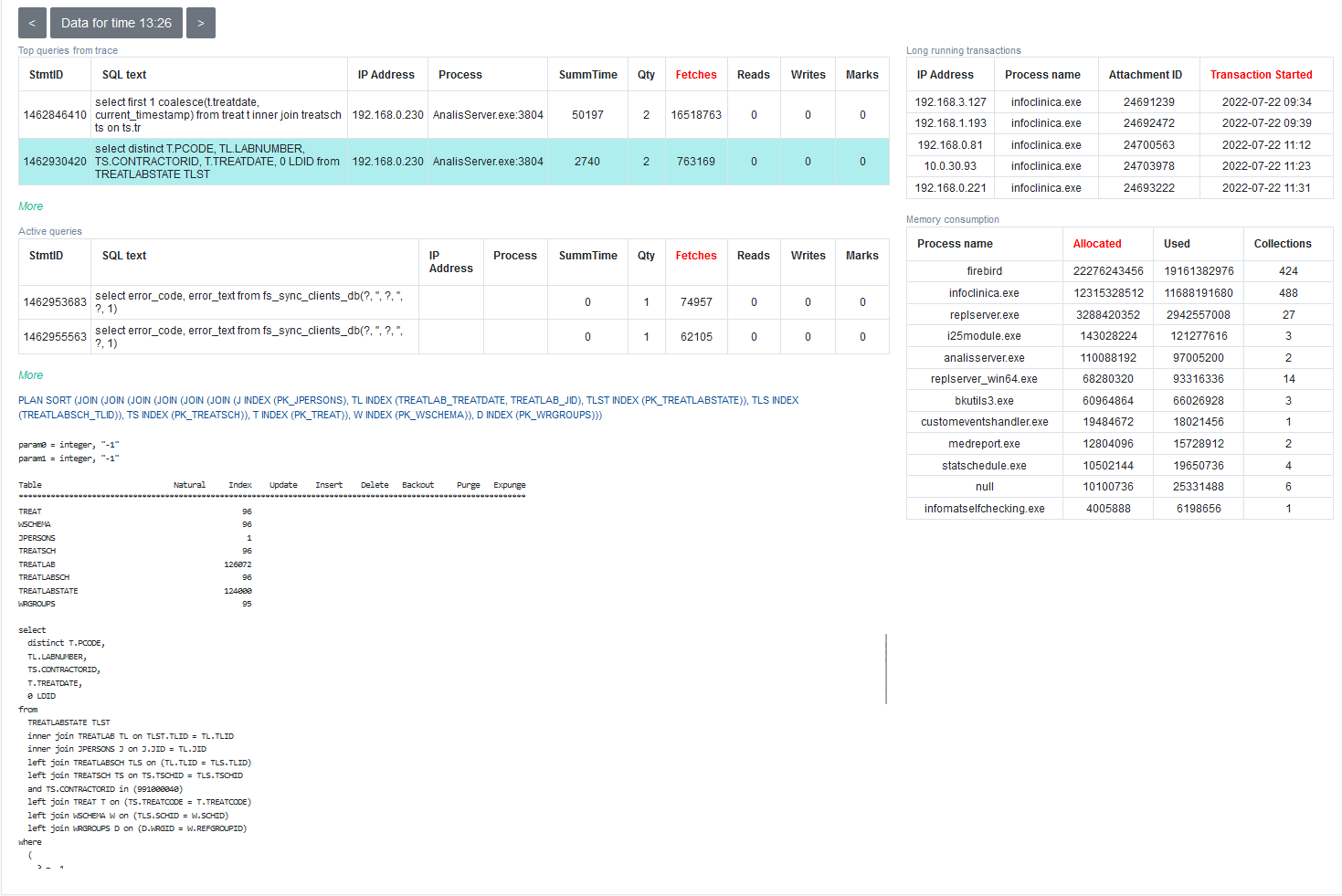
- Top SQL queries for the current minute (default threshold 200 ms), sortable by fetches, time, reads, writes, or marks - with client host, SQL text, plan, statistics, and parameters
- Top long-running active transactions with start times and client applications
- Client processes connected to the database: application name, connection count, memory consumed and allocated
Click a SQL query to see full text, execution statistics, plan, and parameters.
How to link HQbird to private HQCenter
With HQbird from v2022 onward, each instance can send monitoring data to your private HQCenter. Your HQCenter administrator creates accounts and issues the keyanswers.txt file that points HQbird at that private server.
1. Get keyanswers.txt from your administrator
Your private HQCenter administrator creates the account and gives you keyanswers.txt - it contains the access point for your HQCenter.
2. Link your HQbird instance
- Open the HQbird web console (default
http://localhost:8082). - Click the Control Center integration icon in the upper-right corner.
- Upload
keyanswers.txtvia Choose HQbird Control Center access point (keyanswers.txt). - Confirm the success message, then optionally use Check direct access to control center.

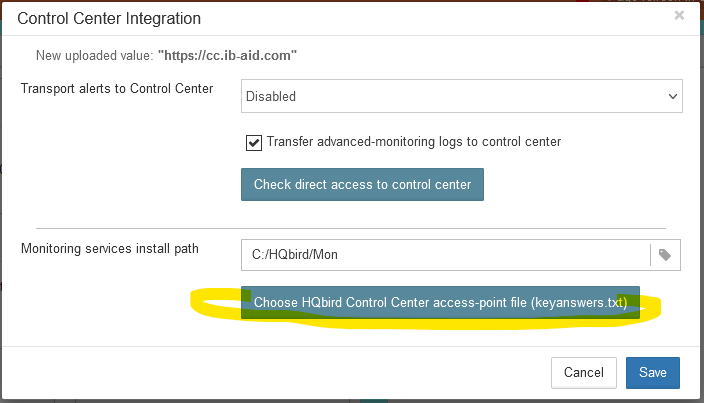
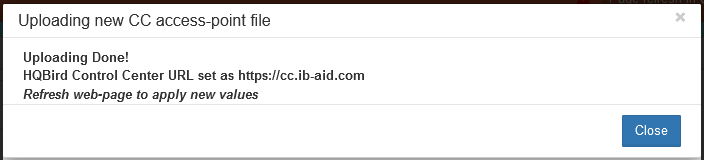
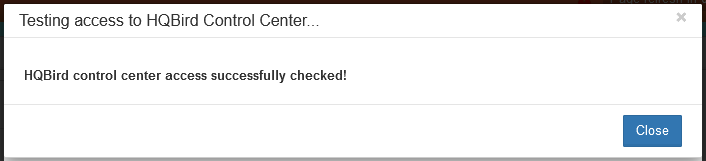
If linking fails, allow outgoing connections from the HQbird host to your private HQCenter on ports 80 and 18080. New servers can take up to about five minutes to appear.
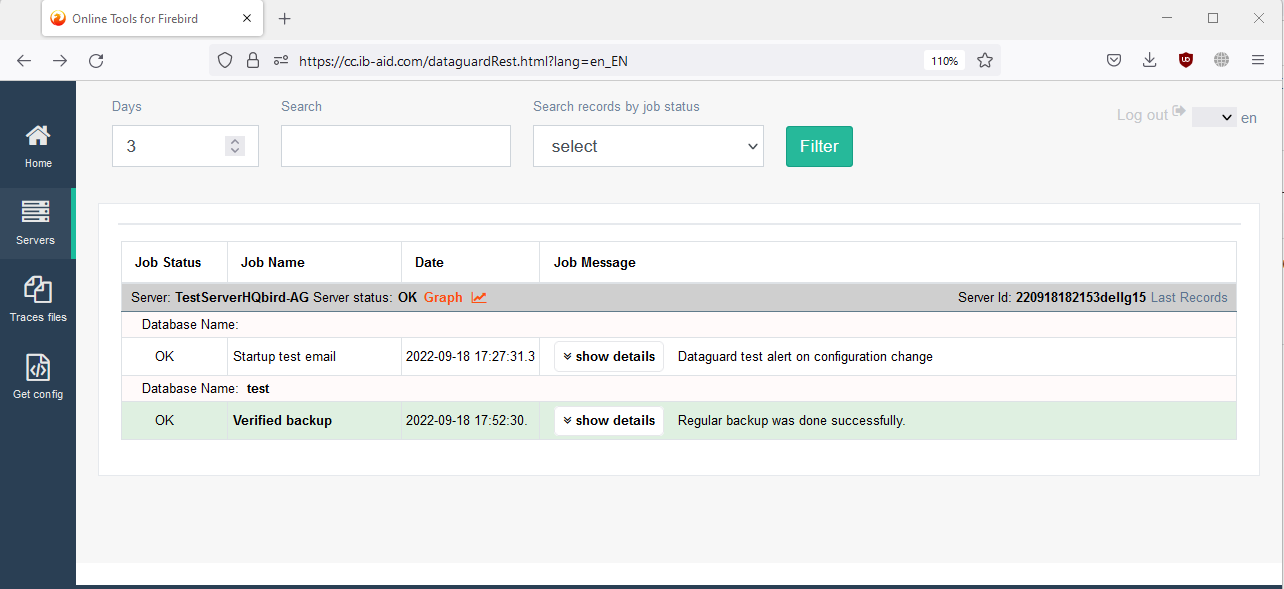
After a successful link you will see alerts (backups, performance issues, and more). Open Graphs to view Advanced Monitoring data for many servers on one page - the same data available locally in Advanced Monitoring Viewer:
Questions about private HQCenter? Email [email protected].