Firebird database encryption for a closed-source application
Documentation · 1.3.4, 26.11.2026
Firebird database encryption for a closed-source application
Preface
Purpose of the document
This document tells how to enable Firebird database encryption for a ready-made Windows application that you cannot change. The readers are system administrators, database administrators and deployment specialists.
Use case
An organization uses an application program: for accounting, warehouse, medical or other work. The program keeps its data in a Firebird 3.0, 4.0 or 5.0 database.
Initial conditions:
-
There are no source codes of the program, or the developer does not change it.
-
The database contains data that must be protected: personal data, trade secrets. A law, a contract or the rules of the organization require this protection.
-
The administrator can change files in the program folder on the workstations and the settings of the Firebird server.
-
The program works in one of two configurations: several workstations and a Firebird server in the network, or one workstation with the database in embedded mode.
Required result:
-
Nobody can read the database file and its copies without the key.
-
The program works as before. Its files do not change.
-
The key is not kept on the server near the database.
-
The administrator selects where the key is: in a library, in a file on a removable disk, in the memory of a person (pass phrase) or at a key service.
Solution: the IBSurgeon encryption plugin on the server and a small library KeySource.dll near the Firebird client library on the workstation. The library gives the encryption key at each connection.
If you have HQbird, the plugin files are already on the server and in the folder of client libraries. You do not need to download the plugin archive or copy its files: see If you have HQbird.
Scope of the document
-
Workstations: Windows x64. The programs of the example are built for 64 bits only.
-
The server in the example: Firebird for Windows that runs as a usual program.
-
Applications that you can change, and Java and .NET clients, are described in the main guide.
-
Key generation, utilities and all plugin parameters are described in the main guide: fbcrypt.html[Firebird Encryption plugin (PDF)].
How to read the document
The document contains a ready example for Firebird 3.0, 4.0 and 5.0. Start with the chapter Quick start: it installs the example on your computer in a few minutes.
The main text is short. Reference data is in the "Details" blocks. In HTML and on GitHub, click a block to open it. In PDF, all blocks are open.
Details: contents of the example and what you need to use it
The example contains:
-
the application
EmployeeAppwith a data table. It plays the role of the closed-source application; -
four variants of the library
KeySource.dll: the key in the code, the key in a file, the key from a tray program in Windows, the key from a REST service; -
scripts that download Firebird and the plugin, install a separate server and make the workstation folders;
-
an automatic test of all combinations.
What you need to use the example:
-
Windows 10 or later, PowerShell 5.1;
-
internet access to
github.comandcc.ib-aid.com; -
Lazarus 4 with Free Pascal, if you want to build the programs yourself. You can download the ready programs.
Source codes of the example: folder examples/closed-gui.
1. The task: where is the key
The DbCrypt plugin encrypts the pages of the database file. Without the key, nobody can read the file. This protects against theft of the file, the disk, the server and the disk backup.
Without the key, the server does not open the database. Something must give the key to the server.
-
Bad way: write the key to a file on the server. A person who steals the server gets the database and the key together.
-
Correct way: the server does not keep the key. Each connection brings the key.
An application with source codes brings the key with a call to the fbcrypt library. A closed-source application cannot do this. For such an application, the library KeySource.dll gives the key.
|
Important
|
The key is always somewhere on the workstation side: in a file, in the memory of a program, in the head of a person, at a key service. The |
Details: what encryption does not do
-
A user who connected to the database with the correct key and password sees the data as usual.
-
Encryption does not replace SQL access rights and user passwords.
-
A
gbakbackup is not encrypted automatically. You must encrypt it separately, see Backup: also encrypted.
2. How the key gets to the database
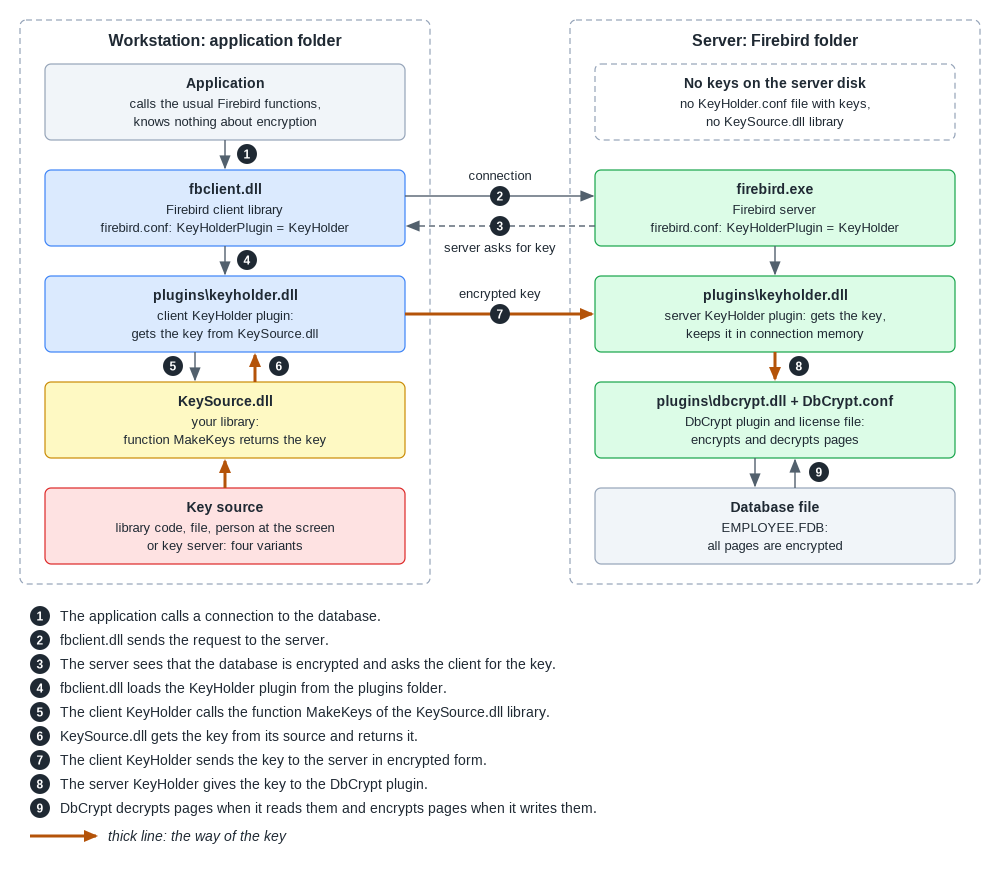
Details: what each component does
| Component | What it does |
|---|---|
Application |
Calls the usual functions of the Firebird client library. It does not know about encryption. |
|
The Firebird client library. It reads the file |
Client |
The plugin |
|
Your library. It exports one function |
Server |
The same plugin on the server. It receives the key from the client and gives it to the |
|
The encryption plugin |
2.1. Usual connection
The server asks for the key. The client plugin KeyHolder calls the function MakeKeys of the library KeySource.dll and sends the key to the server. The application does nothing for this.
The server asks for the key only on a TCP/IP connection. On XNET (xnet://) the key from KeySource.dll is not sent: the connection fails with the error Key not set. A local path without a server name is not suitable either: it is embedded mode or XNET. The connection string of the application must always have a server name, for example localhost:database or server/3050:database. Details: the main guide, section "Connection kinds".
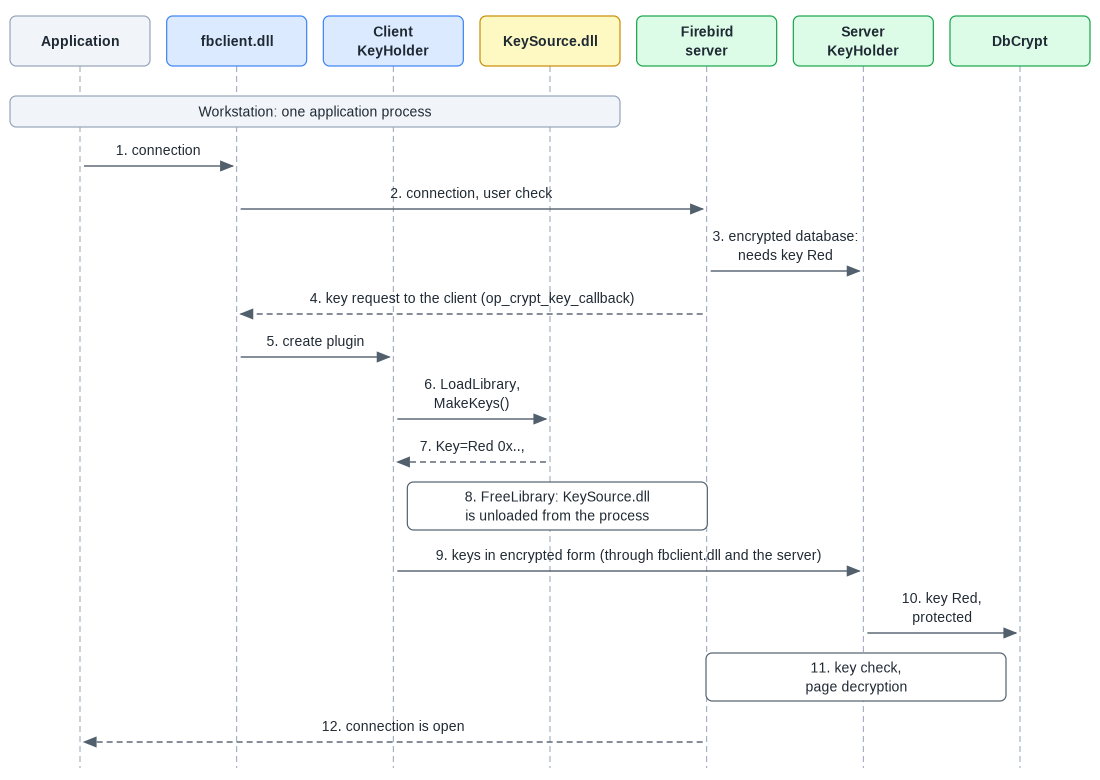
Details: properties of this configuration
-
The client creates the
KeyHolderplugin again for each connection. Each time, the plugin loadsKeySource.dlland callsMakeKeysone time. -
The key goes from the client to the server in encrypted form. Key pairs built into the plugins protect the exchange.
-
The client sends to the server all the keys that
MakeKeysreturned. -
The server does not keep the key for other connections. A connection without the key gets an error, also when another client works with the database at the same time.
2.2. Embedded
In embedded mode, there is no server. The Firebird engine works inside the application, and its KeyHolder plugin calls MakeKeys itself. The key does not go through the network.
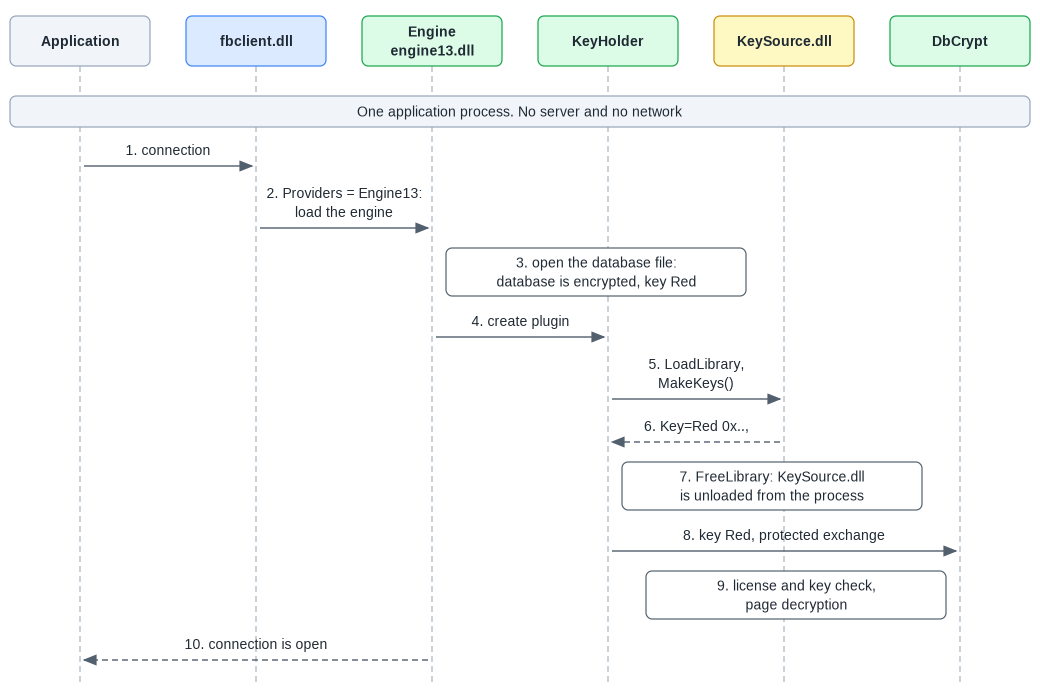
Details: differences from the usual connection
-
The
DbCryptplugin and the license fileDbCrypt.confare in the application folder. -
The application does not enable embedded mode. The line
Providers = Engine13(for Firebird 3.0:Engine12) in the filefirebird.confnearfbclient.dllenables it.
3. Differences between Firebird 3.0, 4.0 and 5.0
The library KeySource.dll is the same for all three versions: one source code, one file. The environment is different.
|
Warning
|
Firebird 3.0: the official client library |
Details: table of differences
| Property | Firebird 3.0 | Firebird 4.0 | Firebird 5.0 |
|---|---|---|---|
Plugin archive |
|
|
|
Provider for embedded |
|
|
|
|
only from the plugin archive |
from the plugin archive; the official one also works |
from the plugin archive; the official one also works |
Encryption state in SQL |
no; see |
|
|
Error without the key when another client has the database open |
|
|
the same |
ICU libraries |
|
|
|
C++ libraries |
|
|
the same and |
Size of the embedded folder |
28 MB |
53 MB |
53 MB |
Own |
necessary |
not necessary |
not necessary |
The switches of the utilities gbak, nbackup and others are also different in 3.0. They are described in the main guide, chapter "Support in the Firebird command line utilities".
4. Quick start
The example installs on your computer a separate Firebird 5.0 server with an encrypted database and an application that works with it.
What you need: Windows 10 or later, PowerShell 5.1, access to github.com and cc.ib-aid.com, 500 MB on the disk. You do not need administrator rights. The installed Firebird instances do not change.
-
Download the example and go to the folder of the scripts:
git clone https://github.com/IBSurgeon/FirebirdEncryptionGuide cd FirebirdEncryptionGuide\examples\closed-gui\deploy -
Allow scripts to run in this PowerShell window:
Set-ExecutionPolicy -Scope Process Bypass -
Download the ready programs of the example (4 MB):
.\05-download-example.ps1If you have Lazarus, skip this step. The next script then builds the programs: add
-LazarusDir D:\lazarusto its command. -
Do all the deployment steps:
.\run-all.ps1 -Version 5The script downloads Firebird (25 MB) and the plugin archive (37 MB), installs the server on port 30055, encrypts a copy of the
employeedatabase with the test keyRedand makes the workstation folder. At the end, it writes:Ready. Firebird 5.0.4.1812, port 30055, KeySource variant: a Network connection: ...\work\fb5\remote\EmployeeRemote.exe Embedded: ...\work\fb5\embedded\EmployeeEmbedded.exe Stop the server: .\12-stop-server.ps1 -Version 5 -
Start the application and click Connect:
..\work\fb5\remote\EmployeeRemote.exe
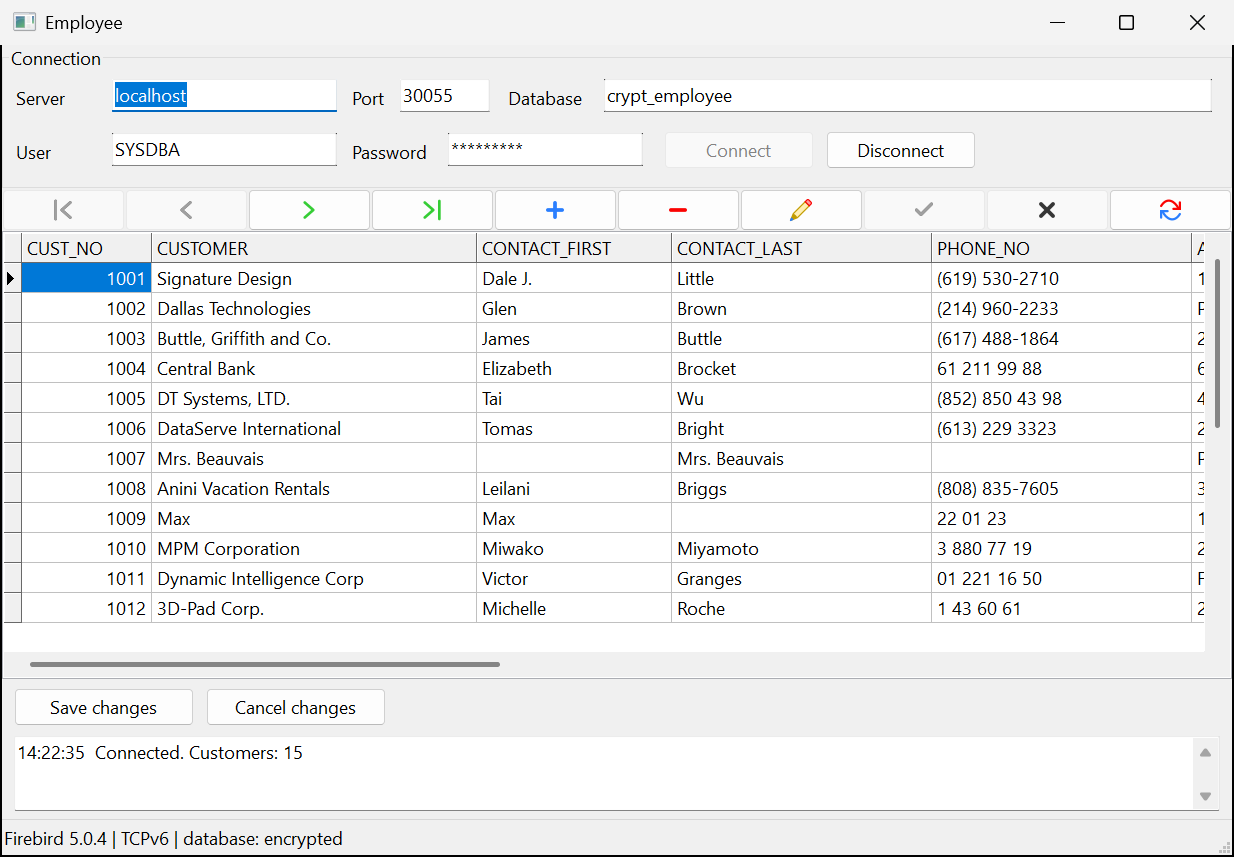
The application shows the table CUSTOMER from the encrypted database. The status bar shows database: encrypted. The library KeySource.dll from the application folder gave the key to the server.
What to try next:
-
Change a value in the table and click Save changes. The data is written to the encrypted database.
-
Open the log
..\work\fb5\remote\KeySource.log. It has one line for each key request. -
Close the application and rename the file
..\work\fb5\remote\KeySource.dll. Start the application and click Connect. The server refuses:Key not set. Give the file its old name again. -
Start
..\work\fb5\embedded\EmployeeEmbedded.exe. This is the same application in embedded mode: without a server, with its own copy of the database.
When you finish, stop the server and delete the version folder:
.\cleanup.ps1 -Version 5Details: other Firebird versions and other KeySource variants
.\run-all.ps1 -Version 3
.\run-all.ps1 -Version 4 -KeySource b
.\40-deploy-remote.ps1 -Version 5 -KeySource c
Servers of the three versions work at the same time: ports 30053, 30054 and 30055. The four KeySource variants are described in the chapter Four KeySource variants.
The folder work contains all that the example downloaded and created: work\downloads, work\build, work\fb<N>. The parameter -All of the script cleanup.ps1 also deletes the downloaded archives.
4.1. With a pass phrase
You can encrypt the database with a pass phrase instead of a key 0x…. A person knows the phrase, it is not on the disk.
.\run-all.ps1 -Version 5 -AskPassphrase
..\work\fb5\remote\EmployeeRemote.exe
The script asks for the phrase and encrypts the database with it. It makes the workstation with variant c: at the first connection, a tray program in Windows asks for the phrase and keeps it in memory.
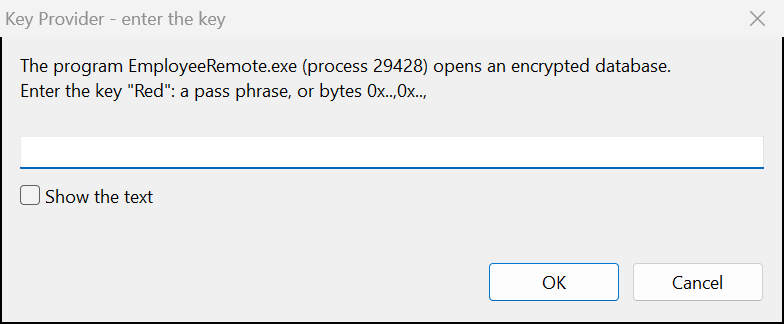
If the example server is already installed, first run .\cleanup.ps1 -Version 5. More information: Encryption: a key or a pass phrase and Variant c: the key provider.
|
Warning
|
The key The plugin archive contains a trial license. It is valid until the end of the current month. A production system needs a permanent IBSurgeon license. |
5. Deployment step by step
Each script does one step. The download scripts install nothing. The installation scripts download nothing.
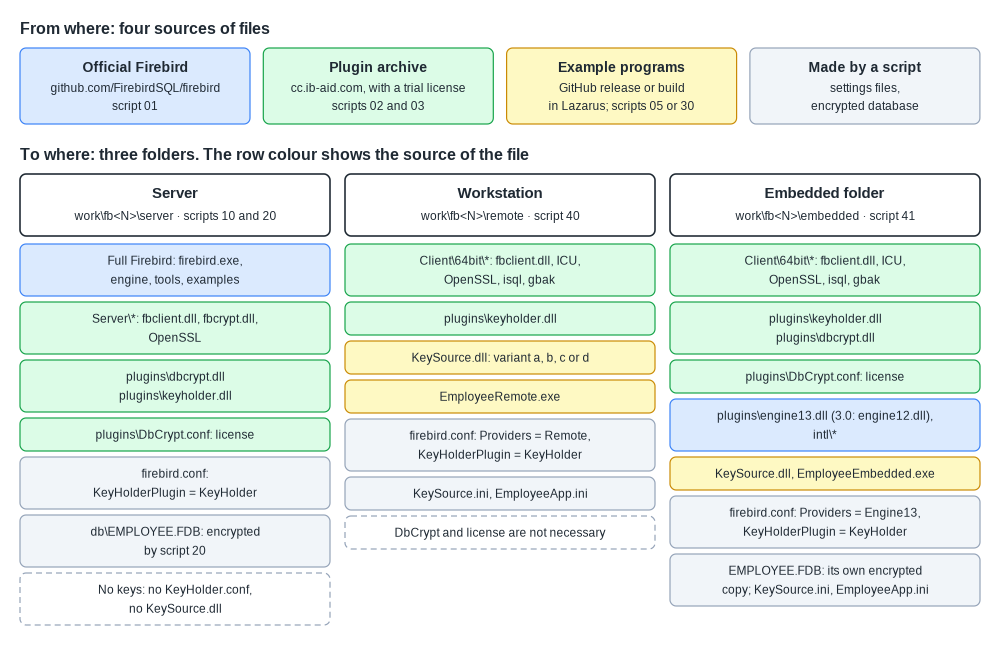
5.1. Scripts
The scripts are in the folder examples\closed-gui\deploy. The number in the name sets the order. The parameter -Version 3|4|5 selects the Firebird version.
Details: list of scripts, versions and ports
The parameter -WorkDir sets the work folder; the default is examples\closed-gui\work.
| Script | What it does |
|---|---|
|
Downloads the official Firebird archive from |
|
Downloads the plugin archive from |
|
Takes the trial license from the plugin archive. Checks the expiry date. The parameter |
|
Downloads the ready programs of the example to |
|
Unpacks Firebird, copies the folder |
|
Start and stop the server as a usual program. |
|
Encrypts a copy of the |
|
Builds the application, the libraries and the key provider. Lazarus is necessary. |
|
Makes the workstation folder. The parameter |
|
Makes the embedded folder. The parameter |
|
Does the steps in order. |
|
Makes an encrypted backup and checks it with a test restore. See Backup: also encrypted. |
|
Stops the server and deletes the folder |
The Firebird versions, the archive addresses and the ports are in the file versions.psd1.
| Version | Official build | Example port |
|---|---|---|
3.0 |
3.0.14.33856 |
30053 |
4.0 |
4.0.7.3271 |
30054 |
5.0 |
5.0.4.1812 |
30055 |
Servers of the three versions work at the same time.
5.2. Server
The script 10-install-server.ps1 does the same as you must do on a real server: it copies the plugin and the license to the Firebird folder and adds this line to firebird.conf:
KeyHolderPlugin = KeyHolderIf HQbird is installed on the server, you do not need to copy the plugin. You need only the license and the line KeyHolderPlugin: see If you have HQbird.
There is no file plugins\KeyHolder.conf on the server. The server keeps no keys, so the file is not necessary.
Details: server installation steps
-
The folder
Serverfrom the plugin archive is copied over the Firebird folder. It contains the client library,fbcrypt.dll, OpenSSL, the pluginsplugins\dbcrypt.dllandplugins\keyholder.dll. -
The license file is copied to
plugins\DbCrypt.conf. -
These lines are added to the end of the file
firebird.conf:RemoteServicePort = 30055 IpcName = FB_CLOSED_GUI_5 KeyHolderPlugin = KeyHolderOnly the example needs the first two lines: they separate its server from other Firebird instances on the computer.
The server needs the file plugins\KeyHolder.conf only for plugin parameters, for example UnsafeClient for Jaybird and .NET clients. The parameters are described in the main guide, chapter "Parameter reference". Without the file, the plugin works with the default values.
5.3. Encryption: a key or a pass phrase
The script 20-encrypt-database.ps1 encrypts a copy of the employee database. The server is stopped during this time. There are two kinds of key:
# test key Red: 32 bytes in the form 0x..,0x..,
.\20-encrypt-database.ps1 -Version 5

# pass phrase: the script asks for it, it is not visible on the screen
.\20-encrypt-database.ps1 -Version 5 -AskPassphrase

# pass phrase in the command and your own key name
.\20-encrypt-database.ps1 -Version 5 -KeyName Main -Passphrase "my long pass phrase 2026"
Key Key=<name> 0x.., |
Phrase Password=<name> <phrase> |
|
|---|---|---|
What it is |
16, 24 or 32 random bytes |
text; the plugin calculates the key from it |
Who keeps it |
a file, a library, a key service |
a person |
Applicable to |
variants a, b, d |
variant c and the parameter |
The encryption command is always the same: ALTER DATABASE ENCRYPT WITH "DbCrypt" KEY <name>. The line that the KeyHolder plugin receives sets the kind of key.
|
Warning
|
The pass phrase must be long: it is possible to guess a short phrase. Do not use the characters |
Details: steps of the script and the file db-key.conf
-
Copies
employee.fdbfrom the Firebird examples towork\fb<N>\db\EMPLOYEE.FDB. -
Creates a temporary file
plugins\KeyHolder.confwith the key line:Key=Red 0x..,orPassword=Main my long pass phrase 2026. The file is written in UTF-8 without BOM. -
Runs the command
ALTER DATABASE ENCRYPT WITH "DbCrypt" KEY <name>inisql. -
Waits until the field
MON$CRYPT_PAGEgoes back to zero. Encryption runs in the background and only while a connection is open. -
Checks the header:
gstat -hshowsAttributes encrypted, plugin DbCrypt. -
Deletes the file
plugins\KeyHolder.conf. -
Makes a second copy of the encrypted file for embedded mode.
-
Writes the key line to the file
work\fb<N>\db-key.conf.
Only the example needs the file db-key.conf. The scripts 40 and 41 take the key name and the key line from it to set up the KeySource variants. With real data, such a file must not be near the server: the key or the phrase is kept only in your key storage.
The parameter -Passphrase leaves the phrase in the PowerShell command history. For a real phrase, use -AskPassphrase.
Variant a works only with the test key Red: this key is written in the code of the library. If the database is encrypted with a different key or phrase, the scripts 40 and 41 with the parameter -KeySource a stop with a message about it.
Details: how to encrypt your own database
Method 1, on the server, as in the script:
-
Stop the server or disconnect the users.
-
Create the file
plugins\KeyHolder.confwith one line:Key=<name> 0x..,orPassword=<name> <phrase>. -
Connect to the database and run
ALTER DATABASE ENCRYPT WITH "DbCrypt" KEY <name>. Do not close the connection until the encryption is complete. -
Delete the file
plugins\KeyHolder.conf.
Method 2, from a workstation, without a file on the server. Run the same command in isql from the workstation folder. KeySource.dll gives the key to the server:
ALTER DATABASE ENCRYPT WITH "DbCrypt" KEY Main;Method 2 works on Firebird 3.0, 4.0 and 5.0.
Key generation, decryption and key change are described in the main guide, chapter "Encryption, decryption and key change".
5.4. Workstation folder
The script 40-deploy-remote.ps1 makes the folder work\fb<N>\remote: the Firebird client from the plugin archive, the KeyHolder plugin, the library KeySource.dll and the application. If you have HQbird, take the Firebird client and the KeyHolder plugin from the folder ClientLibs: see If you have HQbird.
Details: contents of the folder
EmployeeRemote.exe      application
EmployeeApp.ini         connection parameters of the application
fbclient.dll            client library from the plugin archive
firebird.conf           two lines, see below
firebird.msg
icu*.dll, icudt*.dat    ICU libraries
msvcp*.dll, vcruntime*  C++ libraries
libcrypto-*.dll         OpenSSL
plugins\keyholder.dll   KeyHolder plugin
KeySource.dll           library with the key
KeySource.ini           settings of the library
gbak.exe, isql.exe ...  utilities from the plugin archive
The workstation does not need the DbCrypt plugin and the license.
The file firebird.conf of the workstation:
Providers = Remote
KeyHolderPlugin = KeyHolder
The line KeyHolderPlugin enables the key transfer. Without it, the client does not load the plugin.
The line Providers = Remote gives the client only the network connection. The client does not try to load the embedded engine and its plugins, and does not look for a local server. The default value is Remote,Engine13,Loopback.
5.5. Embedded folder
The script 41-deploy-embedded.ps1 makes the folder work\fb<N>\embedded. It adds the Firebird engine, the DbCrypt plugin, the license and the database file to the workstation files.
Details: contents of the folder
EmployeeEmbedded.exe    application
plugins\engine13.dll    Firebird engine (engine12.dll for 3.0)
plugins\dbcrypt.dll     encryption plugin
plugins\DbCrypt.conf    license
intl\                   character sets
EMPLOYEE.FDB            encrypted database
The security database security5.fdb is not necessary in this folder.
The embedded engine and the server cannot open one database file at the same time. For this reason, the embedded folder has its own copy of the database.
The file firebird.conf:
Providers = Engine13
KeyHolderPlugin = KeyHolder
The line Providers = Engine13 (for Firebird 3.0: Engine12) keeps only the embedded engine: no network and no local server.
6. The example application
The application EmployeeApp is written in Lazarus with the SQLdb components. Its code has no line about encryption. It loads fbclient.dll from its folder, shows the table CUSTOMER and lets you change the data.
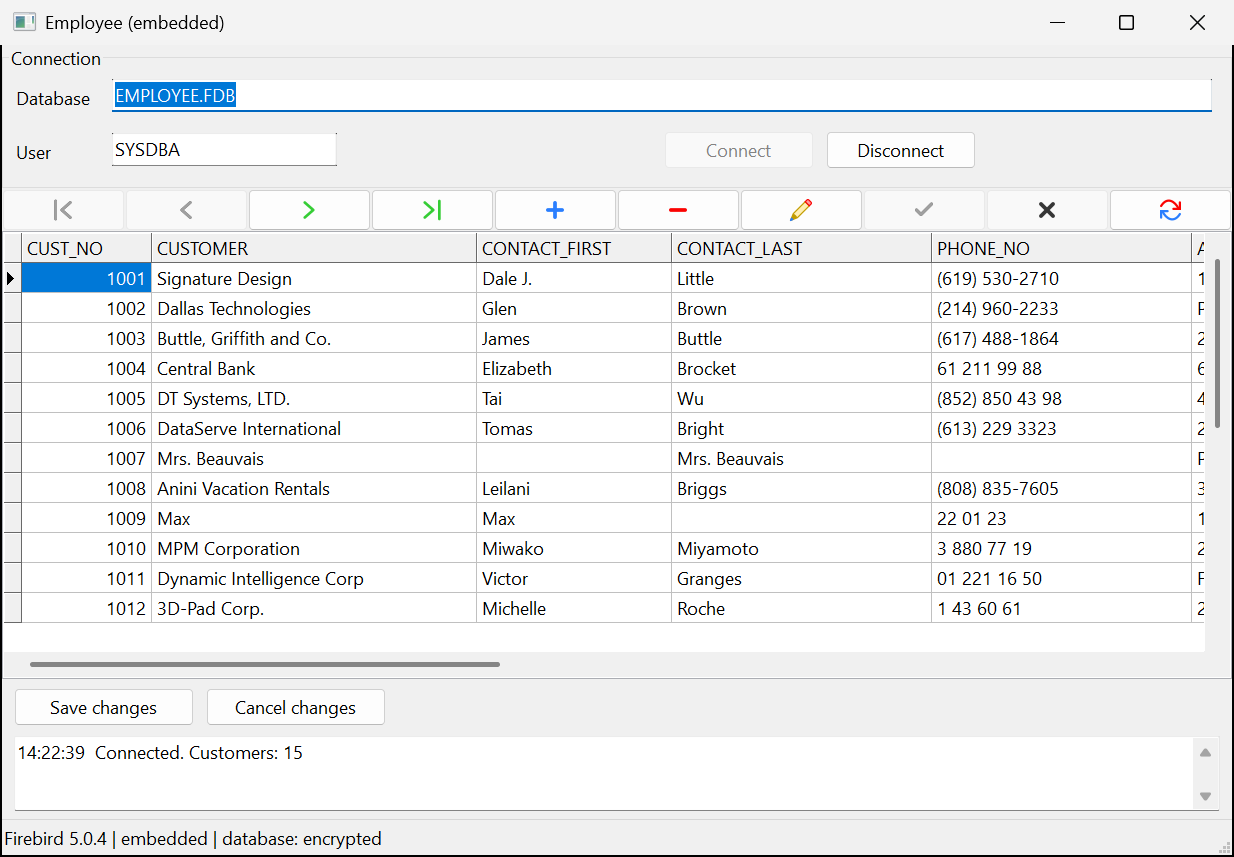
Details: what the application does
Source codes: examples\closed-gui\app\EmployeeApp. The application does the same as a usual old application:
-
connects to the database through the old ISC API;
-
shows the table
CUSTOMER, lets you change, add and delete rows; -
saves the changes with the button Save changes and cancels them with the button Cancel changes.
One source code gives two programs:
| Program | Purpose |
|---|---|
|
Connection to a server. Fields: server, port, database, user, password. |
|
Embedded mode. Fields: database file and user. |
The application reads the connection parameters from the file EmployeeApp.ini.
The start option /selftest runs a test without a user: connection, change of a row, new connection, read of the row. The result is written to selftest.log. The automatic test of the example uses this option.
7. Rules for the KeySource library
This chapter is for a person who writes an own library. To run the example, you can skip it.
7.1. The function MakeKeys
The library exports one function with the cdecl calling convention:
char* MakeKeys(char* (*allocator)(unsigned int size), unsigned int* size);-
Allocate memory for the text of the keys only with the function
allocator. The plugin releases it itself. -
Write the length of the text in bytes to
size. -
If you return
NULL, the connection fails with a key error.
Details: declaration in Free Pascal, memory, NULL
type
  TAllocator = function(size: Cardinal): PAnsiChar; cdecl;

function MakeKeys(Alloc: TAllocator; var Size: Cardinal): PAnsiChar; cdecl;-
The function
allocator(n)allocatesn + 1bytes. The plugin puts the terminating zero. -
If
MakeKeysreturnedNULL, the plugin looks for keys in the fileplugins\KeyHolder.confof its folder. If there is no file or no keys, the connection fails with an error.
7.2. Text of the keys
MakeKeys returns text: one line for each key, a line feed character separates the lines.
Key=Red 0xec,0xa1,0x52,0xf6,...,0x75,
Password=Main my long pass phrase 2026-
Key=<name> <bytes>: the key in hexadecimal form, 16, 24 or 32 bytes. -
Password=<name> <phrase>: a pass phrase. The plugin calculates the key from it.
The key name is the same as in the command ALTER DATABASE ENCRYPT … KEY <name>. Return only the keys that this workstation needs: the client sends all the received keys to the server.
Details: which characters are permitted in a pass phrase
The plugin parses the text as a Firebird configuration file. Do not use the characters #, ", {, } and the sequence $( in a pass phrase. Spaces at the start and at the end of the phrase are removed. A phrase with such characters gives a different key or a parse error.
Curly brackets are especially dangerous: with the phrase a {b} c in the file KeyHolder.conf, the command ALTER DATABASE ENCRYPT completes without an error, but the database stays not encrypted. Firebird 3.0, 4.0 and 5.0 all do this. After encryption, always look at gstat -h: the line Attributes must contain the word encrypted.
These pass without changes: letters, digits, a space inside the phrase, the characters ', ;, =, \ and Cyrillic text in UTF-8.
7.3. Four rules
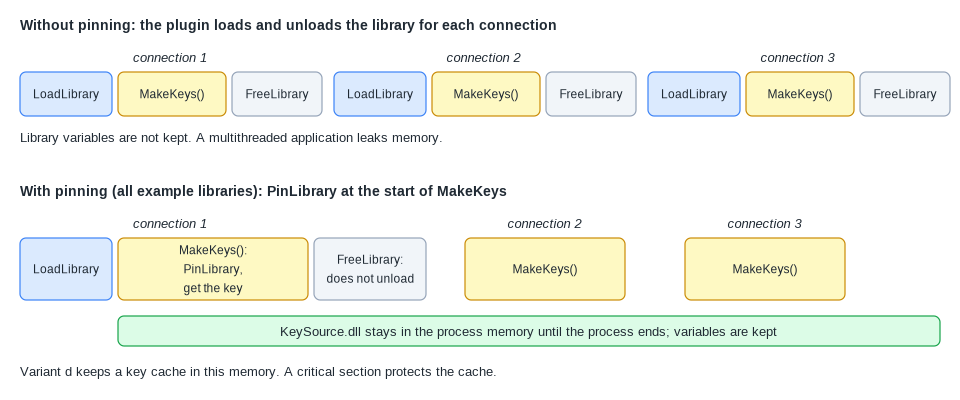
-
Pin the library in the process with the first line of
MakeKeys. If not, memory is lost. -
Do not create threads in the library.
-
A refusal must be fast. After a refusal, the client calls
MakeKeys5–9 more times. -
Do not put the workstation
KeySource.dllin the server folder. The serverKeyHolderalso calls it.
Details: how the plugin calls the library and how to pin it
The plugin works in the same way on Firebird 3.0, 4.0 and 5.0, at a usual connection and in embedded mode:
-
MakeKeysis called one time for each successful connection. -
If
MakeKeysreturnedNULL, the client calls it again for the same connection: 9 times on Firebird 3.0 and 4.0, 5 times on Firebird 5.0. Only after this, the application gets an error. In embedded mode and with an incorrect key, there is one call. -
Before the call, the plugin loads
KeySource.dll, after the call it unloads it. The global variables of the library are not kept between calls. -
Unloading a library in which several threads worked loses memory. A load test (8 threads, 1000 connections, a library in Free Pascal) showed a growth of process memory of 42 MB. With a pinned library, the growth is 4.5 MB, as for an application with one thread.
-
MakeKeyscan be called from several threads at the same time. -
You can wait inside
MakeKeys. A wait of 90 seconds does not break the connection.
Pinning the library. All four libraries of the example do it in this way:
GetModuleHandleExW(GET_MODULE_HANDLE_EX_FLAG_PIN or GET_MODULE_HANDLE_EX_FLAG_FROM_ADDRESS,
  @SomeFunctionOfTheLibrary, Module);
After this call, the library stays in the process until the process ends. Memory is not lost, global variables are kept. For this reason, variant d can keep a cache.
Fast refusal. A library that waits for the network or for the user must remember a refusal for a few seconds and return NULL at once on the repeated calls. If not, the user waits for the error 5–9 times longer and sees the same window several times. Variants c and d do this.
7.4. Where the plugin looks for the library
The plugin loads KeySource.dll by the full path from the folder that contains fbclient.dll. You cannot replace the library through the PATH variable.
|
Warning
|
If the environment variable |
Details: common unit of the example and build
All libraries of the example use the unit keysource\common\keysourcecommon.pas:
| Function | Purpose |
|---|---|
|
Copies the text of the keys to the memory of the plugin. An empty text gives |
|
Keeps only the lines |
|
Reads a setting from |
|
Writes a line to |
|
Pins the library in the process. It is called at the start of each |
Build of one library:
fpc -O2 -Fu..\common KeySource.lpr8. Four KeySource variants
The scripts 40-deploy-remote.ps1 and 41-deploy-embedded.ps1 accept the parameter -KeySource with the value a, b, c or d. They put the necessary library and the file KeySource.ini in the application folder.
| Variant | Where the key is | Command |
|---|---|---|
a |
in the code of the library |
|
b |
in a file, for example on a removable disk |
|
c |
in the memory of a tray program; a person enters it |
|
d |
at a key service in the network |
|
After the command, start ..\work\fb5\remote\EmployeeRemote.exe.
8.1. Variant a: the key in the library
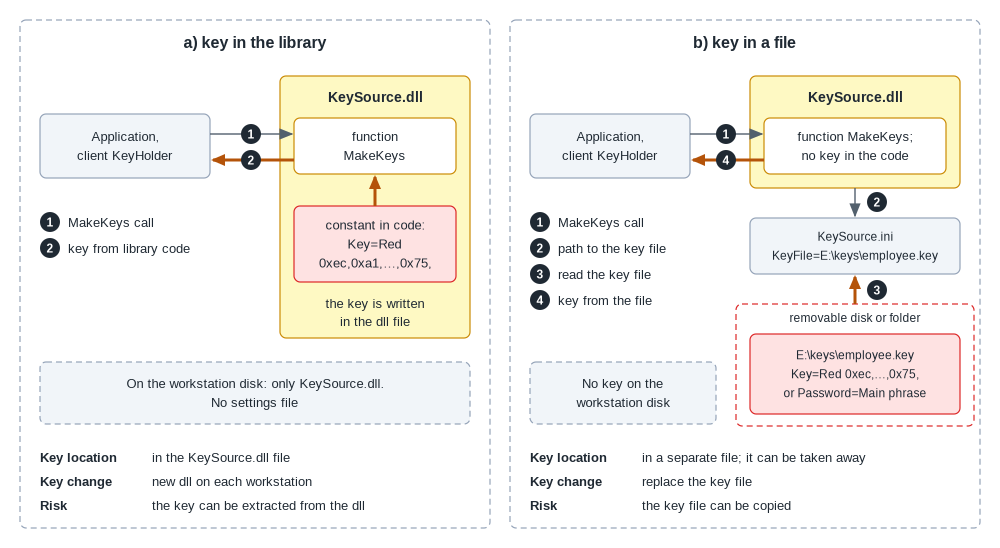
The key is written as a constant in the source code keysource\a-static\KeySource.lpr. Replace the key Red with your key and build the library.
-
When to use: protection against theft of the database file and backups. This is the simplest variant.
-
Risks: a person who copied
KeySource.dllcan extract the key. Limit the rights to the application folder.
Details: source code
const
  Keys: AnsiString =
    'Key=Red 0xec,0xa1,0x52,0xf6,...,0xdc,0x75,'#10;

function MakeKeys(Alloc: TAllocator; var Size: Cardinal): PAnsiChar; cdecl;
begin
  PinLibrary;
  Result := ReturnKeys(Alloc, Keys, Size);
end;
You can also write the line Password=<name> <phrase> in the constant. The example scripts install variant a only for a database with the key Red.
8.2. Variant b: the key in a file
The library reads the key file at each connection. The path to the file is set in KeySource.ini:
[KeySource]
KeyFile=E:\keys\employee.key-
When to use: the key is kept separately from the program. For example, on a removable disk that the user takes away, or in a folder with rights for a group of users.
-
Risks: it is possible to copy the key file. When the disk is removed, new connections are not possible, but the connections that are already open continue to work.
Details: file format and test
Source code: keysource\b-file\KeySource.lpr.
The key file has the format of KeyHolder.conf, encoding UTF-8. It contains a key line or a pass phrase line:
Key=Red 0xec,0xa1,0x52,0xf6,...,0xdc,0x75,You can use environment variables in the path, for example %USERPROFILE%\keys\employee.key. Without the parameter KeyFile, the library reads KeySource.key from its folder. The parameter Log=1 enables the log.
In the example, the folder work\fb5\keyfile plays the role of the removable disk. Rename it and click Connect again: the application shows a key error.
8.3. Variant c: the key provider
There is no key on the disk. A person enters the pass phrase or the key one time for each work session. A separate program KeyProvider.exe in the Windows tray keeps it in memory.
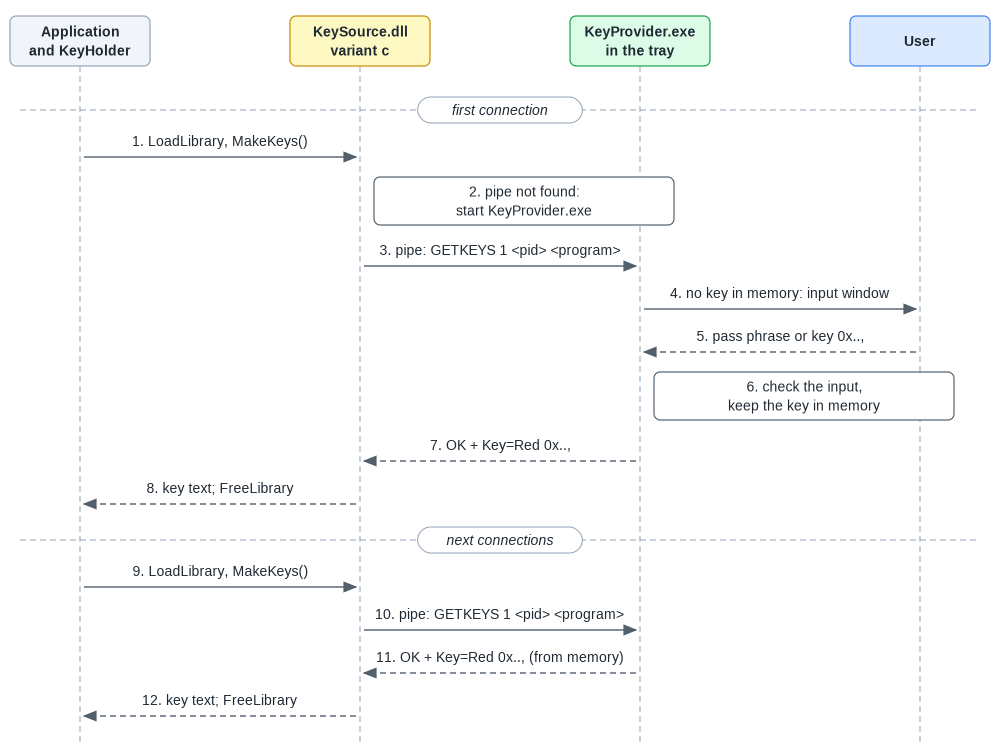
How it looks:
-
The user starts the application and clicks Connect.
-
The icon of the key provider appears in the Windows tray, and an input window appears on the screen.
-
The user enters the pass phrase. The application connects.
-
At the next connections, there is no window: the provider gives the key from memory. Other applications of this user get the key in the same way.
What to enter in the example: the phrase that you used to encrypt the database. For a database with the test key Red, enter the text after the key name from the file work\fb5\db-key.conf: 0xec,0xa1,…,0x75,.
-
When to use: the key must not be on the disk of the workstation. A person knows the pass phrase.
-
Risks: the key is in the memory of
KeyProvider.exewhile the program works. Any program of the same user can ask for it. It is possible to guess a short phrase.
Details: provider window, menu, incorrect input
Library: keysource\c-provider\KeySource.lpr. Key provider: keyprovider\.
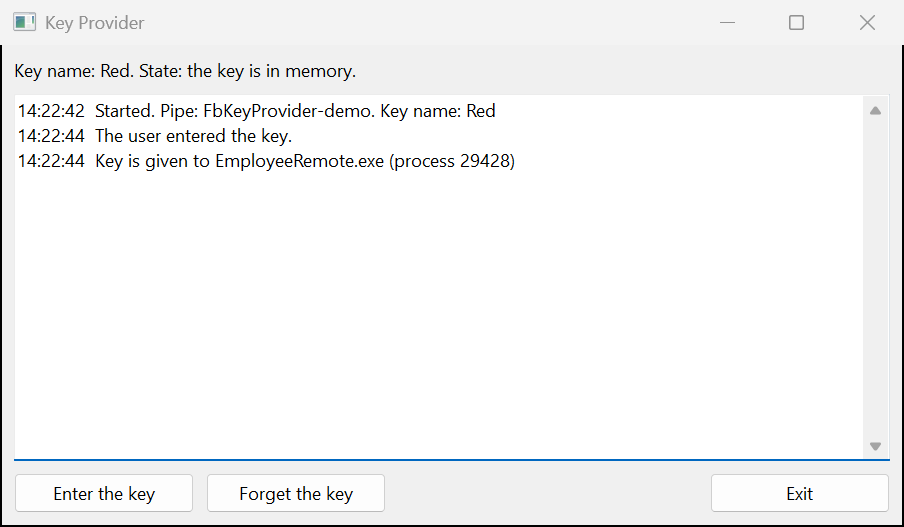
Menu of the tray icon: show the window, enter the key again, forget the key, key keep time (until exit, 15 minutes, 1 hour), exit.
The provider finds the kind of input itself. A text of the form 0x..,0x.., with a length of 16, 24 or 32 bytes becomes the line Key=<name> …. Any other text becomes the line Password=<name> <phrase> in UTF-8.
If the user entered an incorrect phrase, the server returns a key error. Select "Forget the key" in the menu and connect again.
If the user clicked Cancel, for 15 seconds the provider answers with a refusal and shows no new window. Reason: the Firebird client repeats the key request several times.
Details: settings
The file KeySource.ini:
[KeySource]
ProviderExe=C:\Program Files\MyApp\keyprovider\KeyProvider.exe
TimeoutMs=120000
Log=0| Parameter | Value |
|---|---|
|
Full path to |
|
How long to wait for the answer. During this time, the user enters the key. |
|
Name of the pipe. The default is |
The file KeyProvider.ini near KeyProvider.exe:
[KeyProvider]
KeyName=Red
KeepMinutes=0
KeyName sets the key name: the same as in the command ALTER DATABASE ENCRYPT. The script 40 writes the key name of the example database here. KeepMinutes sets the keep time; zero means "until the program exits".
Details: protocol and protection of the pipe
Named pipe \\.\pipe\FbKeyProvider-<user name>. One request for one connection. After the answer, the provider closes the connection.
request  GETKEYS 1 <process number> <program name>\n
answer   OK\n<lines Key=... or Password=...>
         ERROR <text>\n
Protection of the pipe:
-
The access list of the pipe permits access only to the current Windows user.
-
Connections from the network are not permitted (
PIPE_REJECT_REMOTE_CLIENTS). -
The provider creates the pipe with the flag
FILE_FLAG_FIRST_PIPE_INSTANCE. If another program already uses the name, the provider does not start. -
The library checks that the owner of the pipe is the program from the parameter
ProviderExe. -
The library opens the pipe with the level
SECURITY_IDENTIFICATION. The program at the other end of the pipe cannot act on behalf of the application. -
The provider gets the process number of the client from Windows, not from the text of the request.
8.4. Variant d: REST key service
A service in the network gives the key. The workstation keeps only the address of the service and an access token.
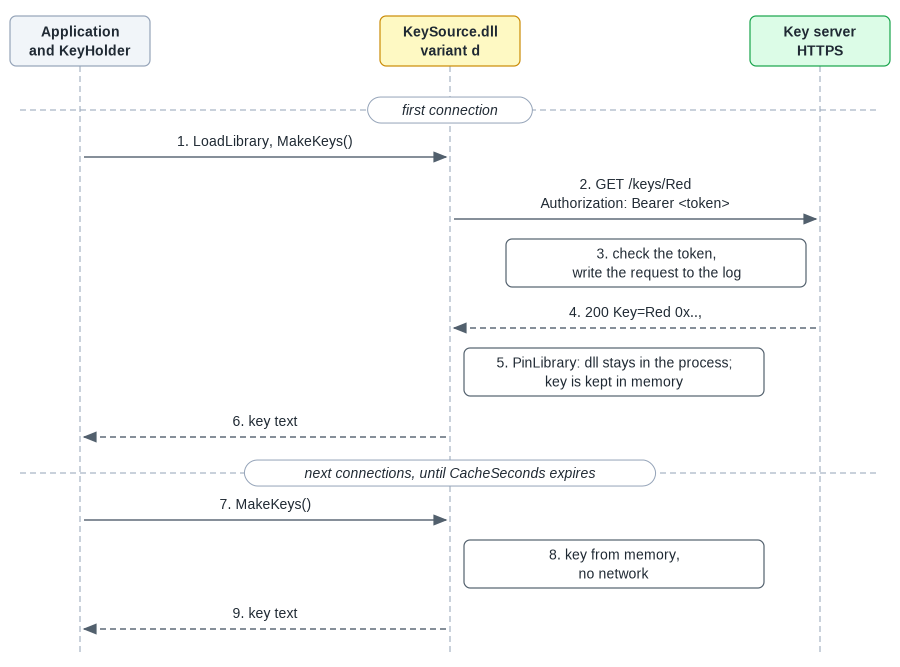
Test. In the first PowerShell window, start the demo key server:
..\restserver\key-server.ps1 -KeysFile ..\work\fb5\db-key.confIn the second window:
.\40-deploy-remote.ps1 -Version 5 -KeySource d
..\work\fb5\remote\EmployeeRemote.exe-
When to use: many workstations, central control is necessary. You can close the access of a workstation without a change of the database key.
-
Risks: without the network, new connections are not possible. Protect the token on the workstation in the same way as a key: with the token, it is possible to get the key.
Details: settings
Library: keysource\d-rest\KeySource.lpr. It uses WinHTTP, a part of Windows. No other DLLs are necessary.
The file KeySource.ini:
[KeySource]
Url=https://keys.example.com/keys/Red
TokenFile=%USERPROFILE%\keys\token.txt
TimeoutMs=5000
CacheSeconds=300
RetrySeconds=10
Log=0| Parameter | Value |
|---|---|
|
Address of the request. With |
|
Access token in the settings file itself. Only for tests. |
|
File with the token. Limit the rights to this file. |
|
Time limit of the request. |
|
How many seconds the key is kept in the process memory. Zero: a request at each connection. |
|
After a failed request, the library does not send requests to the service for this number of seconds. The default is 10. |
Details: request, answer and cache
GET /keys/Red HTTP/1.1
Authorization: Bearer <token>
X-Workstation: <computer>\<user>
An answer with the code 200 contains the text of the keys: the line Key=<name> 0x.., or Password=<name> <phrase>. The library takes any other code as a refusal and returns NULL.
Cache. One connection to Firebird takes 65–120 ms. A REST request at each connection adds its own time and load on the service. For this reason, after the first successful answer, the library keeps the key in memory for CacheSeconds seconds. The cache is kept between connections because the library is pinned in the process. For 1000 connections of one process, the service gets one request.
The library also remembers a failed request, for RetrySeconds seconds. Without this, with a stopped service, the error came after 37 seconds; with this, after 5 seconds.
Details: demo server and requirements for a real service
The script restserver\key-server.ps1 is only for tests of the example. Address http://localhost:8085, token test-token. The parameter -KeysFile sets the key file; without it, the service gives the test keys from examples\common\test-keys.conf. Each request is written to the window and to the log.
Stop the demo server and start the application again: it shows a key error.
Requirements for a real key service:
-
HTTPS only.
-
A separate token for each workstation. It is possible to revoke a token.
-
A log of all requests: time, workstation, key name, result.
-
The service keeps the keys in a protected storage.
-
The service gives a workstation only its own keys.
9. Method without a library: the parameter Prompt
The KeyHolder plugin can ask the user for the key or the pass phrase itself. The library KeySource.dll is not necessary for this. In the workstation folder, create the file plugins\KeyHolder.conf:
Prompt = Enter key %k for database %d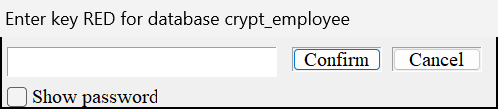
This method works only for a usual connection. For embedded, use KeySource.dll.
Details: how it works and how it is different from variant c
%k is replaced with the key name, %d with the database name.
-
The application connects. There is no key, the server returns a key error.
-
The client
KeyHoldershows an input window. -
The user enters the key
0x..,or a pass phrase. The client repeats the connection. -
After a successful connection, the key is kept in the memory of the application until it ends.
The window appears at a usual connection: in the utility isql (Firebird 3.0, 4.0, 5.0) and in the example application (Firebird 5.0). In embedded mode with the setting Providers = Engine13, there is no window: not in isql, not in the example application.
Prompt |
Variant c | |
|---|---|---|
What to install |
one line in |
|
Where the key is kept |
in the memory of each application |
in the memory of one program |
Several applications |
each one asks for the key |
the key is entered one time |
Keep time, "forget the key" |
no |
yes |
Own logic (smart card, checks) |
no |
you can add it |
10. Comparison of the variants
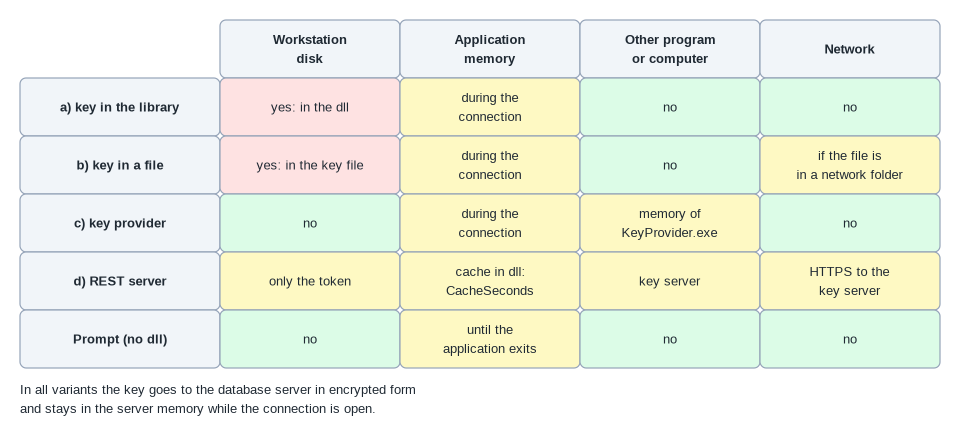
How to select:
-
You must close the risk of database file theft quickly: variant a.
-
The key must leave the workstation together with the person: variant b with a removable disk or variant c with a pass phrase.
-
The key must not be on the disk: variant c or
Prompt. -
Many workstations and you must be able to revoke access: variant d.
Details: comparison table
| Variant | Complexity | Protects against | Does not protect against |
|---|---|---|---|
a: key in the library |
very simple |
theft of the database file, the server, the backups |
copying of the application folder |
b: key in a file |
simple |
the same; theft of the workstation without the removable disk |
copying of the key file |
c: key provider |
medium |
the same; theft of the workstation; the key is not on the disk |
programs of the same user while the key is in memory |
d: REST service |
high: a service is necessary |
the same; you can disconnect a workstation |
theft of the token until it is revoked |
|
very simple |
the same as c |
not convenient: the key is entered in each application |
You can develop the variants further. The unit keysourcecommon.pas and the four examples give a base for your own library: a key from a smart card, from the Windows store, from a directory service.
11. Each connection needs the key
The server does not share the key between connections. All who connect to the database need the key: workstations, an administrator with isql, backup jobs, data exchange and report programs. A client without the key gets an error, also when another client works with the database at the same time.
The utilities from the workstation folder get the key in the same way as the application: through the same fbclient.dll and the same KeySource.dll.
isql -user SYSDBA -password masterkey localhost/30055:crypt_employeeBackup needs its own setup. The next chapter describes it.
12. Backup: also encrypted
The utility gbak gets data from the server that is already decrypted. If you do not set it up, the backup file contains the data as plain text. Such a backup near the encrypted database cancels all the protection.
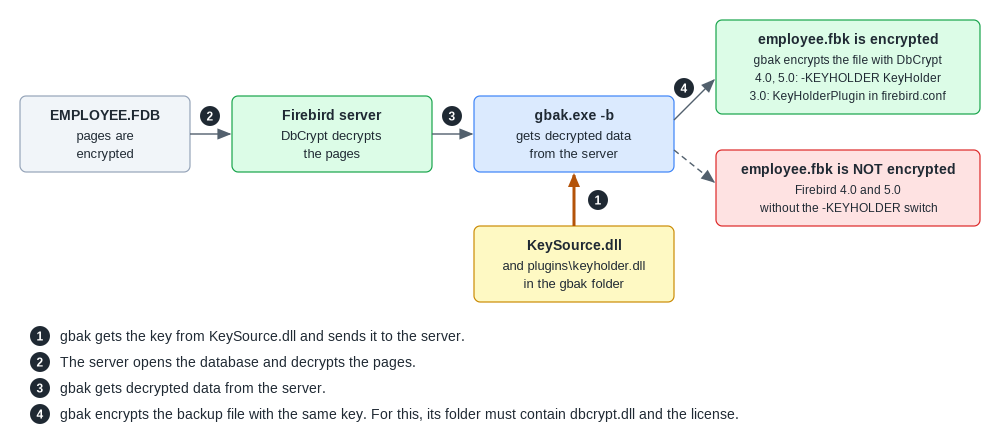
To get an encrypted backup, three conditions are necessary:
-
The utility
gbakfrom the plugin archive or from HQbird. -
The folder of the utility contains
plugins\keyholder.dll,plugins\dbcrypt.dll, the licenseplugins\DbCrypt.confandKeySource.dll. The utility encrypts the file itself, so it needs theDbCryptplugin and the license. -
Firebird 4.0 and 5.0: the switch
-KEYHOLDER KeyHolderin the command. Firebird 3.0: the lineKeyHolderPlugin = KeyHolderin the filefirebird.confof the utility folder.
12.1. Example
The example server must run. The script makes the utility folder work\fb5\backup-tools, makes a backup, checks it and restores it to a test database:
.\50-backup.ps1 -Version 5== Backup: gbak -b -KEYHOLDER KeyHolder localhost/30055:crypt_employee
...\work\fb5\backup\employee-20261124-165733.fbk: 87040 bytes, no readable names of tables
== Test restore: gbak -rep -KEYHOLDER KeyHolder to ...\work\fb5\db\RESTORE-TEST.FDB
Attributes encrypted, plugin DbCrypt
the restored database is readable: 15 rows in CUSTOMER
Done. Encrypted backup: ...\work\fb5\backup\employee-20261124-165733.fbkThe script works with the key Red and with a pass phrase: it gets the key from KeySource.dll of variant b.
12.2. Commands
Run the commands in the folder work\fb<N>\backup-tools. Firebird 4.0 and 5.0:
gbak -b -KEYHOLDER KeyHolder -user SYSDBA -password masterkey localhost/30055:crypt_employee D:\backup\employee.fbk
gbak -c -KEYHOLDER KeyHolder -user SYSDBA -password masterkey D:\backup\employee.fbk localhost/30055:D:\db\restored.fdb
Firebird 3.0, there is no switch:
gbak -b -user SYSDBA -password masterkey localhost/30053:crypt_employee D:\backup\employee.fbk
gbak -c -user SYSDBA -password masterkey D:\backup\employee.fbk localhost/30053:D:\db\restored.fdb-
The command has no key.
KeySource.dllgives it: to the server for the connection and to the utility for the file encryption. -
The backup is encrypted with the same key as the database.
-
The restored database is encrypted at once, with the same key.
-
Without the key, it is not possible to restore the backup.
|
Warning
|
Firebird 4.0 and 5.0: without the switch |
Details: results in different cases
| Utility folder and command | Firebird 3.0 | Firebird 4.0 and 5.0 |
|---|---|---|
Workstation folder (no |
error |
backup not encrypted |
Workstation folder, |
there is no such switch |
error |
Folder with |
backup encrypted |
backup not encrypted |
Folder with |
there is no such switch |
backup encrypted |
Restore of an encrypted backup without |
error |
the same error |
Details: contents of the utility folder
gbak.exe, isql.exe, nbackup.exe ...   utilities from the plugin archive, folder Client\64bit
fbclient.dll, ICU, OpenSSL            other files of the same folder
plugins\keyholder.dll                 KeyHolder plugin: gets the key from KeySource.dll
plugins\dbcrypt.dll                   DbCrypt plugin: encrypts the backup file
plugins\DbCrypt.conf                  license
KeySource.dll, KeySource.ini          library with the key and its settings
firebird.conf                         Providers = Remote, KeyHolderPlugin = KeyHolder
It is different from the workstation folder by two files: plugins\dbcrypt.dll and plugins\DbCrypt.conf.
Keep the utility folder separately from the Firebird server folder. The server KeyHolder must not find KeySource.dll.
Details: how to make sure that the backup is encrypted
-
In a backup that is not encrypted, the table names are written as plain text. The command
findstr /m CUSTOMER employee.fbkshows the file name if it found the wordCUSTOMERin the file. For an encrypted backup, it shows nothing. Use a table name of your database. -
A restore from a folder without
KeySource.dllfails with the errorUnknown key name. -
Do test restores on a schedule. The script
50-backup.ps1does it at each run: it restores the backup, looks atgstat -hand reads the table.
Details: scheduled job and key storage
-
A job works without a person. Variants b and d are applicable to it. Variant c and the parameter
Promptwait for keyboard input. -
Variant b: give the right to read the key file only to the account of the job. Do not keep the key file on the disk with the database and on the disk with the backups.
-
The backup is encrypted with the same key as the database. Loss of the key means loss of all backups.
-
After a change of the database key, only the old key can read the old backups. Keep the old key while you need these backups.
-
The switch
-KEYNAME(Firebird 4.0 and 5.0) sets a different key for the backup. It is described in the main guide, chapter "Support in the Firebird command line utilities". The same chapter describes the pluginKeyHolderStdin: it gets the key from the standard input.
Details: physical backup with nbackup
The utility nbackup copies the database pages as they are. The backup stays encrypted with the same key. The utility needs the key only for the connection. Run the command on the server, in the utility folder. Firebird 4.0 and 5.0:
nbackup -b 0 localhost/30055:D:\db\EMPLOYEE.FDB D:\backup\employee-nbackup.fdb -KEYHOLDER KeyHolder -user SYSDBA -password masterkeyFirebird 3.0: the same command without the switch -KEYHOLDER.
The command gstat -h for the backup file shows Attributes encrypted, plugin DbCrypt and the same key name as for the database.
13. Moving to your own application
Checklist:
-
Bitness. The client files and
KeySource.dllhave the same bitness as the application. -
Client library. Replace the
fbclient.dllorgds32.dllof the application with the library from the plugin archive or from HQbird. -
Files near it. All files of the folder
Client\64bit,plugins\keyholder.dll, yourKeySource.dllandfirebird.confwith the lineKeyHolderPlugin = KeyHolder. -
Version. The plugin archive has the same version as the server: 3.0, 4.0 or 5.0.
-
The variable
FIREBIRD. It must not be set on the workstation. -
Connection string. It has a server name:
server:databaseorserver/port:database. On XNET and with a local path without a server name, the key is not sent to the server. -
Embedded. Add
plugins\dbcrypt.dlland the licenseplugins\DbCrypt.conf. -
Server. The line
KeyHolderPlugin = KeyHolderinfirebird.conf, the plugins and the license inplugins. There are no keys on the server: no fileplugins\KeyHolder.confwith keys and noKeySource.dll. -
Test. Install the diagnostic library:
.\40-deploy-remote.ps1 -Version 5 -KeySource probe. -
Update. Update the server and the workstations from one plugin archive.
Details for the checklist items
-
Bitness. The bitness of the application is important, not the bitness of Windows. For a 32-bit application, take the folder
Client\32bitfrom the plugin archive and buildKeySource.dllwith a 32-bit compiler. The programs of the example are built for 64 bits only. -
Client library. Find the file that the application uses. Usually it is near the exe file. If the application looks for
gds32.dll, copyfbclient.dllwith this name. If the application loads the library from the folderSystem32, there is nopluginsand noKeySource.dllnear it: put the client files in the application folder. -
Test. The diagnostic library
keysource\probereturns the database key and writes each load and each call toKeySource.log. If the log is empty, the application uses a different client library or a differentfirebird.conf.
Details: Firebird 3.0 near a Firebird 3.0 service
A separate Firebird 3.0 server that runs as a program does not open a database if a Firebird 3.0 service runs on the same computer. This message appears in firebird.log:
MappingIpc: Cannot initialize the shared memory regionSolution: give the server its own lock folder in the environment variable FIREBIRD_LOCK. The example scripts do this themselves. An embedded application must use the same folder when it works at the same time as such a server. For this, the script 41 creates the start file EmployeeEmbedded.cmd.
For Firebird 4.0 and 5.0, it is not necessary to set the variable FIREBIRD_LOCK.
13.1. If you have HQbird
The example installs a separate server: it downloads the official Firebird and the plugin archive. In your own system with HQbird you do not need to do this. The plugin files are a part of HQbird.
| What | Without HQbird | With HQbird |
|---|---|---|
Server: |
copy the folder |
already in |
Workstation: |
the folder |
the folder |
Utilities |
the folder |
already in |
License |
your license or the trial license from the archive |
your license |
Library |
your library, made from the example |
your library, made from the example |
Here C:\HQbird is the default installation folder, <NN> is 30, 40 or 50, and <version> is 3.0, 4.0 or 5.0.
Procedure:
-
Server. Put the license
DbCrypt.confinto thepluginsfolder. SetKeyHolderPlugin = KeyHolderinfirebird.conf: in HQbird this parameter is a comment line. Restart Firebird. -
Database. Encrypt it: see Encryption: a key or a pass phrase.
-
Workstation. Copy the files of the folder
ClientLibs\64\<version>to the application folder. Add yourKeySource.dlland afirebird.conffile with the linesProviders = RemoteandKeyHolderPlugin = KeyHolder. -
Check. Do the checklist of this chapter.
Details: the name of the OpenSSL library
The 64-bit plugin KeyHolder needs the OpenSSL library with the name libcrypto-1_1-x64.dll near fbclient.dll. If the folder ClientLibs\64\5.0 does not contain this file, copy it from the folder ClientLibs\64\4.0.
The sign of this error: the log KeySource.log shows that the library returned the key, but the connection fails with the message Key not set.
14. Key change, key loss, backups
-
Key change. Firebird does not change the key with one command. Decrypt the database and encrypt it with the new key, or restore a backup with the new key. Give the new key a new name.
-
Key loss. Without the key or the pass phrase, nobody can read the database and the encrypted backups. It is not possible to recover them. Keep a copy of the key separately from the database and from the workstations: in a safe, at two responsible persons.
-
Backups. A backup that is not encrypted near the encrypted database cancels all the protection. See Backup: also encrypted.
Details: what to do on the workstations after a key change
-
variant a: build and distribute the new
KeySource.dll; -
variant b: replace the key file;
-
variant c: the users enter the new phrase; write the new key name to
KeyProvider.ini; -
variant d: replace the key in the key service. The workstations get it after
CacheSecondsexpires or after a restart of the application.
In variants a, b and d, the library can return both keys for some time: the old one and the new one.
Check which key encrypts each backup and where its key is.
Main guide: chapters "Encryption, decryption and key change" and "Support in the Firebird command line utilities".
15. Troubleshooting
-
Enable the log of the library: the line
Log=1inKeySource.ini. The logKeySource.logappears near the library. In the example, the log is enabled. -
There is no log: the client does not call the library. Check the line
KeyHolderPlugin = KeyHolderinfirebird.confnearfbclient.dll, the variableFIREBIRDand the version offbclient.dll(for 3.0 only from the plugin archive). -
There is a log: find the message in the tables below.
Details: error messages of Firebird and of the plugin
| Message | Cause | What to do |
|---|---|---|
|
The server did not receive the key. The library is not found, it returned |
Check |
|
The connection uses XNET: |
Write the server name in the connection string: |
|
The key with the name |
Check the key value or the pass phrase. |
|
The same as |
The same actions. |
|
|
Correct the text of the keys. Format: |
|
The utility folder has no |
Make the utility folder, see Backup: also encrypted. |
|
The backup is encrypted, but the utility did not get the key: there is no |
Run |
|
|
Check the key name: |
|
The text of the keys contains a character that breaks the parsing, for example a quotation mark. |
Remove the characters |
|
There is no file |
Check the license. The trial license from the archive is valid until the end of the month. |
|
Firebird 3.0: another Firebird 3.0 service runs. |
Give the server its own |
|
Two Firebird instances of the same version use different |
Give them one folder or stop one of them. |
|
The client looks for its files in an incorrect place. Usually the variable |
Delete the variable |
General plugin errors are described in the main guide, chapter "Troubleshooting".
Details: messages in KeySource.log
| Message | Meaning |
|---|---|
|
Variant b: there is no file or no rights. |
|
Variant b: the file is read, but it contains no keys. |
|
Variant c: the pipe is not found, the parameter |
|
Variant c: incorrect path in |
|
Variant c: another program uses the name of the pipe. |
|
Variant c: the user closed the input window. |
|
Variant d: no network, incorrect address, the service is stopped. |
|
Variant d: a repeated call during |
|
Variant d: incorrect token. |
16. Test of the example
The script tests\run-matrix.ps1 tests all combinations: 3 Firebird versions × 2 modes × 4 KeySource variants.
cd ..\tests
.\run-matrix.ps1 -Negative -Load -Backup
The test on 24.11.2026 passed: with the test key Red and with pass phrases, on Firebird 3.0, 4.0 and 5.0.
Details: what the script tests and the results
For each combination, the script makes the application folder and does two tests:
-
isqlfrom this folder reads the tableCUSTOMER; -
the application with the option
/selftestconnects, changes a row, connects again and reads the row.
The script takes the database key from the file work\fb<N>\db-key.conf. In variant c, the script itself enters the key or the phrase in the provider window and checks that the window appeared one time. In variant d, the script starts the demo server and counts the requests. If the database is not encrypted with the key Red, variant a is skipped.
| Test | Result |
|---|---|
Key |
passed |
Pass phrase. 18 combinations: versions 3.0, 4.0, 5.0; usual connection and embedded; variants b, c, d. Phrases with spaces, the characters |
passed |
9 tests that must end with an error: no library, incorrect key, format error, no file, user refusal (one window), no provider, no service (error in 5 seconds), incorrect token. With the key |
passed |
Server without the file |
passed |
Encryption of a new database through the network from a workstation, key from |
passed |
Encrypted |
passed |
Load: 1000 connections in sequence and 8 threads with 125 connections each, each variant, Firebird 5.0. No errors, memory growth 3.5–5 MB |
passed |
Variant d: one request to the service for each process at 1000 connections |
passed |
Client files from HQbird ( |
passed |
Connection kinds, versions 3.0, 4.0, 5.0. TCP/IP ( |
passed |
On 26.11.2026 the matrix of 24 combinations and the backup test were repeated with the plugin archives of 26.11.2026 (HQbird 3.0.15.33894, 4.0.8.3332, 5.0.5.1979): passed.
Test environment: Windows 11 x64, official Firebird builds 3.0.14, 4.0.7, 5.0.4, plugin archives of 01.10.2026, Lazarus 4.8 with Free Pascal 3.2.2.
Not tested: 32-bit builds, the Firebird server as a Windows service, Linux, Delphi and other development tools, a real key service with HTTPS.