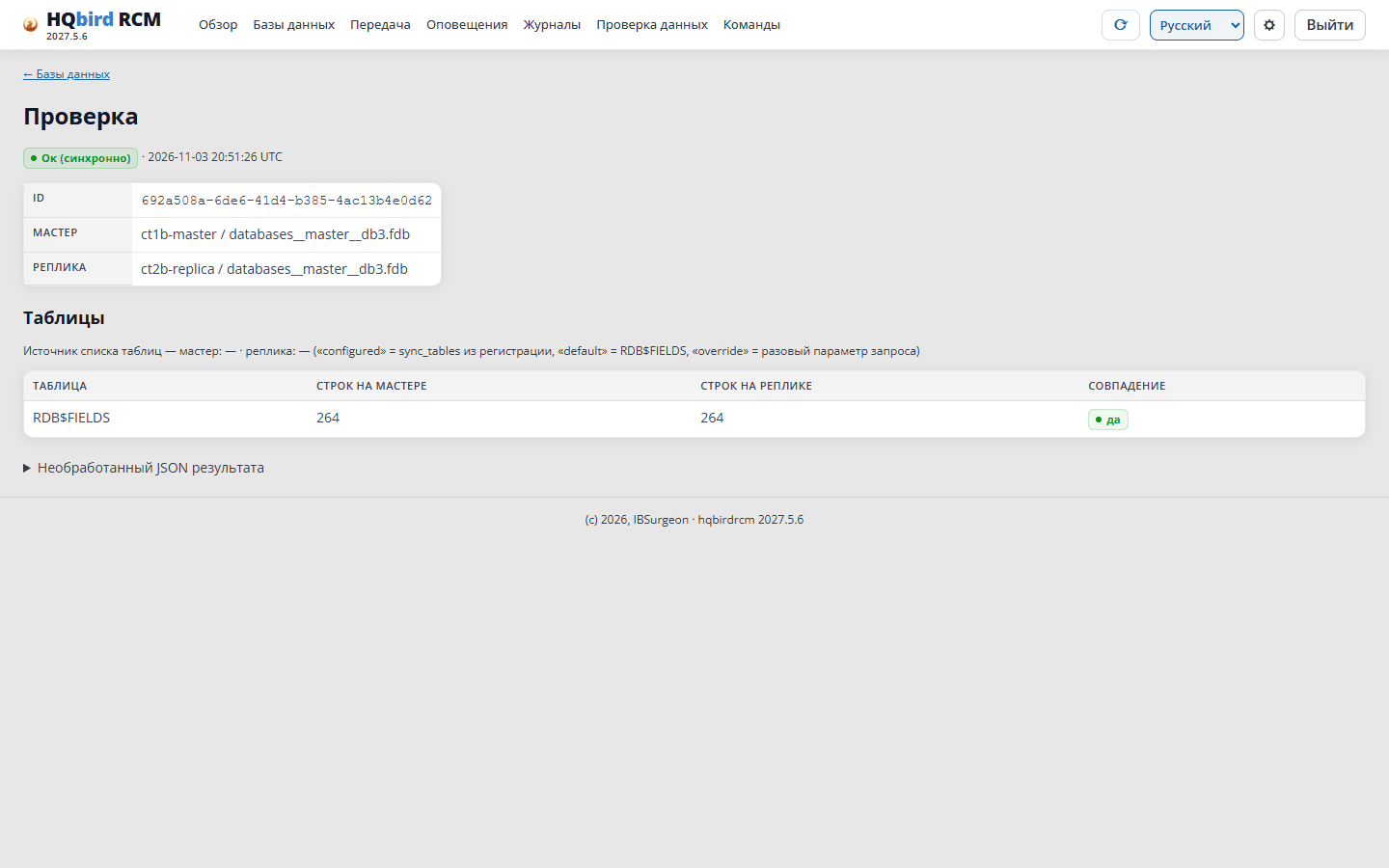
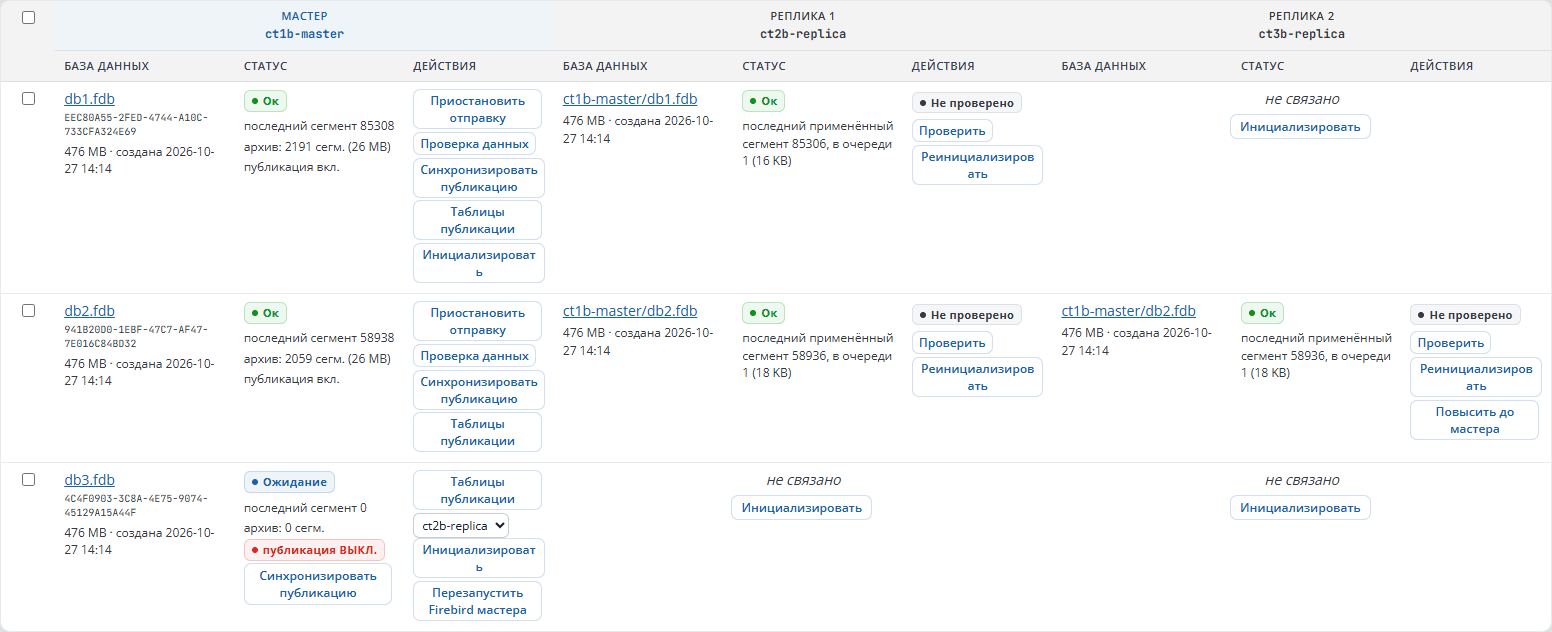
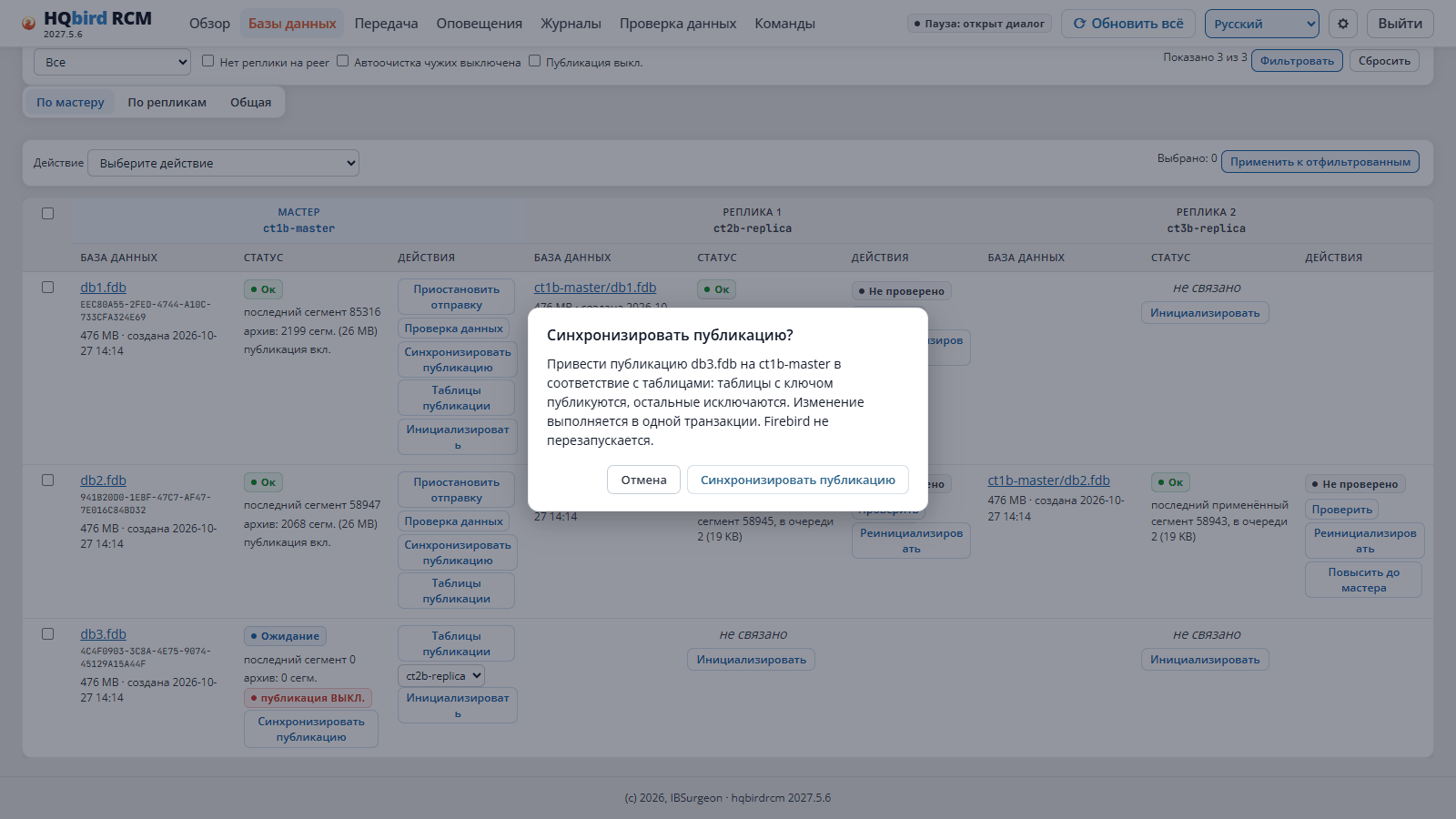
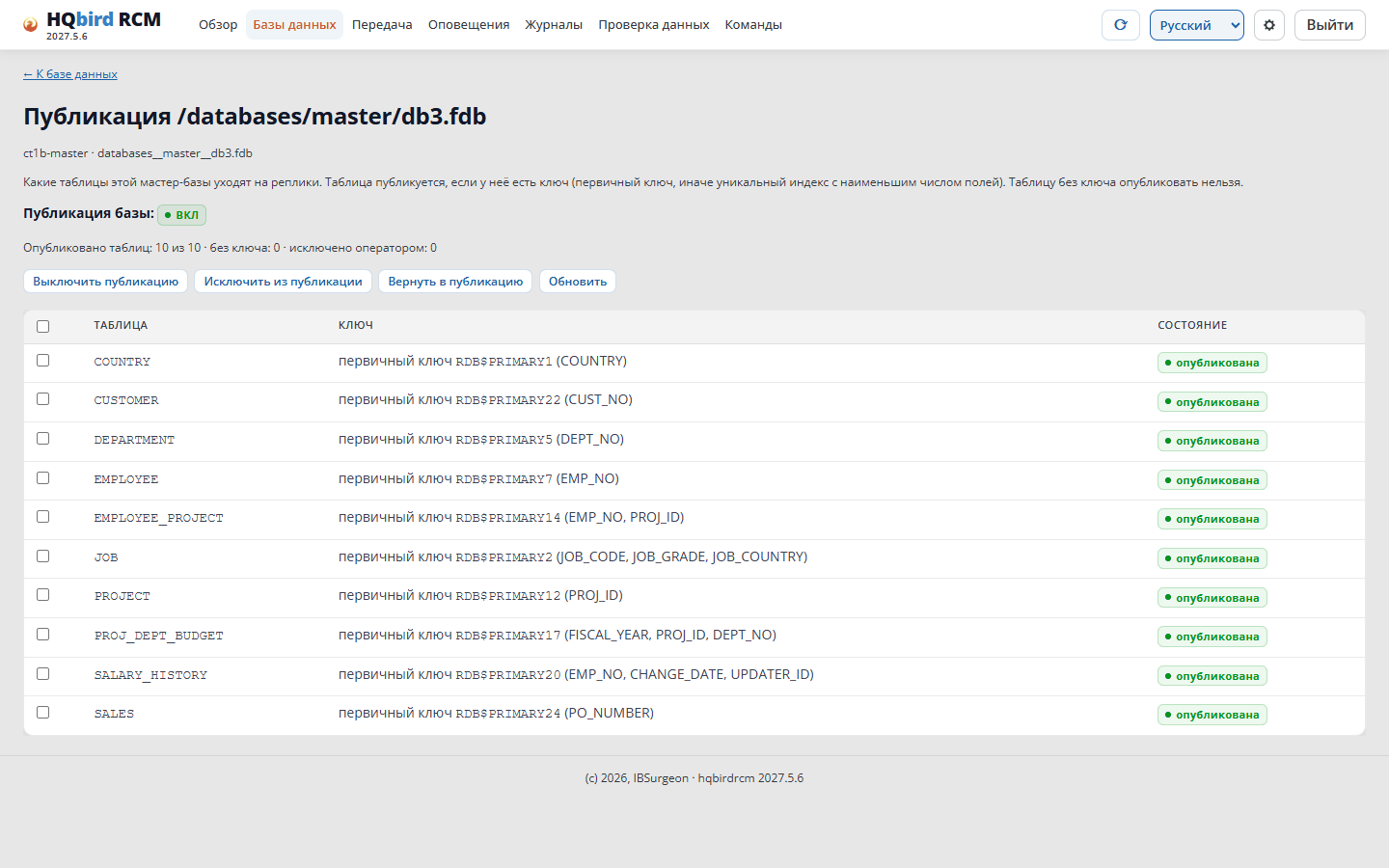
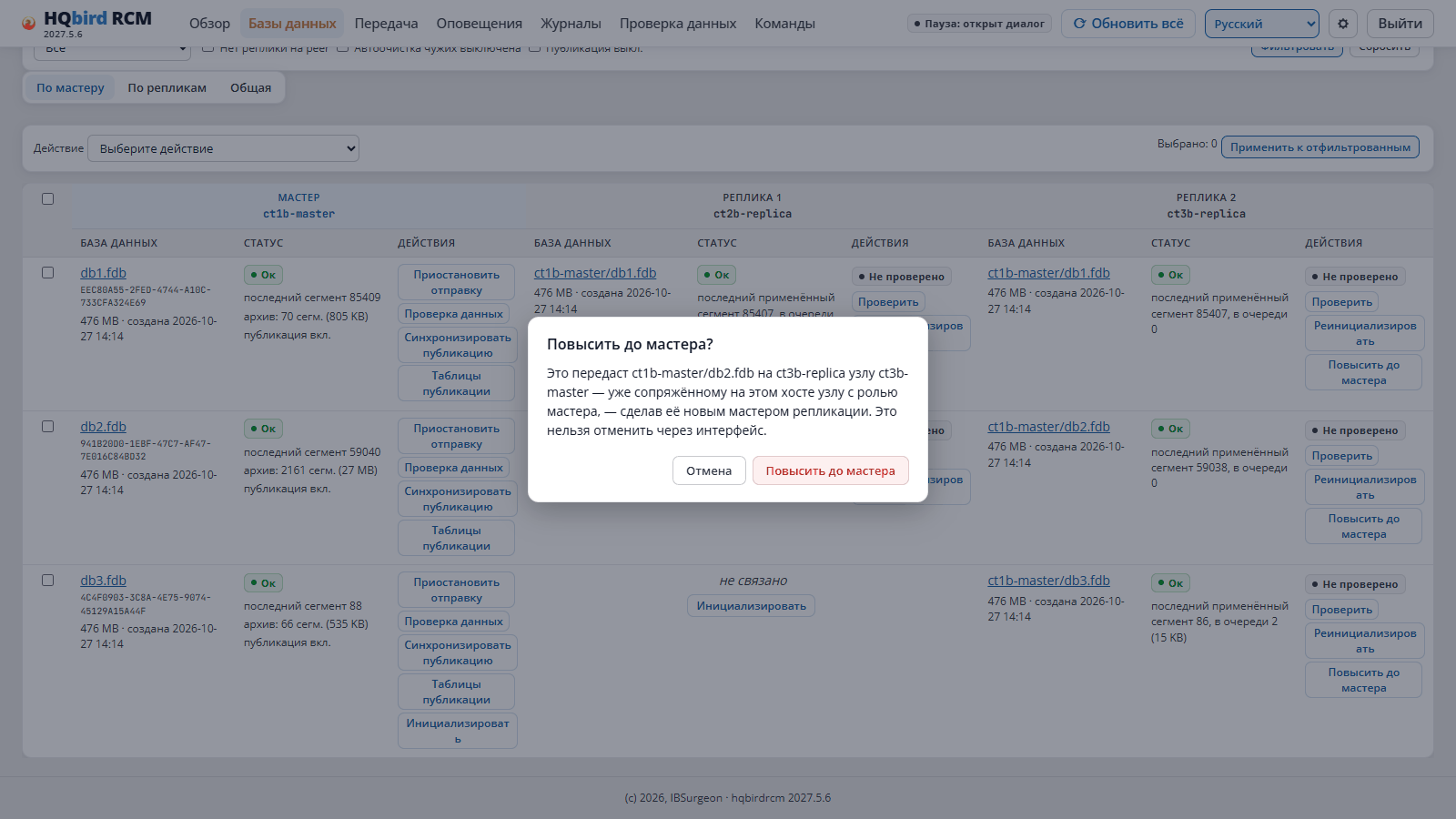
Administrator guide for the HQbird replication cluster: hqclusternode and hqbirdrcm (RCM). Installers: HQbird 2027 Download. Русская версия: на русском.
A node has a role: master or replica. Two nodes can run on the same Firebird instance: a master node and a replica node. In that case some databases of that Firebird are masters and others are replicas.
How it works
On the master, Firebird writes database changes to segments (replication log files).
The master node sends segments to the replica node over a secure channel (mTLS).
The replica node puts the segments into the incoming segments folder. The replica’s Firebird applies them to its copy of the database.
The master node transfers the first copy of the database to the replica itself. This is called initialisation (reinit). It goes through nbackup, and the master keeps running during this time.
The nodes send statistics to RCM. RCM shows the state of the cluster and sends operator commands to the nodes.
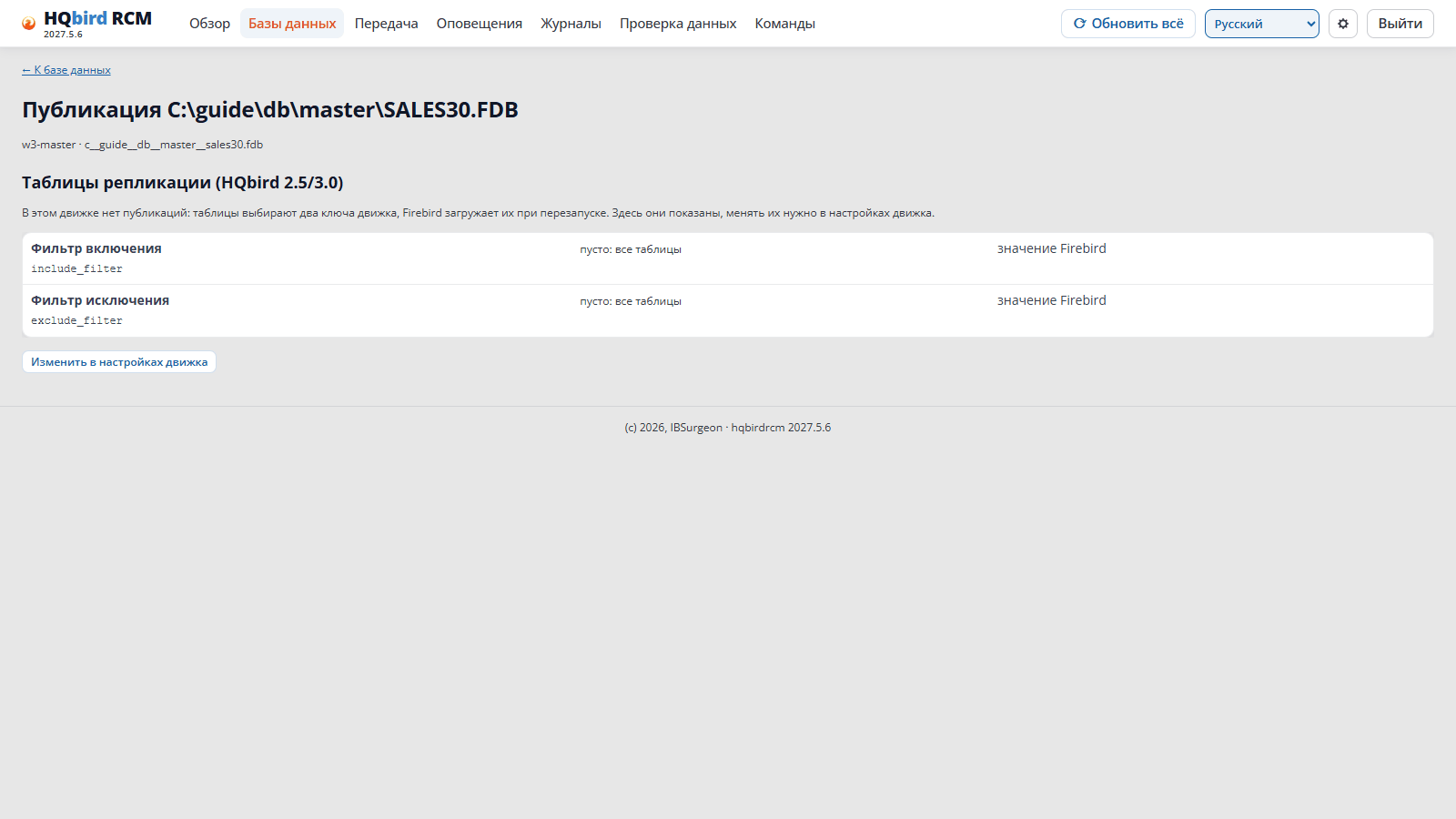
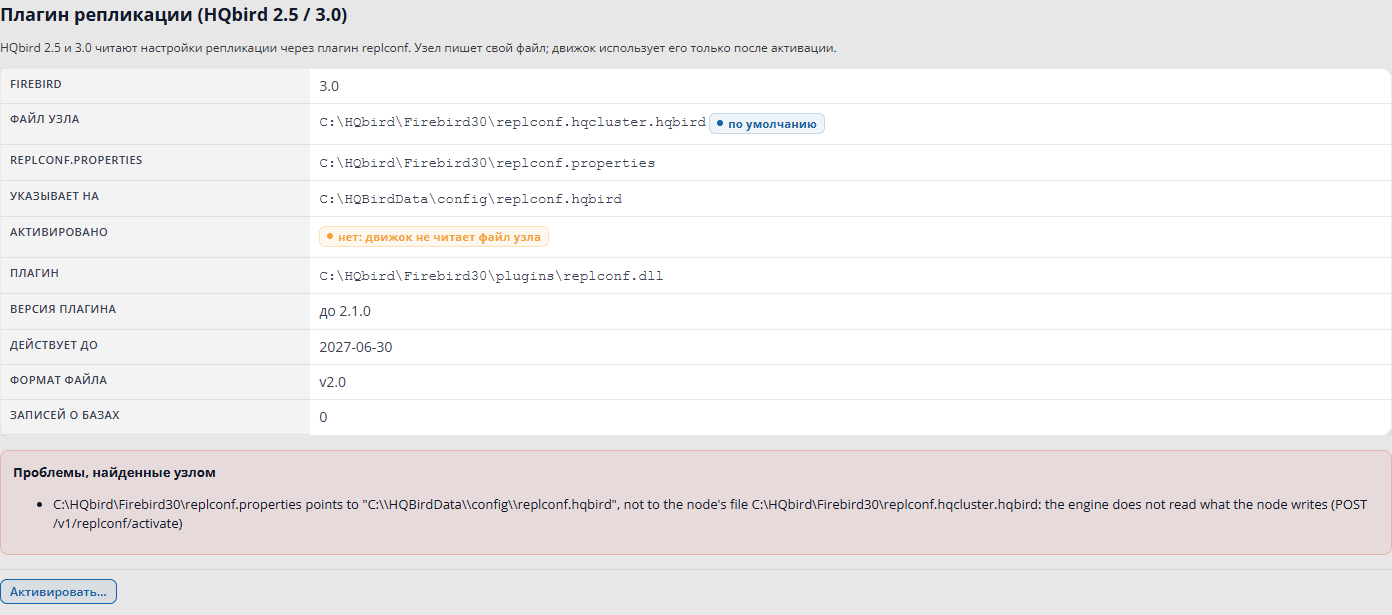
HQbird 3.0 and 2.5 — replication via the replconf plugin. There are no publications; the set of tables is defined by filters. The differences are described in the “HQbird 2.5/3.0” boxes.
The major version of Firebird on the master and on the replica must match. Otherwise the replica node will refuse initialisation.
Ports
Port
Who listens
Who connects
What for
7051
node
other nodes and RCM
node API, transfer of segments and database copies
7443
RCM
all nodes
receiving statistics from nodes
7444
RCM, 127.0.0.1 only
operator
web interface and operator API (HTTP)
13050
fbagent, 127.0.0.1 only
node on the same host
Firebird management
3050
Firebird
applications
normal database work
If there are two nodes on one host (master and replica), the second node uses a different port, for example 7052.
Ports 7444 and 13050 must not be exposed to the network. Connect to the RCM web interface through an SSH tunnel (chapter 1).
The main rule: no fbagent, no changes
A node changes the replication configuration only through fbagent: it needs to restart Firebird. If fbagent is unavailable, the node refuses any action that changes the configuration. It does not work “partially”.
Terms
Term
Meaning
Segment
a replication log file with database changes
Publication
the list of master tables whose changes go into segments (Firebird 4/5)
Initialisation (reinit)
transfer of a copy of the database from the master to the replica via nbackup
Database GUID
the Firebird database identifier; RCM uses it to link the master and the replica
Peer
partner node: for a master, its replicas
Companion
the second node on the same Firebird instance (master and replica on one host)
Make regular, Promote to master, new GUID, switchover checklist
All chapters use one example:
What
Value
node-a
master node, databases in /databases/master
node-b
replica node, databases in /databases/replica
RCM
a separate host (may also be one of the database servers)
database
employee.fdb
1. Installing nodes and hqbirdrcm
There are three installation methods:
Method
When to choose it
What you do yourself
Via goafts (1.2)
the usual path: the goafts update server is reachable, auto-updates are needed
run the fbagent installation script, approve the request, describe the cluster
Via RCM, without goafts (1.3)
no goafts, but you need certificates, configuration and updates without manual work; up to 3 database servers
install HQbird on each host, log in to RCM, in Settings → Link hosts specify the host addresses
Manually (1.4)
no access to goafts, closed network, special requirements
install the files, create certificates, write node.json and rcm.json, register the services
Via goafts and via RCM you do not install the nodes and RCM yourself. They are installed by
fbagent when you add it to the cluster (chapter 2). Certificates and
configuration are also created automatically.
Linux and Windows are described in a single chapter. The Windows differences are in the
“On Windows” boxes.
1.1. Requirements
On every database server:
Firebird / HQbird 5.0, 4.0, 3.0 or 2.5 (2.5 — Linux only).
fbagent alongside every Firebird instance. Without fbagent the node does not work.
Time synchronisation (NTP, chrony, w32time) on all servers and on the
RCM host. Restart and transfer windows, lag estimation and
the “node not responding” check depend on the clocks.
Free space for the segment archive and for replica initialisation (chapter 4).
Windows: administrator privileges, x64, Windows 10 / Server 2016 or newer,
64-bit Windows PowerShell 5.1. On Windows 10 and Server 2016–2022, 7-Zip is required.
Where RCM will run. One RCM is needed per cluster. It can be installed on any
server that can see all nodes, including on one of the database servers.
1.2. Installation via goafts
Step 1. Run the fbagent installation script
The script installs Firebird (the HQbird build), fbagent, and registers fbagent on the goafts server. Choose the script matching your Firebird version: fb25, fb30, fb40, fb50.
Linux (as root):
Command
sudo sh fbagent-fb50_known.sh --goafts <goafts-server> --enroll --cluster
There is no fb25 script for Windows and no -Cluster parameter: fbagent runs as LocalSystem and creates the cluster folders itself.
Main parameters:
Linux
Windows
Meaning
--goafts <name>
-Goafts
goafts server to download from; the name is provided by your vendor
--enroll
-Enroll
register fbagent on goafts (certificate request)
--cluster
—
create the /opt/hqclusternode and /opt/hqbirdrcm folders (only needed for fbagent 2.55.2 and older; harmless for newer versions)
--channel
-Channel
fbagent update channel, stable by default
--token
-Token
licence token: goafts will approve the request automatically
--port
-Port
Firebird port
--yes
-Yes
do not ask questions (needed when there is no terminal)
The full list of parameters is in the README of the fbagent installation script.
Step 2. Approve the fbagent request
With the --enroll parameter, fbagent sends a certificate request (CSR) to goafts and waits up to 30 minutes for approval. You can approve it as follows:
automatically — if the installation was run with a licence token (--token) and the licence has a free slot;
in the goafts admin panel — the CSR requests section, this host’s request, the approve and sign button;
via the goafts API — POST /v1/admin/csr-requests/{id}/approve.
If registration did not succeed (for example, the waiting time expired), fbagent still works, and the script exits with code 2. Run the script again with the same parameters: only the registration will be repeated.
A few minutes after registration, fbagent installs HQ Monitor itself.
Step 3. Describe the cluster
The nodes and RCM appear once you add fbagent to the goafts cluster. How to describe the cluster is covered in chapter 2.
After the cluster is saved:
Within 10 minutes fbagent receives the cluster from goafts (after that it checks for changes every 60 seconds).
The fbagent on the RCM host creates the cluster’s certificate authority (CA) and signs the certificates of all nodes.
Each fbagent writes node.json or rcm.json for its cluster members.
On the next product check (every 3 minutes) fbagent installs and starts the services.
What is installed and where:
What
Linux
Windows
Master node
/opt/hqclusternode/master/, service hqclusternode-master-p<port>
<HQbird>\hqclusternode\master\, service HQClusterNode-master-p<port>
Replica node
/opt/hqclusternode/replica/, service hqclusternode-replica-p<port>
<HQbird>\hqclusternode\replica\, service HQClusterNode-replica-p<port>
RCM
/opt/hqbirdrcm/, service hqbirdrcm
<HQbird>\hqbirdrcm\, service hqbirdrcm
<port> is the Firebird port, for example 3050. A single fbagent can have no more than one master node, one replica node, and one RCM.
On Windows. fbagent versions before 2.83.0 installed nodes in C:\hqclusternode and RCM in C:\hqbirdrcm. If these folders exist, fbagent continues to use them.
Updates
fbagent checks for new versions of the node and RCM every 3 minutes; the default channel is stable. The replica node is updated first, then the master node.
If, after an update, the service fails to start or reports the wrong version, fbagent rolls back to the previous version and blocks the new one. The block list is at <product folder>/update/<product>/blocked-versions.json. To try the version again, delete its entry from this file.
The cluster is managed by RCM. Each host’s fbagent receives the cluster description from RCM, the fbagent on the RCM host signs certificates, and the node and RCM are updated from the releases that RCM stores.
Limitations:
One cluster per RCM.
No more than 3 seats. A seat is a host that has a master or replica node. A master and a replica on the same host count as one seat. A host that only runs RCM does not take a seat. A fourth host causes the error seats_exceeded.
fbagent and Firebird are not updated by RCM. fbagent updates them itself and does not touch replication.conf, node.json, rcm.json or the certificates.
There are two ways:
Link hosts in RCM — the usual way. Three actions: the installer on each host, signing in to RCM, the Link hosts form.
Manually from the command line — join tokens and fbagent --cluster-join. Needed when port 7450 is closed between hosts or the pairing window has already closed.
Licence. The trial licence includes the cluster feature. After the trial period, fbagent does not install a node or RCM if the licence does not include cluster. It never blocks updates of already installed nodes and RCM. Without goafts, a floating licence stops working after online_check_days plus the grace days. Therefore install a bound licence on every fbagent:
Command
fbagent --license-request --out license_request.json
# send the file to the vendor and receive license.jsonfbagent --license-install license.json
Without a licence, the master stops sending segments (chapter 2.8).
Ports:
Port
Where
Who connects
7443
RCM host
fbagent and nodes of all cluster hosts
7444
RCM host
operator’s browser (RCM console, HTTPS)
7450
each host, while the pairing window is open
RCM on the RCM host
7051
node hosts
other nodes and RCM (1.4, step 7)
Link hosts in RCM
Step 1. Install HQbird on every host
Install HQbird with the full installer on every database server. Do not register with goafts (--enroll). By default, the installer on each host:
places the node and RCM programs in the fbagent folder (update/<product>/staged/);
creates this host’s cluster (fbagent --cluster-init), with the host name as the cluster name;
installs and starts RCM; the RCM console runs over HTTPS on port 7444;
creates the first RCM administrator with a random password;
opens the fbagent pairing window for 24 hours: port 7450.
At the end, the installer prints the RCM: lines (console address, cluster name, login and where the password is stored) and the Pairing: lines (until when port 7450 is open and the fingerprint of its certificate). Write down the fingerprint of each host.
Installer options on Linux (hqbird2027-run.sh):
Option
What it does
--rcm off
do not create RCM and a cluster on this host
--rcm-password-file F
take the RCM administrator password from the first line of file F instead of a random one
--cluster-id ID
use ID as the cluster name instead of the host name
--cluster-node off
do not place the node program
--rcm-allow A,B
only these RCMs may invite this host: address, CIDR network or name
The pairing window can be reopened or closed by the fbagent user:
Command
cd <fbagent folder>
sudo -u firebird ./fbagent --cluster-pairing on # another 24 hourssudo -u firebird ./fbagent --cluster-pairing off
sudo -u firebird ./fbagent --cluster-pairing status
Step 2. Sign in to RCM
Choose the host on which the cluster’s RCM will run. It can be any host from step 1. Open https://<host>:7444 and sign in with the login and password from step 1. RCM immediately asks for a new password (1.5).
Step 3. Link the hosts
In RCM, open Settings → Link hosts.
In the Hosts field, enter the addresses or names of the hosts, one per line. The first line is the RCM host, which is already in the cluster.
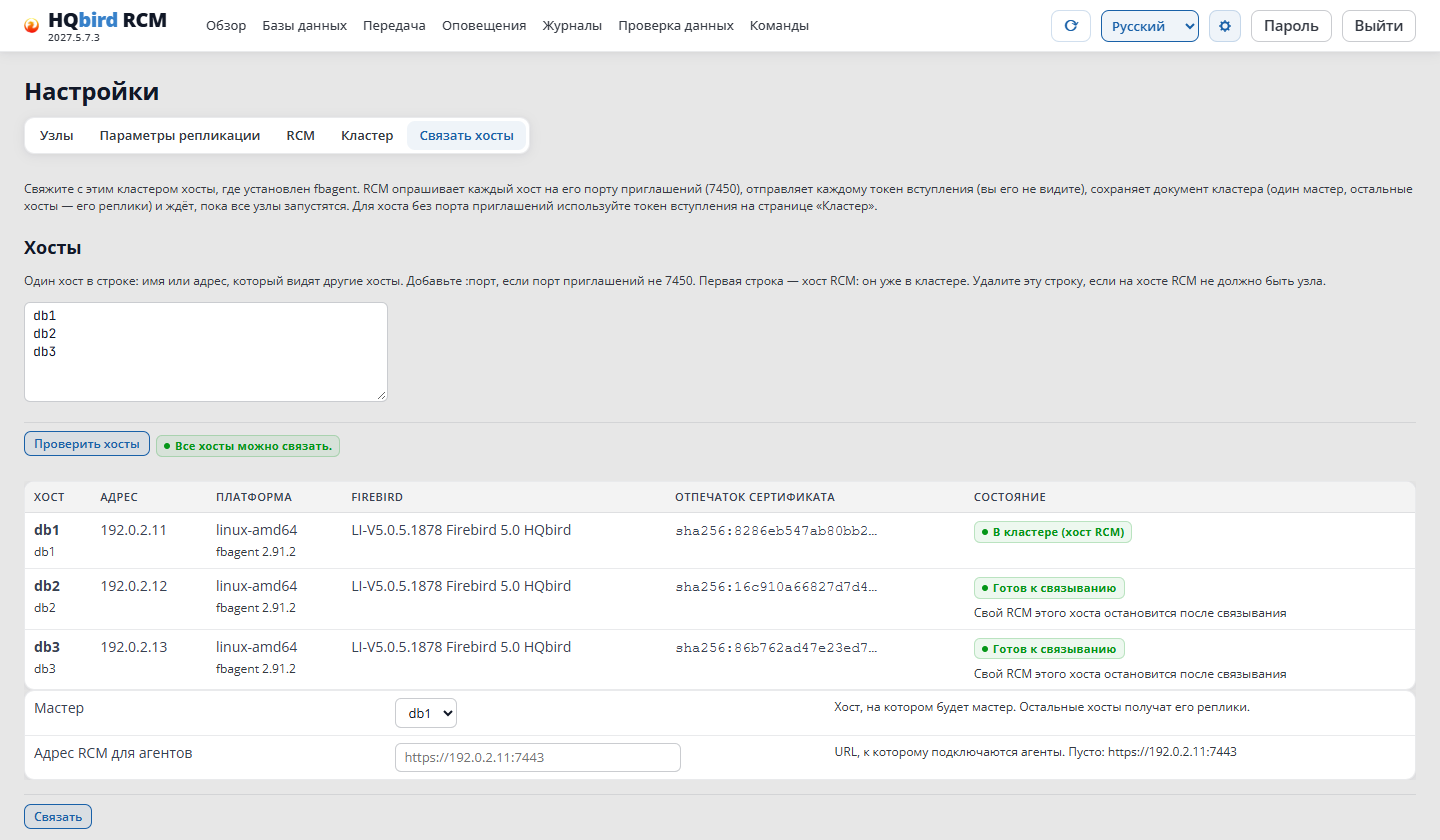
Click Check hosts. RCM connects to each host on port 7450 and shows the platform, Firebird version, fingerprint and state. Compare the fingerprints with the installer output.
Select the Master (the first host by default) and click Link.
Link hosts: check result
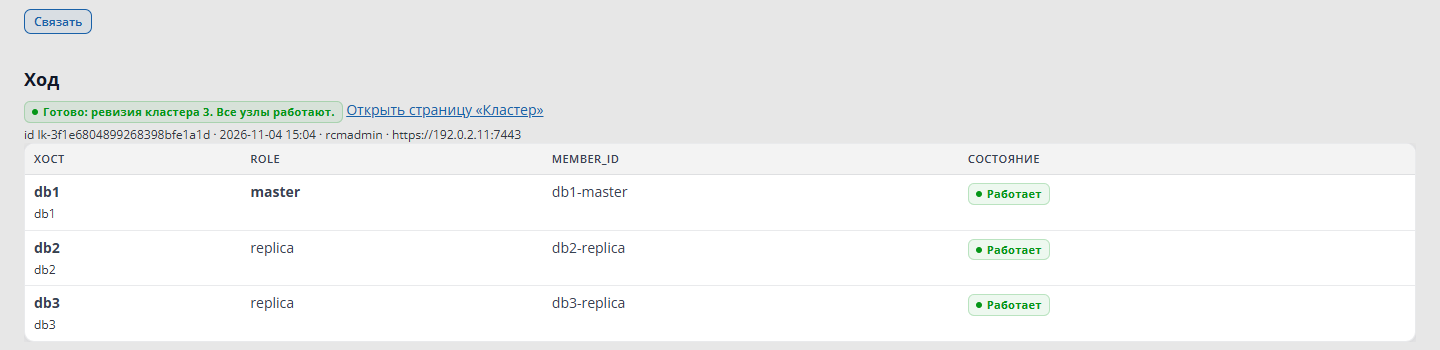
RCM asks for confirmation and shows progress in the Progress section. When all nodes are running, it says “Done” and shows the cluster revision number:
Link hosts: all nodes are running
The same from the command line:
Command
cd /opt/hqbirdrcm
exportRCM_USER=rcmadmin RCM_PASSWORD='<password>'./hqbirdrcm cluster link -hosts db1,db2,db3 -master db1
What happens next:
RCM sends an invitation to each free host.
The host’s fbagent joins the cluster. It stops and disables its own RCM and moves its own empty cluster to cluster/left/ in the fbagent folder.
RCM saves the cluster: node <host>-master on the master, <host>-replica on the other hosts, port 7051, master → replica links.
Each host’s fbagent installs and starts the node. RCM waits until all nodes are running and shows Running for each host.
Host states after Check hosts:
State
What to do
Ready to link
nothing. If it says below “This host’s own RCM will stop after linking” — that is normal
In cluster
the host is already in this cluster
Error unreachable
port 7450 is closed. Right after installation, wait a minute and click Check hosts again. Otherwise open the window (--cluster-pairing on) and check the firewall
Error in_other_cluster
the host is in another cluster
Error claimed
another RCM is currently linking this host
Error seats_exceeded
more than 3 seats
Releases. fbagent installs the node only from RCM. RCM takes signed releases from its import/ folder (next to rcm.json) at startup and every 5 minutes. The installer places the RCM host’s releases there, and fbagents on other hosts download the release for their own platform themselves. The list of releases is at the bottom of the Link hosts page. A release can also be imported manually (step 5 below).
Manually from the command line
Order: steps 1–3 on the RCM host, step 4 on every other host, steps 5–6 in RCM.
Step 1. Install HQbird with fbagent
Install HQbird on every database server and on the RCM host with the full installer, on Linux with --rcm off on all hosts except the RCM host. Do not register with goafts (--enroll).
On the RCM host, the installer leaves the RCM program in the fbagent folder (update/hqbirdrcm/staged/). Without it, step 3 fails with the error no hqbirdrcm to install.
Step 2. Install a bound licence
As at the beginning of the section, “Licence”.
Step 3. Create the cluster on the RCM host
If the installer has already created the cluster (the RCM: line in its output), skip this step.
Run the command as the fbagent user (on Linux — firebird), not as root: otherwise the CA files and rcm.json will be owned by root.
On Windows (PowerShell as administrator):
.\fbagent.exe --cluster-init shop-prod --address 10.0.0.7
shop-prod — cluster name: lowercase Latin letters, digits and -.
--address — the address of the RCM host by which other hosts connect to it. Can be repeated several times. Without the option, the host’s addresses and name are used.
The command:
creates the cluster CA and the agent CA (in the fbagent folder, clusterca/<name>/);
writes the RCM certificate, rcm.json and cluster-init.json to the RCM folder;
installs RCM and registers the hqbirdrcm service. On Linux the service runs as a separate user, hqbirdrcm;
switches fbagent to RCM (cluster.source = rcm) and restarts it;
prints the RCM address and the CA fingerprint:
Code
Cluster:    shop-prod
RCM URL:    https://10.0.0.7:7443
CA hash:    sha256:9f86d0...
Write down RCM URL and CA hash: they are needed on the other hosts. Re-running for the same cluster is safe: the CA and keys stay the same.
Sign in to RCM immediately and change the rcmadmin password (1.5).
On Linux. The hqbirdrcm user is in the fbagent group. RCM reads rcm.json through this group but cannot write to it. Therefore Settings → RCM does not save changes (error rcm_config_read_only). Edit rcm.json on the host as the fbagent user and restart RCM.
Step 4. Connect the fbagents of the other hosts
On the RCM host, create a join token for each fbagent: in RCM Settings → Cluster, the Create join token button. Or from the command line:
Command
cd /opt/hqbirdrcm
exportRCM_USER=rcmadmin RCM_PASSWORD='<password>'./hqbirdrcm cluster join-token -note db2
The token is valid for 24 hours, for one fbagent only and only once. RCM shows it once, together with a ready-to-use command.
On the node host, run that command as the fbagent user:
Instead of --token-file you can use --token <token>. On Windows — the same with .\fbagent.exe in PowerShell as administrator.
fbagent verifies the RCM CA by fingerprint. If the fingerprint does not match, it stops and writes nothing. Then fbagent obtains its own certificate (90 days, renewed automatically) and restarts. A connected fbagent is visible in RCM in the Agents table. While it has no members, nothing is installed on the host.
Step 5. Import releases into RCM
fbagent takes the node and RCM only from RCM. If the required release is not in the Releases in mirror list (Settings → Link hosts), import each product (hqclusternode, hqbirdrcm) for each platform of your hosts (linux-amd64, windows-amd64). The release file and the .sig signature are provided by the vendor.
RCM looks for the signature in <file>.sig, or specify it with the -sig option. Without a valid vendor signature, RCM will not accept the file.
A new release replaces the previous one. No RCM restart is needed.
fbagent checks for new versions every 3 minutes. The update order and blocking are the same as via goafts (1.2, “Updates”).
Step 6. Describe the cluster
Set the members and links in RCM, Settings → Cluster (chapter 2.3). After saving, fbagent installs the nodes in the same way as via goafts (1.2, step 3): it writes the certificates, node.json and rcm.json, and installs and starts the services.
Ports are listed at the beginning of the section.
1.4. Manual installation
Step 1. Install HQbird with fbagent
Install HQbird on every database server (with the same script, but without --enroll, or with the full HQbird installer). Verify that fbagent is running.
Note down three values from fbagent’s agent_config.json. They are needed for node.json:
fbagent field
node.json field
Example
local_api.listen
firebird.fbagent_url
http://127.0.0.1:13050
local_api.token
firebird.fbagent_token
—
local_api.instance_id
firebird.instance_id
—
Checking fbagent (the response is the Firebird instance’s JSON):
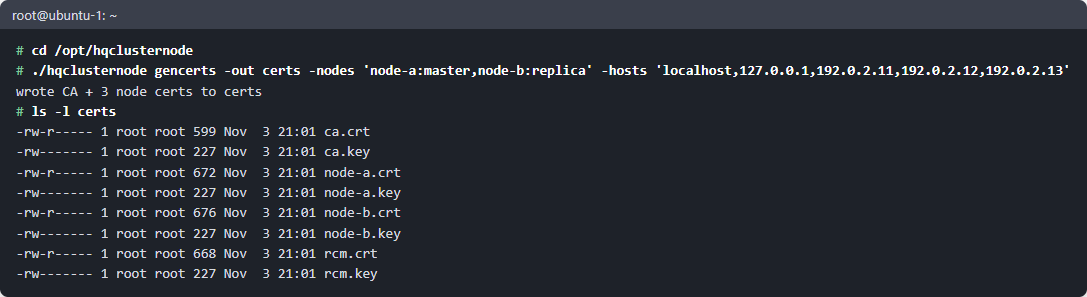
The command creates ca.crt and ca.key, node-a.crt/.key, node-b.crt/.key and rcm.crt/.key. In -hosts, list all names and addresses by which the participants will be connected to.
gencerts and the files it created
ca.key is the CA key. Do not copy it to the hosts; store it separately.
A new node is added later with -add: it signs the pair with the same CA, and the other files are left unchanged:
Certificates are valid for 90 days. gencerts -out certs -list shows the expiry dates, and gencerts -out certs -renew renews them with the same key. Copy the new .crt to its host: the node will pick it up without a restart.
Copy ca.crt and only its own certificate and key to each host.
Step 4. Write node.json
One file per node. Example for the master (node-a):
json
{"node_id":"node-a","role":"master","listen_addr":":7051","rcm":{"url":"https://<ip-rcm>:7443","ca_cert":"certs/ca.crt","client_cert":"certs/node-a.crt","client_key":"certs/node-a.key"},"firebird":{"root":"/opt/firebird","user":"SYSDBA","password":"<SYSDBA password>","port":3050,"replication_conf":"/opt/firebird/replication.conf","replication_log":"/opt/firebird/replication.log","firebird_log":"/opt/firebird/firebird.log","fbagent_url":"http://127.0.0.1:13050","fbagent_token":"<local_api.token>","instance_id":"<local_api.instance_id>","service_name":"<Firebird service name>"},"windows":{"restart_window":"22:00-05:00","transfer_window":"23:00-05:00"},"peers":[{"node_id":"node-b","url":"https://<ip-node-b>:7051","compress":"zstd"}]}
The replica node (node-b) has the same file, but with "role": "replica", its own certificates, and the master node-a in peers.
Main fields:
Field
Value
node_id
node name; the same in the certificate, rcm.json and the peers of other nodes
role
master or replica
listen_addr
the node API address; a second node on the same host uses a different port (:7052)
rcm.url
the address for receiving RCM statistics; none — no RCM
firebird.*
the Firebird and fbagent of this instance; the fbagent values must match exactly
firebird.auto_restart
whether the replica node may restart Firebird itself: auto (default), never, always
windows.restart_window
the Firebird restart window; for the master the default is 22:00-05:00, for the replica it is always
windows.transfer_window
the window in which initialisation runs at full speed
peers
for the master — its replicas, for the replica — its master
databases
the databases folder; better not to write it by hand but to set it via RCM (chapter 3)
The remaining fields have default values. The node will not start if the fbagent fields are not set.
Protect the file: it contains the password and the token.
Command
chmod 600 /opt/hqclusternode/node.json
On Windows. Write paths in JSON format: "C:\\HQbird\\replication.conf".
service_name is the Windows service name for Firebird.
url — the node address as seen by the RCM host. https only.
host — the Firebird instance label. A master node and a replica node with the same label run on the same Firebird (companion, needed to promote a replica to master, chapter 8). One label — no more than one master and one replica.
Relative paths are resolved from the rcm.json folder.
Step 6. Register the services
Start order: RCM first, then the replicas, then the master.
cd /opt/hqclusternode
sudo ./hqclusternode svc install -config /opt/hqclusternode/node.json -certs /opt/hqclusternode/certs
sudo ./hqclusternode svc start -config /opt/hqclusternode/node.json
systemctl status hqclusternode-master-p3050
svc install creates the service hqclusternode-<role>-p<port> running as the firebird user. If the Firebird folder is owned by root, the command grants the firebird group write access to it (with the sticky bit) and prints every change: the node needs to replace replication.conf.
For svc start, svc stop and svc uninstall, specify the same node.json: the service name is derived from the role and the Firebird port.
On Windows (PowerShell as administrator):
Command
cd C:\hqclusternode
.\hqclusternode.exe svc install -config C:\hqclusternode\node.json -certs C:\hqclusternode\certs
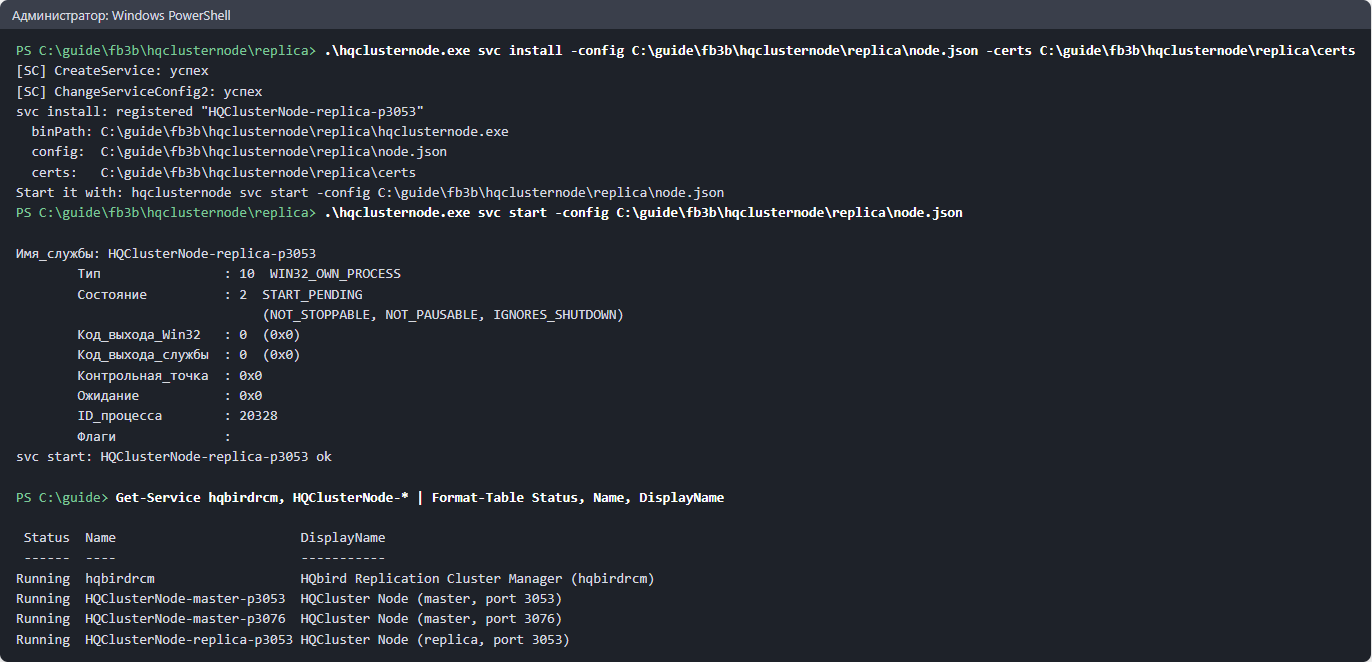
The service HQClusterNode-<role>-p<port> runs as LocalSystem, starts automatically and restarts after a failure. The node service does not depend on the Firebird service. If the node was installed with version 2027.1.2–2027.1.9, remove the dependency once:
.\hqclusternode.exe svc fix-deps -config C:\hqclusternode\node.json.
svc install and svc start on Windows
Step 7. Open the ports
On the node host, allow inbound connections on 7051 (the listen_addr port) from the other nodes and from RCM. On the RCM host, allow inbound connections on 7443 from all nodes. Do not expose ports 7444 and 13050 externally.
Example ufw on the node host:
Command
sudo ufw allow from <ip-rcm> to any port 7051 proto tcp
sudo ufw allow from <ip-partner-node> to any port 7051 proto tcp
Manual update
Stop the service, replace the program, start the service:
The configuration and certificates are not changed by this.
1.5. First login to RCM
The address and password depend on how RCM was installed.
How RCM was installed
Address
Login and password
By the HQbird installer or fbagent --cluster-init (1.3)
https://<RCM host>:7444 from any computer
rcmadmin and the password printed by the installer (or your own from --rcm-password-file)
Via goafts (1.2) or manually (1.4)
http://127.0.0.1:7444, only on the RCM host
rcmadmin, password strong password (with a space)
HTTPS (1.3). The RCM certificate is signed by the cluster CA, which the browser does not know, so it warns you. On the login page RCM shows the CA fingerprint. Compare it with the CA hash printed by the installer, and import the CA into the browser or into the system as a trusted root: the Download CA certificate link on the login page (https://<RCM host>:7444/ca.crt, file hqcluster-ca.crt). To make RCM listen only on localhost, set "operator_addr": "127.0.0.1:7444" in rcm.json and restart RCM.
HTTP (1.2, 1.4). From another computer, connect through an SSH tunnel:
Command
ssh -L 7444:127.0.0.1:7444 <rcm-host>
Then open http://127.0.0.1:7444 in your browser.
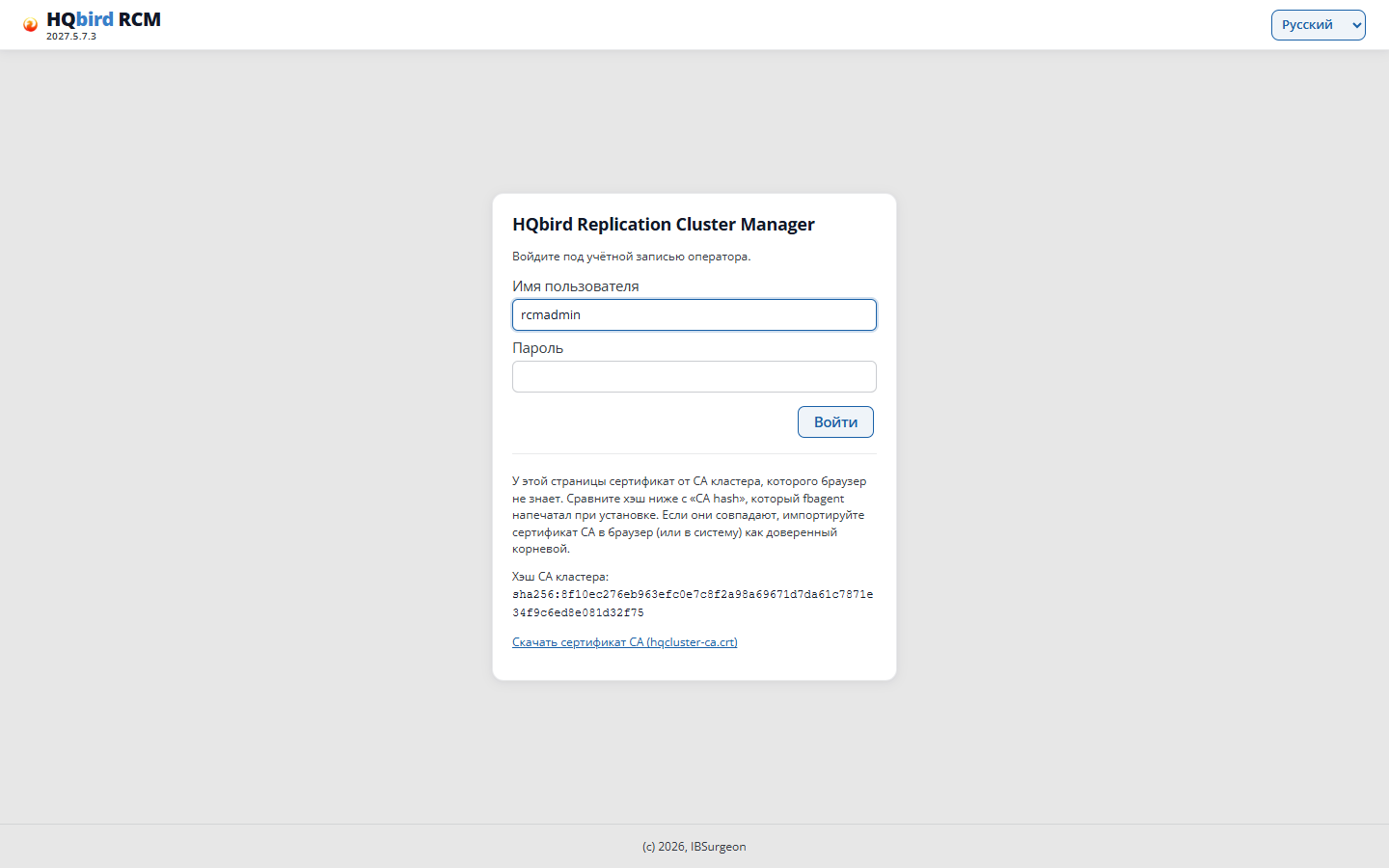
RCM login page
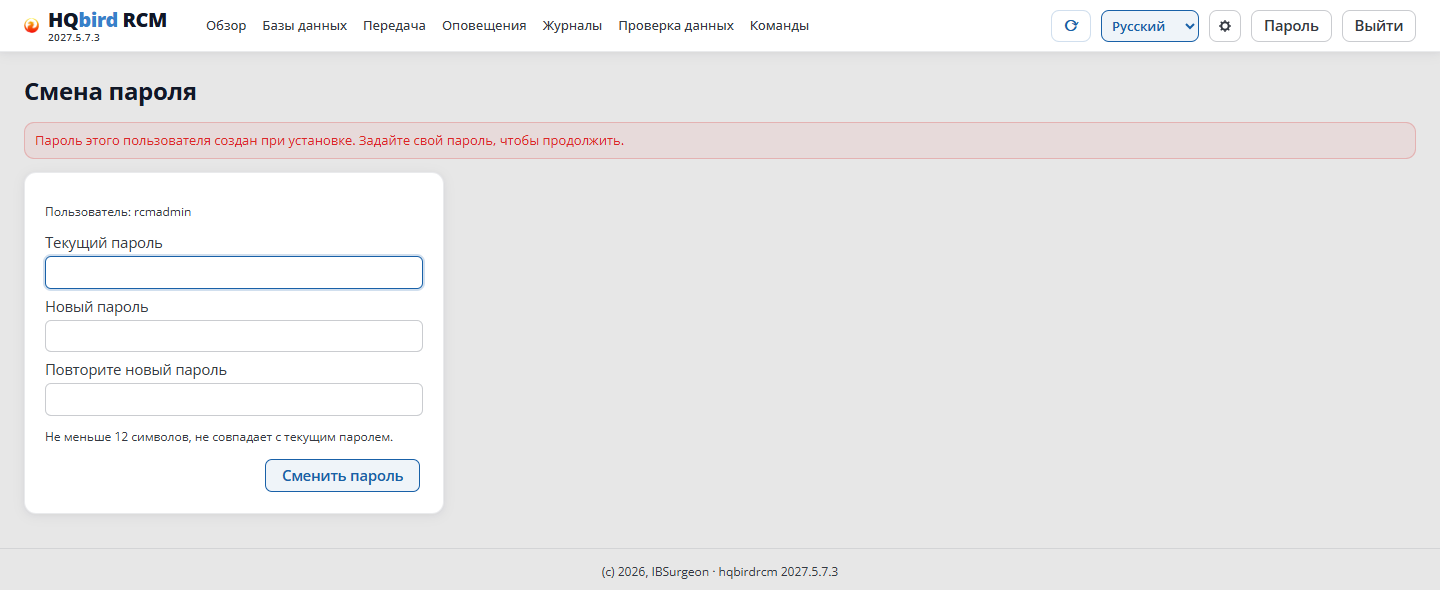
Generated password. RCM asks you to change it at first login: until you change it, the other pages will not open. Change the strong passwordimmediately (the Password link in the header).
Changing the password at first login
Language. Select Russian in the language list in the page header (it is also on the login page). If you make no selection, the language is taken from the browser.
Changing passwords and new users
Your own password is changed by each user: the Password link in the page header. You need the current password and a new one, at least 12 characters long. After the change, the user’s other sessions are closed.
If the installer generated a password, delete the files containing it after the first login: initial-admin.json in the RCM folder and clusterca/<name>/rcm-initial-password in the fbagent folder.
New users. There is no users page in the interface. Users are stored in the file rcm-data/users.json. The password is stored as an HA1 hash: MD5("<name>:hqbirdrcm:<password>").
Restart RCM immediately: it reads the file only at startup. When a password is changed in the RCM interface, RCM rewrites the file from memory, and any edits it has not yet read will be lost.
There are no roles: all users have all permissions.
1.6. How to verify the installation
The node and RCM services are running and not restarting in a loop:
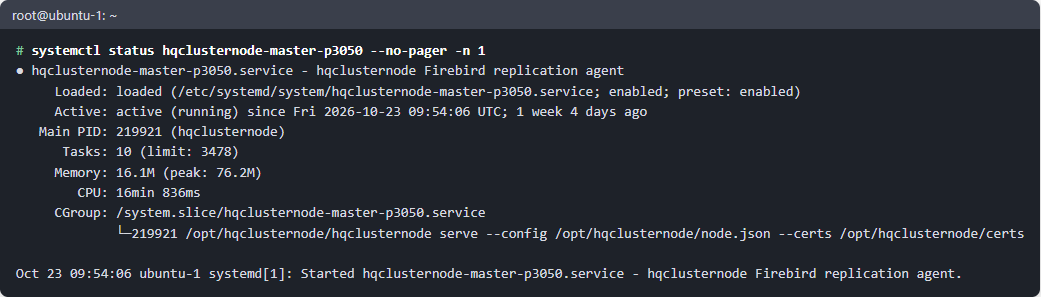
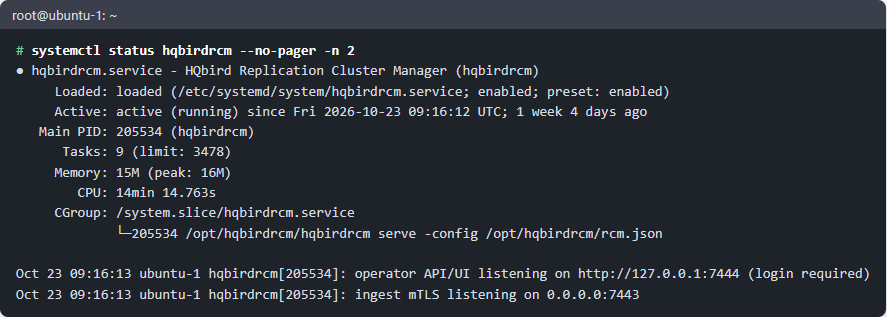
systemctl status hqclusternode-master-p3050, systemctl status hqbirdrcm.
systemctl status of the node
systemctl status of RCM
RCM responds: curl http://127.0.0.1:7444/healthz (without a password).
On the RCM Overview page all nodes are visible, without a “not
responding” marker.
From the command line on the RCM host:
Command
exportRCM_USER=rcmadmin RCM_PASSWORD='<password>'./hqbirdrcm nodes
./hqbirdrcm status
The cluster via RCM: Settings → Cluster, the State section — every
member has applied the latest revision and reports no error. From the command
line: ./hqbirdrcm cluster status.
1.7. Logs
What
Where
Node log
<node.json folder>/logs/node-YYYYMMDD.jsonl
Node service output (Linux)
journalctl -u hqclusternode-<role>-p<port>
RCM service output (Linux)
journalctl -u hqbirdrcm
Firebird replication log
firebird.replication_log from node.json
Logs from any node without SSH
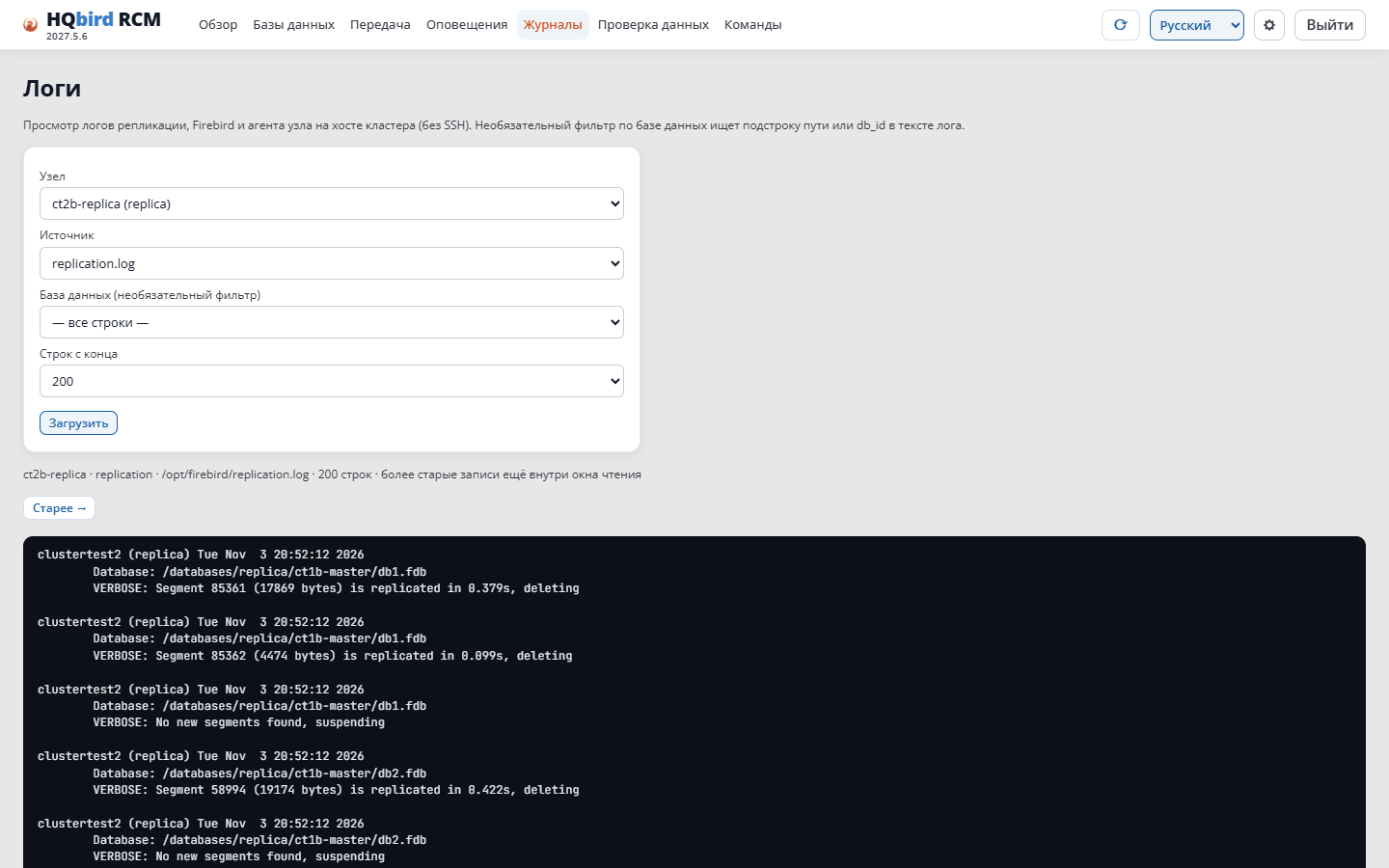
RCM, Logs page
1.8 Common errors
What you see
Cause
What to do
Node does not start: error about fbagent_url, fbagent_token or instance_id
fbagent is not running or the values do not match agent_config.json
check fbagent with the curl command from 1.4, step 1
The installation script exited with code 2
the fbagent request was not approved in time
approve the request and run the script again
Nodes do not appear via goafts
fbagent is not in the cluster, or the cluster has not been obtained yet
check the cluster (chapter 2), wait up to 10 minutes
Node in RCM is “not responding”
port 7051 is closed, wrong url in rcm.json, address is not in the certificate
check the ports and the certificates’ -hosts
Cannot sign in to RCM: “Too many failed sign-in attempts”
10 failed sign-ins within 5 minutes
wait a few minutes
The new version will not install
the version is in blocked-versions.json
remove the version line from the file
--cluster-init: no hqbirdrcm to install
the installer did not leave the RCM program behind
install HQbird with the full installer (1.3, “Manually”, step 1)
the token has already been used, is older than 24 hours, or has been revoked
create a new token (1.3, “Manually”, step 4)
--cluster-join: hostname_conflict
the cluster has an fbagent with the same hostname and different addresses
give the hosts different names
--cluster-join: this agent is in cluster … from goafts
fbagent is already in the goafts cluster
remove it from the goafts cluster
The node will not install via RCM
RCM has no release for this platform
hqbirdrcm release list, import the release (1.3, “Manually”, step 5)
2. Cluster configuration
In this chapter you define which nodes are in the cluster and which master sends
segments to which replica. Then you configure the RCM nodes and users.
Relationships are defined in one of three ways:
Nodes installed
Where relationships are defined
Section
via goafts
in goafts: the Clusters page of HQ Monitor or the goafts API
2.2
via RCM, without goafts
in RCM: Settings → Cluster, hqbirdrcm cluster or the Clusters page of HQ Monitor
2.3
manually
in RCM: Settings → RCM and Settings → Nodes
2.3
On nodes installed via goafts or via RCM, change relationships only in the
cluster description. fbagent overwrites node.json and rcm.json according to the
cluster description, and edits made in Settings → RCM or Settings → Nodes
will be lost.
2.1. Roles and schemes
Each node has one role: master or replica. Two nodes — a master and a replica — can run on a single Firebird instance.
Supported schemes:
Code
1 → 1        node-a (master) ──▶ node-b (replica)

1 → N        node-a ──▶ node-b
                    └─▶ node-c

N → 1        node-a ──┐
                      ├─▶ node-b    (one replica for several masters)
             node-x ──┘

Both nodes   host-1: node-1m (master) + node-1r (replica)  ← one Firebird
on a host    host-2: node-2m (master) + node-2r (replica)  ← one Firebird
             node-1m ──▶ node-2r,  node-2m ──▶ node-1r
The link always goes from the master to the replica. RCM links the master’s database to its replica by database GUID, not by node name.
Companion. A master node and a replica node on the same Firebird instance are companions. Promotion of a replica to master (chapter 8) works only for such a pair. In rcm.json the pair is marked by an identical host value.
2.2. Links via goafts
Where to describe the cluster
HQ Monitor, Clusters page (administrators only; configuration delivery
must be enabled). The usual way.
goafts admin API:POST /v1/admin/clusters and
PUT /v1/admin/clusters/{id}. The goafts admin panel has no clusters
page.
``
Steps on the Clusters page
Enter the New cluster id (lowercase Latin letters, digits and -) and click
Create.
Add members (Members). For each one specify:
the host’s fbagent;
the role: master, replica or rcm;
the host addresses;
the port: for a node — 7051 (a second node on the same host — e.g. 7052),
for RCM — the statistics intake port 7443.
Add links (Replication links) from the master to the replica.
Click Validate, then Save.
If another administrator changed the cluster at the same time, the page will ask
you to reload the cluster and repeat the change.
Rules
An fbagent can belong to only one cluster.
On a single fbagent — no more than one master, one replica and one RCM.
A cluster has exactly one RCM. The fbagent on the RCM host runs the cluster’s
certificate authority (CA).
The member name (member_id) — Latin letters, digits, -. The name, fbagent and role
of a member cannot be changed. To move a member to another host, create a
new member with a new name. Do not reuse the old name.
Every replica must have a link to the master.
goafts builds the node address itself: https://<first address>:<port>.
HQbird 2.5/3.0: set the replconf_valid_till date for the cluster
(YYYY-MM-DD) — the replconf plugin configuration is valid until that date.
Example via the API
json
{"contract":1,"cluster_id":"shop-prod","name":"Shop","pki":"managed","cert_validity_days":90,"renew_before_days":30,"members":[{"member_id":"db1-m","agent_id":"<fbagent of host 1>","role":"master","addresses":["db1.lan"],"listen_port":7051},{"member_id":"db1-rcm","agent_id":"<fbagent of host 1>","role":"rcm","addresses":["db1.lan"],"listen_port":7443},{"member_id":"db2-r","agent_id":"<fbagent of host 2>","role":"replica","addresses":["db2.lan"],"listen_port":7052}],"links":[{"from":"db1-m","to":"db2-r"}]}
Create: POST /v1/admin/clusters (without members), then replace the
document in full: PUT /v1/admin/clusters/{id}.
PUT requires the If-Match: <revision> header (the revision is provided by GET and ETag).
Without the header — 428, with a stale revision — 409, with an error in the document —
422 with a list of errors.
POST /v1/admin/clusters/{id}/validate validates the document without saving.
GET /v1/admin/clusters/{id}/status shows the state of the members and the certificate
expiry dates.
What happens after saving
Each member’s fbagent receives the cluster. Not in a cluster — checked once every
10 minutes, in a cluster — once every 60 seconds.
Each fbagent creates a key and sends a certificate request. The fbagent on the
RCM host signs it. The RCM signs its own certificate without a request.
The fbagent writes to node.json: name, role, address, peers (from the links), the
RCM address, certificate paths, Firebird and fbagent data. To rcm.json: the list of
nodes (nodes) and certificate paths. The fbagent does not touch the other fields of the files.
The fbagent installs and starts the services (chapter 1).
Changing the cluster:
What changed
What the fbagent does
only the peers of a running node
passes them to the node without a restart
other fields of a node
stops the node, writes the file, starts the node — within the node’s windows.transfer_window (not set — immediately)
rcm.json
restarts RCM immediately
certificates or CA
restarts the service
a member is removed
stops and removes the service; cluster-managed.json → cluster-removed.json, the program → *.removed; the configuration, certificates and data remain
After a node is removed, its section
# BEGIN managed-by:<name> … # END … remains in the shared replication.conf. Delete it manually and restart
Firebird via RCM.
Approving cluster certificates
By default the fbagent on the RCM host signs requests itself (auto). You can
enable manual approval. Commands on the RCM host:
Command
fbagent --cluster-ca-approval manual # or autofbagent --cluster-status # this fbagent's cluster membership (JSON)fbagent --cluster-ca-approve <request_id>
In manual mode, a new member or a new key waits for approval. Renewal of a
certificate with a known key is signed automatically.
2.3. Links via RCM
RCM cluster (without goafts)
If the cluster was created by the HQbird installer or with the fbagent --cluster-init command
(chapter 1.3), the cluster description is stored by RCM. The easiest way to add hosts is on
the Settings → Link hosts page (chapter 1.3, “Linking hosts in RCM”):
RCM creates the members and links itself. The rules are the same as in goafts (2.2, “Rules”), plus:
in RCM there is one cluster; the rcm member always exists and cannot be deleted;
no more than 3 seats (hosts with master or replica nodes), otherwise you get the error
seats_exceeded;
a member can only be added on an fbagent that is connected to RCM
(chapter 1.3: “Link hosts” or “Manually”, step 4).
Steps on the Settings → Cluster page:
In the Agents table, click Add member in the fbagent row.
Specify the role (master or replica), member_id, addresses and port. The page
suggests the name <host>-<role> and a free port starting from 7051. The
fbagent addresses are buttons: click to add an address.
In the Links section, click Add link from the master to the replica.
Click Validate: RCM will show errors and warnings.
Click Save. The page will show the list of changes and ask for
confirmation. If members are being deleted, the window is red.
Before saving, the changes exist only on the page (marked “Not saved”). If
someone saved the cluster at the same time, the page will offer to reload it.
If only RCM fields changed (revision, CA, orders), the page will save
your change itself.
Other sections of the page:
Section
What is there
header
cluster name, revision, cluster CA and agent CA; the Export button for the old CA
Connection tokens
create a token for a new fbagent, revoke an unused one
JSON document
the whole document in a text field; Validate and Save use it
Keys and CAs
orders: new member key (rekey), new cluster CA (rotate_ca), new agent CA (rotate_agent_ca); unavailable when there are unsaved changes
State
the revision each member has applied, certificate expiry, service, last error
From the command line on the RCM host:
Command
exportRCM_USER=rcmadmin RCM_PASSWORD='<password>'./hqbirdrcm cluster show > c.json # document with revision# edit c.json./hqbirdrcm cluster validate -f c.json # validate without saving anything./hqbirdrcm cluster apply -f c.json # save (If-Match = revision from the file)./hqbirdrcm cluster agents # connected fbagents and their members./hqbirdrcm cluster status # what the fbagents reported
The document format is as in 2.2, “Example via API”. apply with an old revision
returns 409: run show again. RCM keeps the last 20 revisions in
rcm-data/cluster/history/.
HQ Monitor. The Clusters page also works with RCM. In the HQ Monitor
configuration on the RCM host, set rcm_admin_url (http://127.0.0.1:7444),
rcm_admin_user (the RCM user) and rcm_admin_password_file (the file with its
password). The RCM audit log shows both users: RCM and HQ Monitor.
After saving, everything proceeds as via goafts (2.2, “What happens after
saving”). RCM re-reads nodes in rcm.json itself, without a restart.
Remove an fbagent from the cluster: delete its members and save, then
click Revoke in the Agents table (or
./hqbirdrcm cluster revoke -agent <id>). To bring it back, a new
token is required.
Manual setup: add a node to RCM
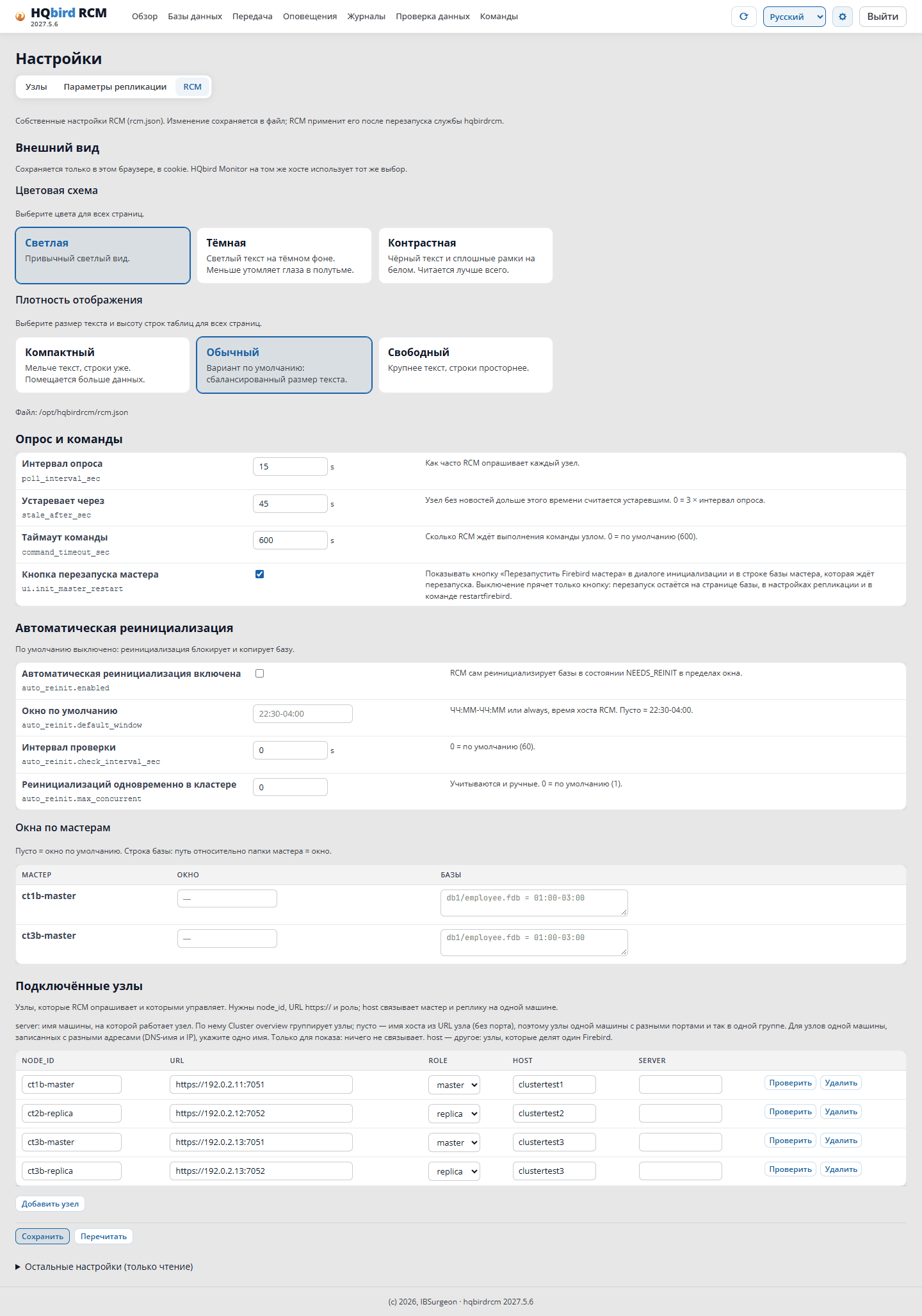
Settings → RCM, the Connected nodes table.
Click Add node. Fill in node_id, url
(https://<address>:7051), role, host (Firebird instance label),
server (for on-screen grouping only).
Click Validate in the node row: RCM will check connectivity and permissions.
Click Save. RCM will write rcm.json and save the old file as
rcm.json.<UTC time>.bak (the last 20).
Restart RCM. Until the restart, the old configuration is in effect;
the page shows which fields are awaiting a restart.
Settings → RCM
Command
sudo systemctl restart hqbirdrcm
You can also do it without the interface: edit rcm.json and restart RCM.
Manual setup: link master and replica
The link must be recorded on both sides:
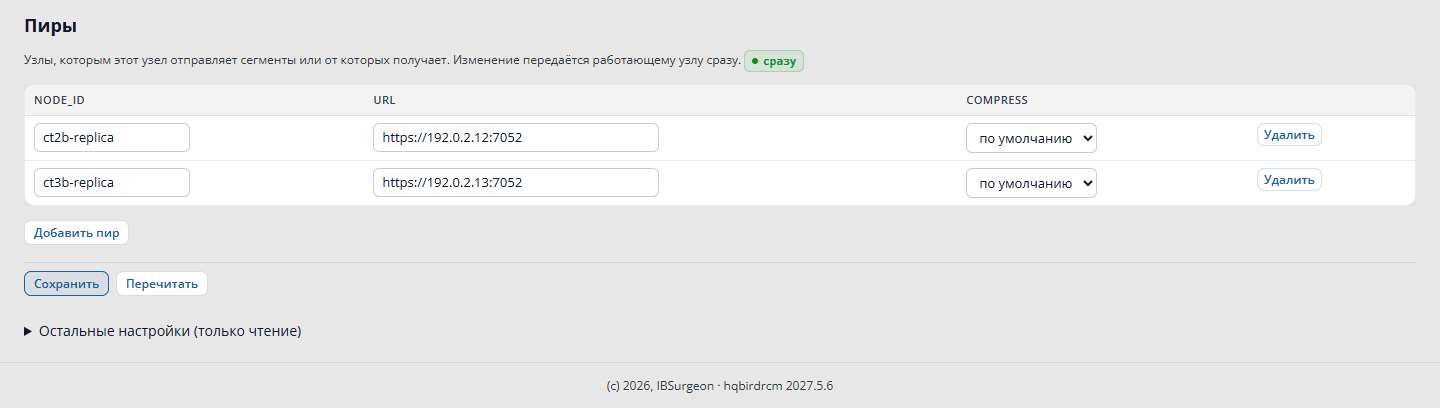
Settings → Nodes, select the master node.
In the Peers section, click Add peer: the replica’s node_id, its url,
compression (zstd).
Click Save. RCM will show the list of changes and ask for
confirmation. The peers change takes effect immediately.
Repeat for the replica node: its peer is the master.
The master node's «Peers» section
If the peer is not recorded on one of the sides, RCM will not offer that replica node when
initialising the database.
2.4. Node settings
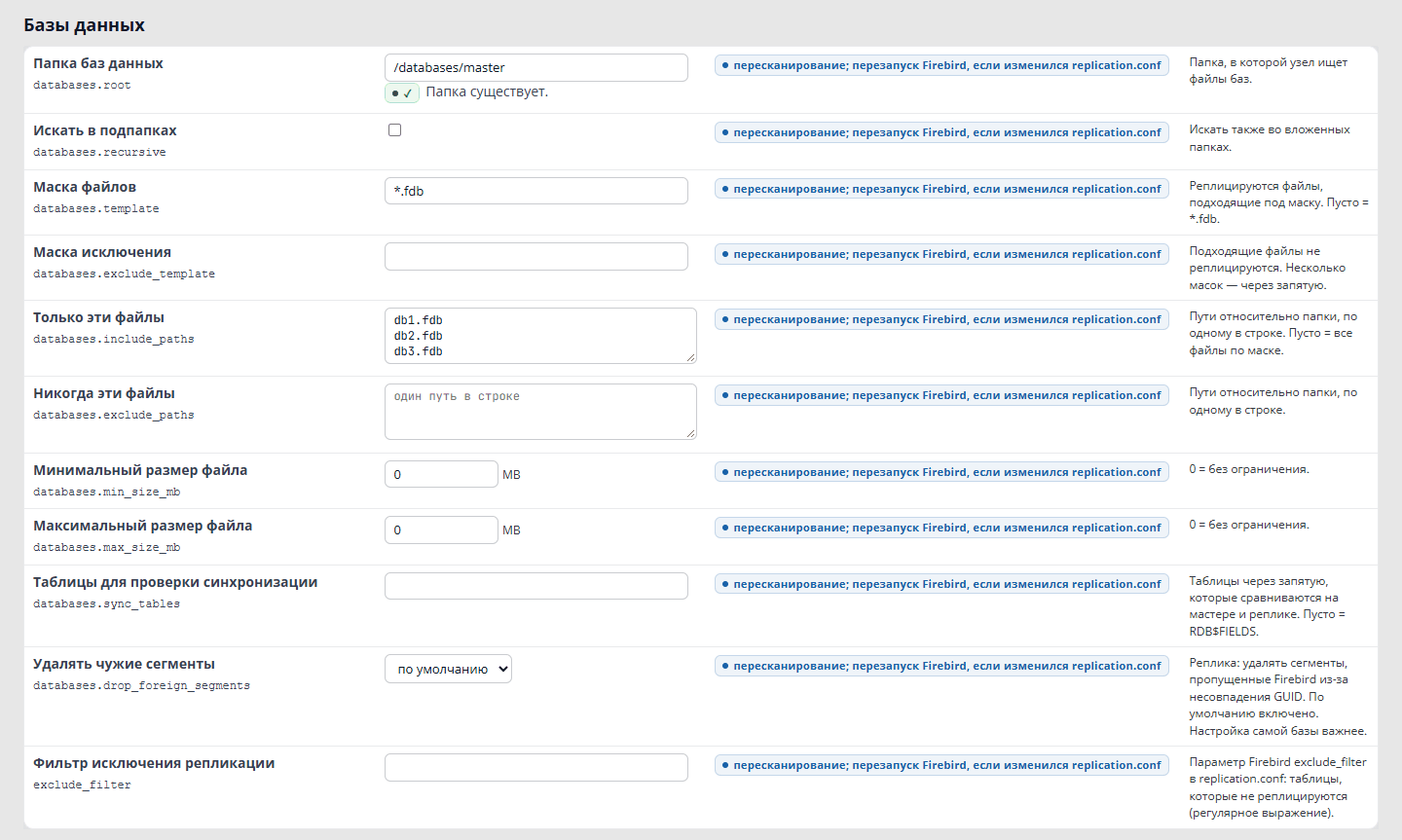
Settings → Nodes shows the node.json settings that the node allows to be changed from RCM. Only the changed fields are saved, after a window listing the changes.
Settings → Nodes: selecting a nodeNode database settings with "after scanning" markers
Each row has a marker showing when the change will take effect:
the remaining limits, windows.transfer_window; the page shows them on a separate line until the node is restarted
After scanning
databases.*, exclude_filter; if replication.conf has changed, a Firebird restart is required (chapter 3.5)
Read-only (changed in node.json on the node host): firebird (including the password and auto_restart), rcm, tls, segments, addresses.
Main settings:
Setting
Default
Meaning
windows.restart_window
master 22:00-05:00, replica — always
when the node may restart Firebird; the Firebird master never restarts itself
windows.transfer_window
23:00-05:00
the window in which initialisation runs at the reinit_window_mbps rate
limits.channel_a_mbps
50
segment transfer rate, MB/s (channel_a_burst_mbps — short-term peak, 200)
limits.reinit_window_mbps
100
initialisation rate within the transfer window, MB/s
limits.reinit_day_disk_fraction
0.5
fraction of the measured disk speed for initialisation outside the window
limits.retention_days
2
how many days to keep sent segments in the master’s archive
limits.free_space_floor_gb
1
minimum free space, GB; below this the replica does not accept segments
limits.max_concurrent_reinits
1
how many initialisations the node runs concurrently
For details on rate and archive retention, see chapters 5 and 7.
firebird.auto_restart (in node.json only) determines whether a replica node may restart Firebird itself:
Value
Behaviour
auto (default)
may, if this Firebird does not serve master databases
never
never
always
always, even if this Firebird has master databases
Via goafts. The fbagent node’s windows.transfer_window is also used as the window for restarting the node service itself when the cluster changes. If no window is set in node.json, fbagent restarts the service immediately.
2.5. Multiple HQbird instances on one host
fbagent restarts the services listed in firebird.update.services of its
configuration. An empty list means all HQbird services on the host. Leave only
the service of your own instance in the list. The node does not see this setting and writes a
warning fbagent_shared to the log if fbagent knows about more than one instance.
2.6. SYSDBA Password
The node connects to Firebird with the user and password from firebird.user and
firebird.password in node.json. fbagent stores its own copy of the password. If you
have changed the SYSDBA password:
Correct firebird.password in node.json of every node of this
instance (master and replica).
Correct the password in the fbagent configuration and reload it (see the
fbagent documentation).
Restart the node services.
Otherwise the publication and verification pages in RCM will show a login error
(SQLSTATE 28000).
2.7. RCM Users and Audit
Users are stored in the rcm-data/users.json file (chapter 1.5). There are no roles.
A session lives for 12 hours after the last action.
After 10 failed logins within 5 minutes, login for that user and address is temporarily blocked. A successful login resets the counter.
The audit log is the rcm-data/audit.jsonl file: one JSON line for each change, login and logout. There is no log in the interface.
The Commands page shows the author of each command.
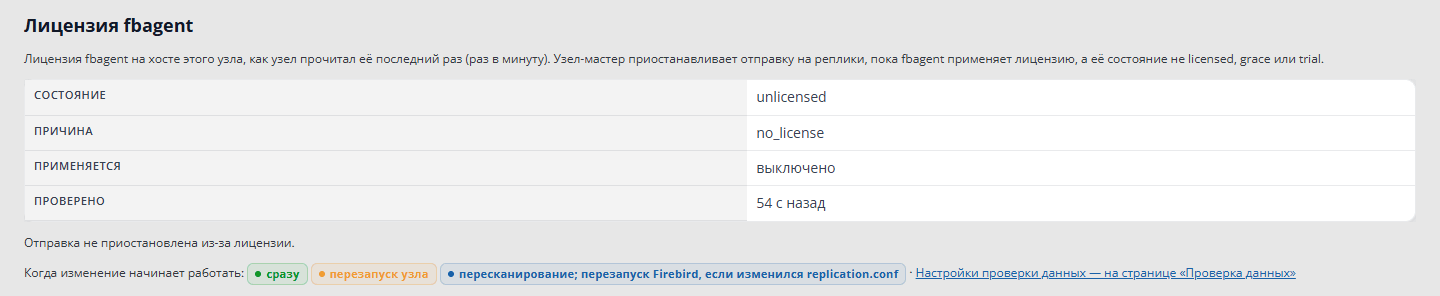
2.8. License
Once a minute, the master node reads the fbagent license of its host. If there is no license (the trial period has ended, the license has expired or is invalid), the node stops shipping segments for all master databases. Firebird and the databases keep running, but replicas stop receiving changes.
What you see in RCM:
the master is red (NEEDS_ATTENTION), with the “no license: shipping stopped” icon;
there is no Resume button: only a license lifts the pause;
on the replica: “not receiving since …: the master has no license”;
in the Nodes table, the “no license” icon; in Settings → Nodes, the fbagent license block;
the license_paused and license_pause_archive_released notifications;
initialisation is forbidden (license_paused).
fbagent license block in Settings → Nodes
Install the license in fbagent. The node lifts the pause by itself within a minute. The master keeps the archive for replicas for limits.retention_days (2 days by default) from the start of the pause. If you install the license later, the replicas will have to be initialised again.
Cluster via RCM, without goafts. A floating license without goafts stops working after online_check_days plus the grace days. Each fbagent in the cluster needs a bound license (fbagent --license-request, then fbagent --license-install, chapter 1.3, “License”). After the trial period, fbagent will not add a new node, and RCM will not work without the cluster feature in the license; it never forbids updates. For HQbird 2.5/3.0, the replconf_valid_till date in RCM cannot be later than the end of the license plus the grace days on the nodes’ fbagent (error replconf_after_license).
2.9. How to check
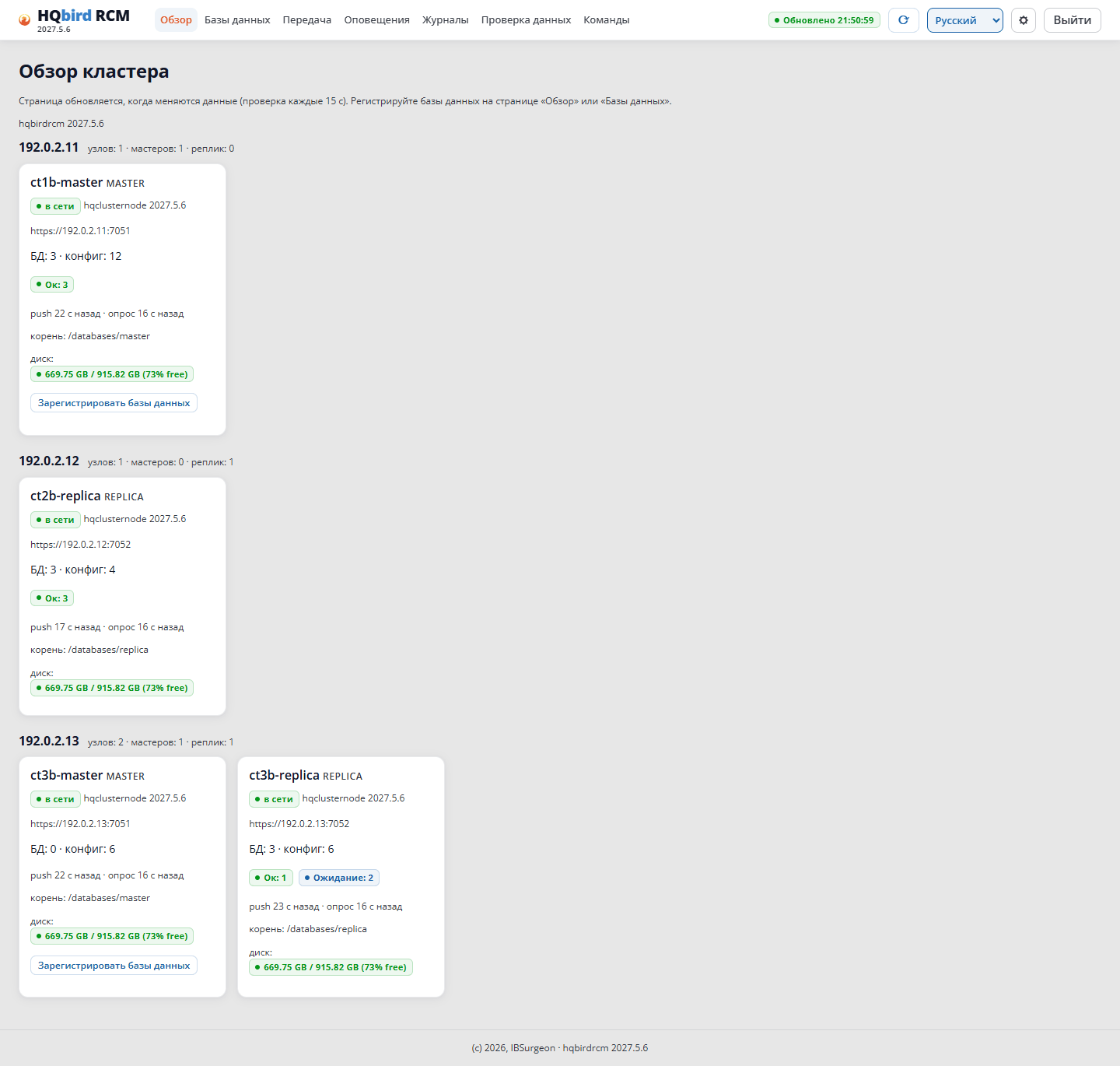
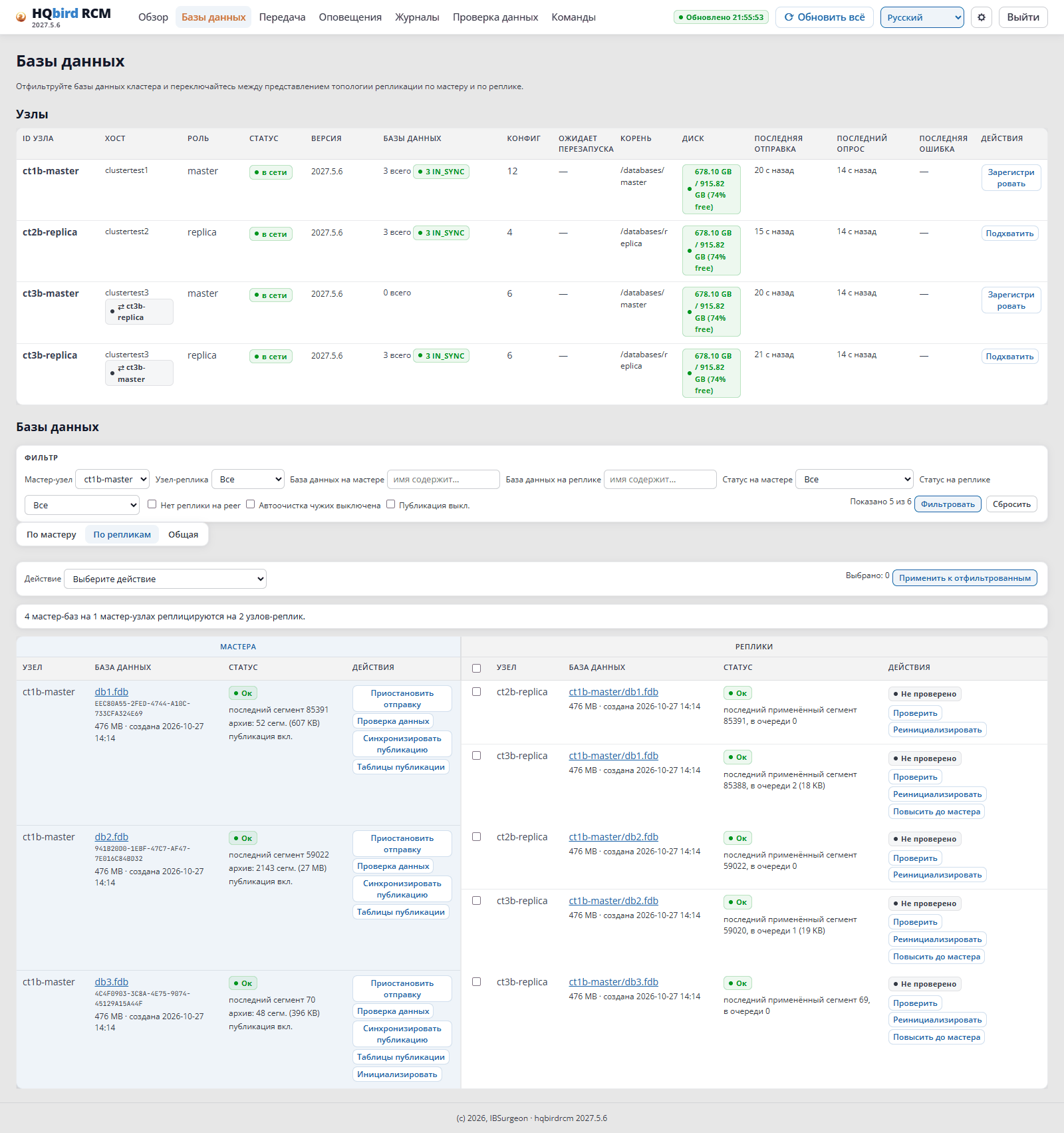
Overview: all nodes are present and grouped by server.
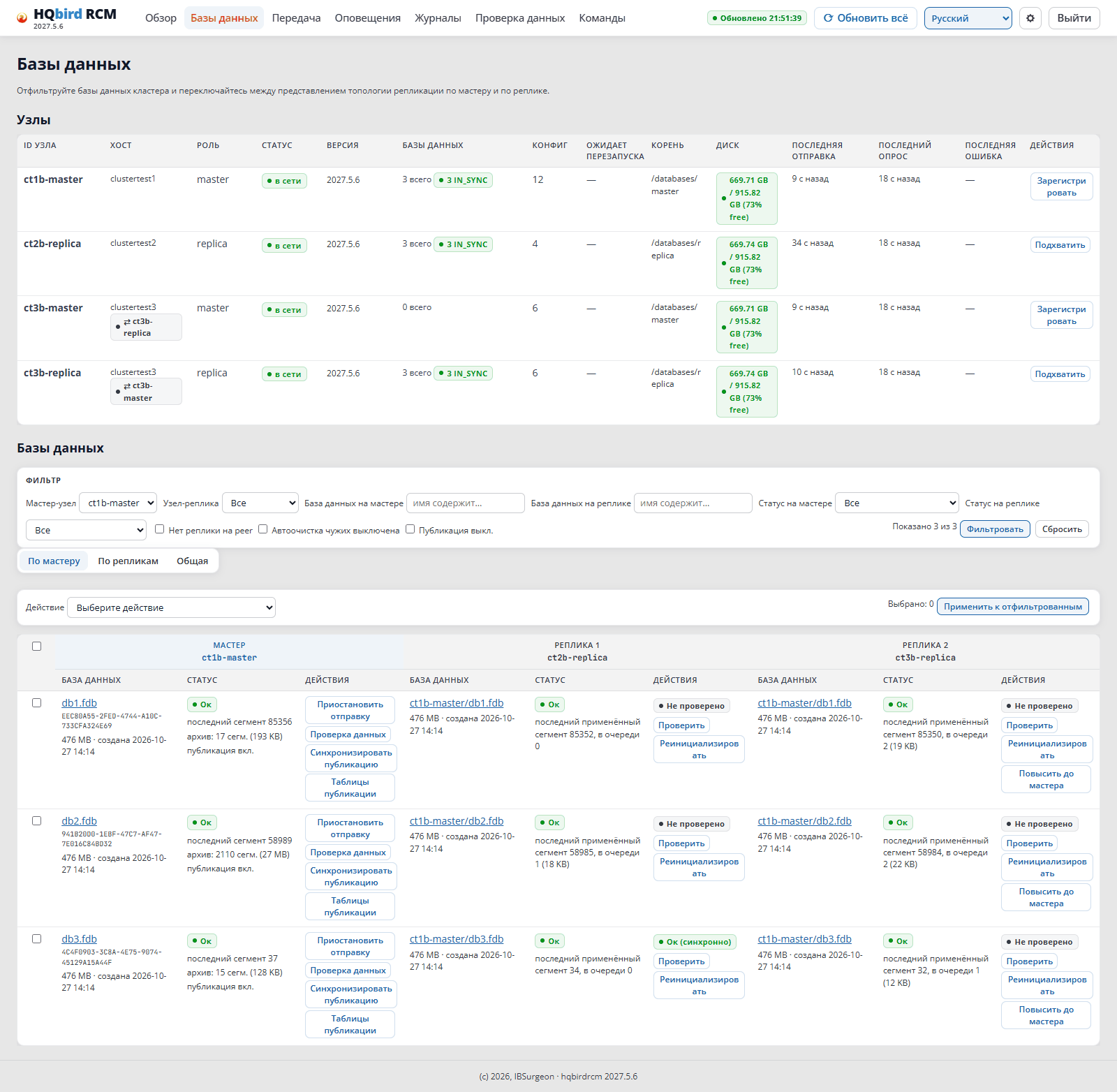
Cluster overview
Settings → Nodes: the master has a replica in Peers, and the replica has the master.
Settings → RCM: the Check button in each node’s row passes.
Cluster report as a single file:
Command
./hqbirdrcm report -o report.json
2.10. Common errors
What you see
Cause
What to do
Peer edits in RCM disappeared after the node restarted
the node was installed via goafts or via RCM
change the links in the cluster description (2.2, 2.3)
seats_exceeded when saving the cluster in RCM
nodes on a fourth host
no more than 3 hosts with nodes
Settings → RCM: rcm_config_read_only
cluster via RCM on Linux: rcm.json is owned by fbagent
edit rcm.json as the fbagent user and restart RCM
Revoke agent does not work (agent_has_members)
fbagent has members
first delete the members and save
Replica node is not offered during initialisation
the peer is not recorded on one of the sides
add the peer on both sides (2.3)
A change in Settings → RCM does not take effect
RCM has not been restarted
restart RCM
422 when saving the cluster in goafts
an error in the document
fix it according to the errors list, check via validate
409 when saving the cluster
someone else changed the cluster
re-read the cluster and retry
A new goafts member does not receive a certificate
manual approval on the RCM host
fbagent --cluster-ca-approve <id>
SQLSTATE 28000 error on publication pages
the SYSDBA password was changed
2.6
3. Adding a database to the master
In this chapter the master database comes under the control of the node. The node records it in
replication.conf and creates folders for the segments. After restarting Firebird
the database is ready for replication.
Creating the replica is the next steps (publication, initialisation). They are described in
chapters 4–6.
Button names are given according to the Russian RCM interface, with the English ones in brackets.
3.1. How a node finds databases
The master node looks for databases in a single folder — the databases root (databases.root). What comes under management is decided by rules:
Rule
Field
Default
Databases folder
root
not set
Search subfolders
recursive
yes
Inclusion mask
template
*.fdb
Exclusion mask
exclude_mask
none
File size, MB
min_size_mb, max_size_mb
no limits (0)
Tables for data comparison
sync_tables
RDB$FIELDS
Inclusion list
include_paths
empty (template mode)
Exclusion list
exclude_paths
empty
The root path is a path on the node host, not on the RCM host. The node applies the inclusion mask first, then the exclusion mask, then the size.
All rules are stored in the node’s node.json. The node applies them on every scan.
Template mode and list mode:
Template mode (inclusion list empty): the node takes all files matching the mask, except those excluded. A new file in the folder will be picked up by the node automatically on the next scan.
List mode (inclusion list not empty): the node takes only the files in the list. A new file will not come under management automatically — it must be added.
Choose list mode if the folder contains database copies, test databases, or other files that do not need to be replicated.
3.2. Before you begin: check permissions
The user under which Firebird and the node run (firebird on Linux,
LocalSystem on Windows) must have read and write permissions on:
the database root folder and database files;
replication.conf and its folder (the node replaces the file via a temporary file);
the segment folders <database>.ReplLog and <database>.LogArch (the node creates them itself).
RCM checks permissions before registration (preflight). If the check fails,
the command terminates with the error preflight failed on <node> and a list of paths.
The form shows the node’s current rules (the node sent them itself). If the node
is not responding, the preview and enrol buttons are disabled: without the current
rules they would reset the include and exclude lists.
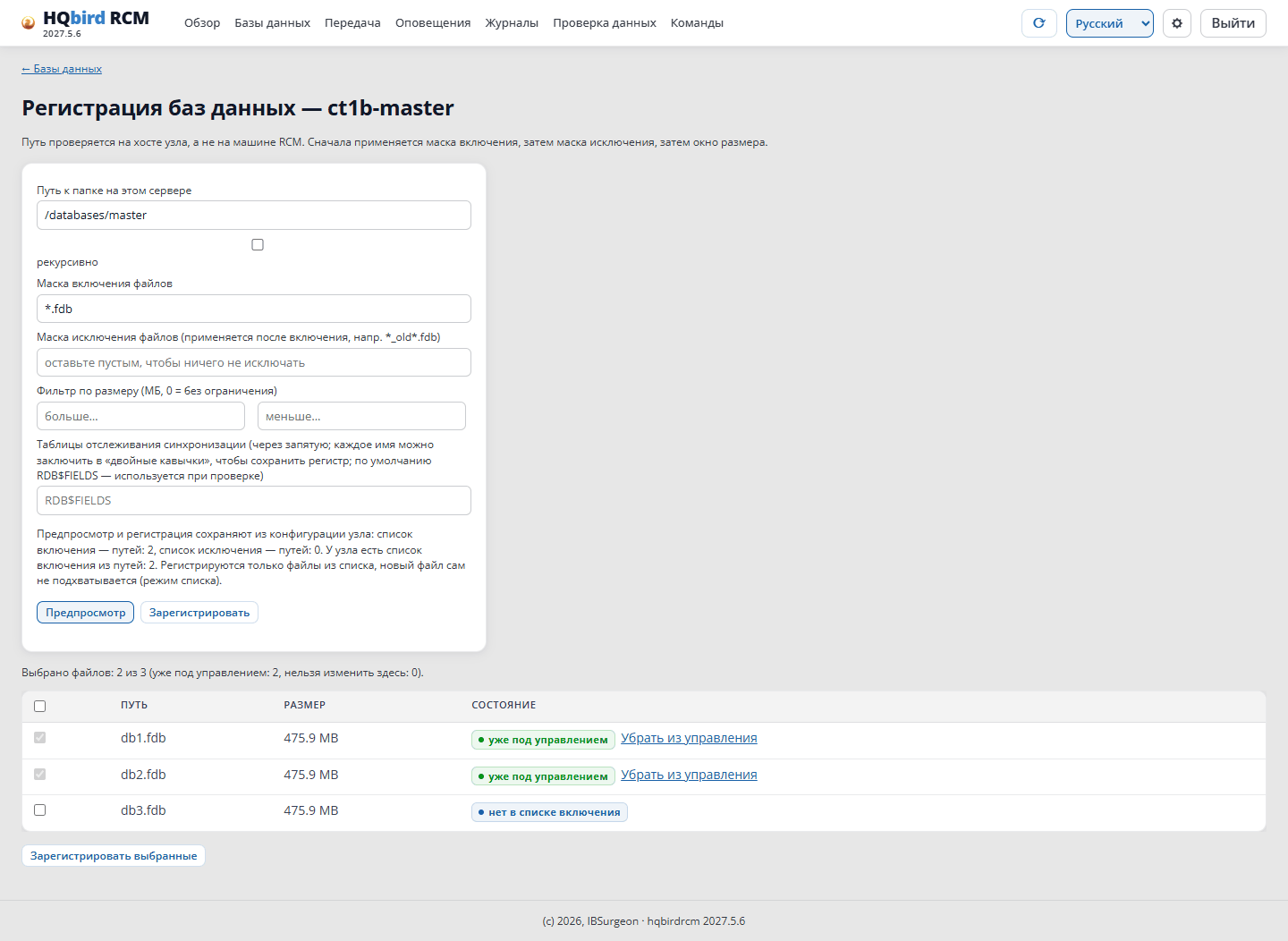
Fill in or correct the fields: Path to the folder on this server,
recursive, masks, Size filter, Sync tracking tables.
Click Preview. The node will show all files matching the include mask.
It changes nothing.
Check the list. Each file has a checkbox:
checked — the file will be managed;
checked, locked, marked already managed — the database is already
enrolled;
locked with a reason — the file is excluded by mask, size or the exclude list. To take it, change the rule.
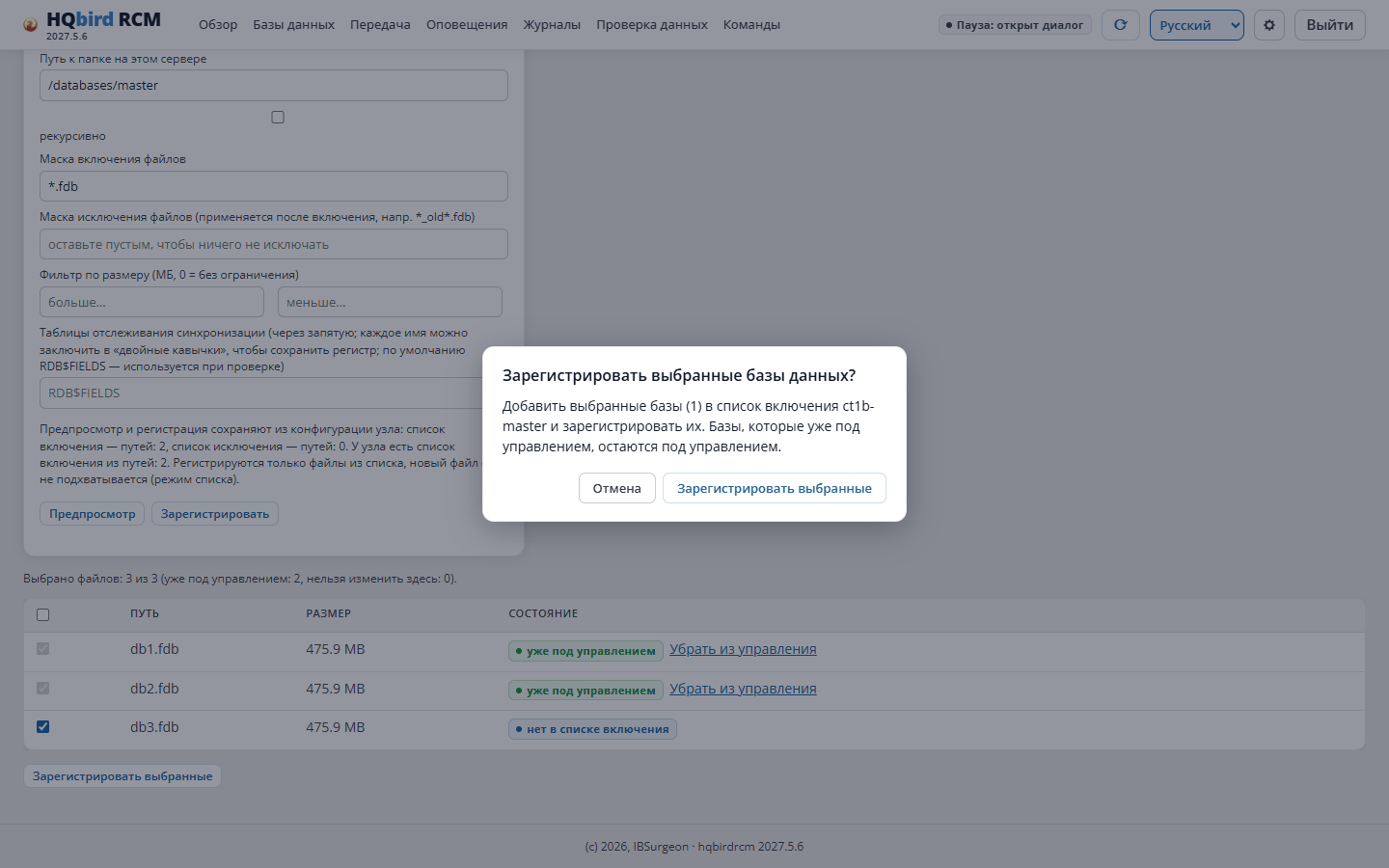
Tick the databases you need and click Enroll selected. RCM will ask for
confirmation and show the number of files.
Enrolment confirmation
What this button does:
in template mode — files without a tick are added to the exclude list, files with a
tick are removed from it;
in list mode — files with a tick are added to the include list.
The button adds databases to those already managed. It does not change locked
rows.
7. The Enroll button applies the form without changing
the lists.
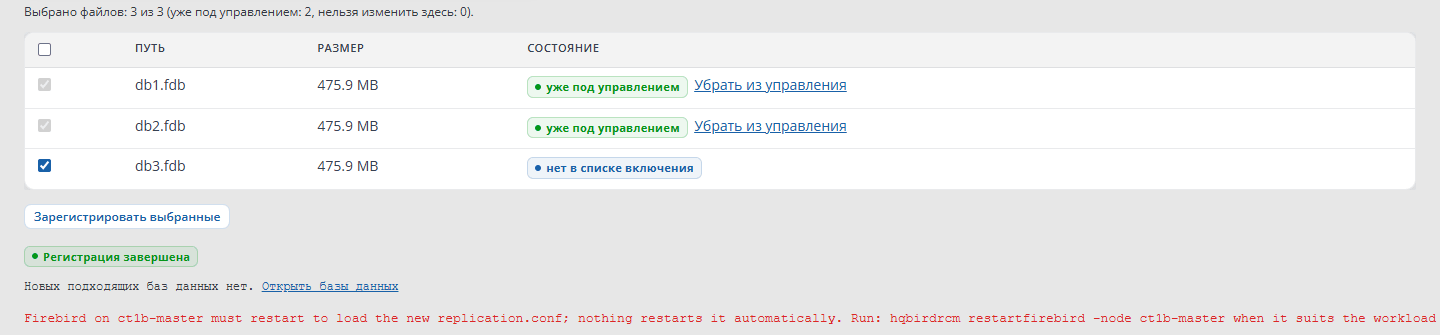
8. Wait for the completion message and the number of added databases. If there is no
response for a long time, check the result on the Commands page.
Enrolment result
If no databases were found after enrolment, but the node already had databases, the node
refuses (409) and returns the old rules. This way a mistake in the path does not disable
replication of all databases.
Note: the command sends only the fields from its parameters. The remaining
rules (masks, sizes, include and exclude lists, sync_tables) will be reset by the node.
Before running the command, read the current rules
(hqbirdrcm getconfig -node node-a) and pass them in the command. It is safer
to use the enrolment page.
3.4. What happens after registration
The node writes the rules to node.json.
The node scans the folder (scansync).
For each database found, the node writes a block into its own area of
replication.conf (between the lines # BEGIN managed-by:node-a role:master and
# END …) and creates the folders <database>.ReplLog and <database>.LogArch. The node does not modify text outside its own area.
Before making a change, the node saves a copy of the file:
replication_YYYYMMDD_hhmmss_NNN.conf.
If replication.conf has changed, the databases enter the
PENDING_RESTART state: Firebird will only read the new file after a
restart. In the Nodes table this is shown in the Pending
restart column.
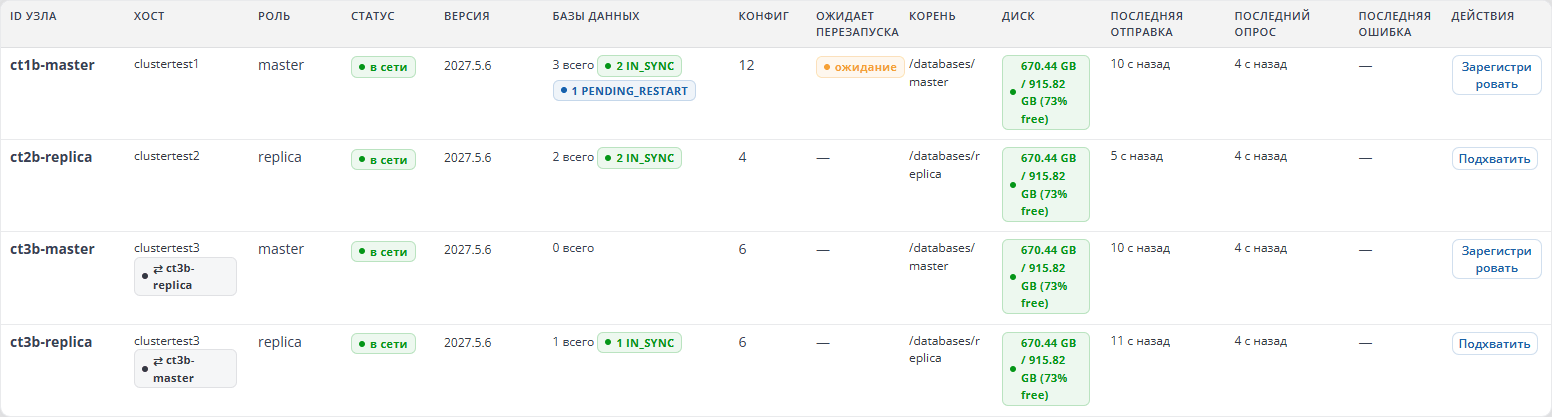
The “Pending restart” column in the “Nodes” table
States of a new database:
State
Group in RCM
Meaning
UNCONFIGURED
Pending
database found, configuration not yet written
PENDING_RESTART
Pending
configuration written, Firebird restart required
CONFIGURED
Pending
Firebird restarted, database ready for publication and initialisation
3.5. Restarting the master Firebird
The master node never restarts Firebird by itself. Neither does RCM. Restarting
the master is the operator’s decision: a restart drops all connections to
all databases of that Firebird instance.
Choose a low-load time and click one of the buttons:
Restart master Firebird — on the Databases page, in the row of the
master of the database that is awaiting a restart;
the same button in the Initialize window, chapter 5;
Restart Firebird — on the database page.
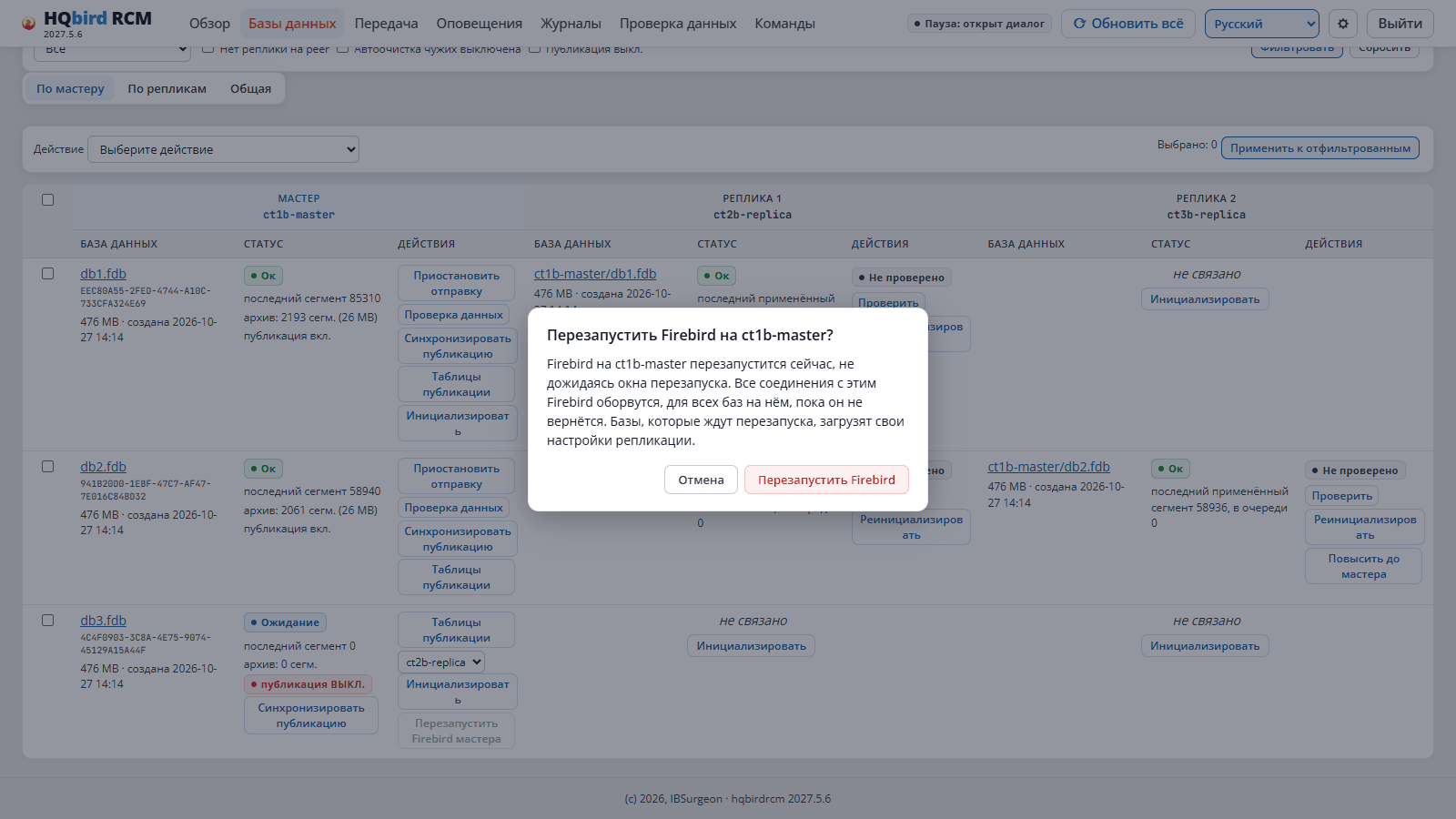
RCM will ask for confirmation. It shows the node name and a warning: Firebird
will restart immediately, without a restart window, and all connections will be dropped.
Confirmation of master Firebird restart
The same from the command line
Command
hqbirdrcm restartfirebird -node node-a
This command also restarts immediately, without a restart window.
How the node restarts Firebird:
Checks that fbagent is responding and manages the same instance
(identifier, port, service name from node.json). If any value does not
match, the node refuses.
Asks fbagent to restart Firebird.
Waits for Firebird to respond on its port.
Moves the databases from PENDING_RESTART to CONFIGURED.
Several HQbird instances on one host. fbagent restarts the services listed in
firebird.update.services of its configuration. An empty list means all
HQbird services on the host. If there are two HQbird instances on the host, leave
only your instance’s service in the list. Otherwise, restarting one node
will also stop the other instance.
On Windows. If replication.log has grown to log_portion_mb or more,
the restart proceeds as follows: stop Firebird → archive the log → start.
3.6. A database that is already replicated manually
If replication is already configured manually for a database (its own block in
replication.conf, publication enabled, segments flowing), it can be brought under
management without re-initialising the replica. For this there is a
detect_existing mode (master only).
In the response, taken_over lists the databases that will be migrated. Add -verbose
to see the skipped databases with the reason.
If the list is correct, run the command without -dry-run.
The node migrates a block only if:
the segment folders are named exactly <database>.ReplLog and <database>.LogArch;
segments already exist in the archive;
publication is enabled in the database.
The node does not migrate a block with different paths and reports it as “found but
unsupported”.
After migration the databases get PENDING_RESTART, even though the replication settings
are not changed: only the position of the block in the file changes. Restart Firebird in a
maintenance window.
3.7. How to verify
Databases: the database is visible in the master node’s row, state CONFIGURED
(after restart).
Next to the database there may be a publication OFF icon: publication is not
yet enabled. This is normal, publication is the next step (chapter 6).
New database in the master row
On the node host: the database block is present in replication.conf inside the
managed-by:node-a area, and next to the database there are the .ReplLog and .LogArch folders.
3.8. Remove a database from management
The usual way is the button. On the Databases page, tick the databases,
select the bulk action Remove from management and
click Apply to selected. RCM:
adds the files to the node’s exclusion list;
scans the folder once: the database blocks are removed from replication.conf;
deletes the database records in the node.
The database files and segment folders remain on disk. Firebird is not restarted.
Firebird continues to write the database segments until its next restart;
RCM will say if a restart is needed.
RCM will refuse (has_replicas) for a master database that has a live replica:
otherwise the replica would silently stop. First turn the replica into an ordinary database or
remove it (chapter 8).
Do not delete the database block from replication.conf manually: on the next
scan the node will write it again.
If the database file has disappeared or has been excluded by a rule. Then the database gets
the state ORPHANED (the Orphaned group). The node keeps its record and the segment
archive: a missing database is more often a mistake than a decision. If the file comes back, the database
works again and the alert is cleared. To delete such a database permanently,
perform two steps in this order:
After forgetdatabase the cleanuparchive command will no longer find the database. Both
commands work only for a database in the ORPHANED state and do not touch the database
file.
Caution. After promoting a replica to master (chapter 8), do not run
cleanuparchive -orphaned for the old record: the new master uses the same
.LogArch folder, and the command will delete its working archive.
3.9. Changing the database root
Registration with a different path is permitted. The node:
adds databases from the new folder;
moves databases from the old folder that are not present in the new one to ORPHANED (notification
orphaned_database) and keeps their archives.
If you chose the wrong folder, register the correct folder again. A database with the
same full path will continue to operate under the same db_id. A database at a different path
is a new database (new db_id); its replica must be initialised again.
3.10. Common errors
What you see
Cause
What to do
preflight failed on node-a
no permissions on the folders
fix the permissions, retry (3.2)
409 scan_would_empty_region
the new folder contains no databases, but the node had some
check the path and the mask
Preview is empty
the mask does not match or the folder is wrong
check the path, the mask, “recursive”
Buttons are disabled, “Failed to read node configuration”
the node is not responding
check the node service and the network (chapter 1)
The database stays in PENDING_RESTART for a long time
the master does not restart Firebird by itself
restart Firebird (3.5)
Restart rejected because of fbagent
fbagent is not running or its data does not match node.json
chapter 1, checking fbagent
The new file did not appear
the node is in list mode
add the file via “Register selected”
4. How to make a database a replica: steps and disk location
This chapter covers the whole journey of a database from master to a working replica, plus the disk space calculation.
The initialisation itself is described in detail in chapter 5.
4.1. The Main Rule
A database appears on a replica only through initialisation from the master (reinit):
the master node itself transfers the copy via nbackup.
Do not make a copy manually:
gbak creates a new database GUID and resets the segment number. The master —
replica link breaks.
A file copy of a running database is not consistent, and RCM will see two databases with the same
GUID (duplicate_guid) and will block initialisation.
An already working replica configured manually can be taken under management without
a new copy — see 4.6.
4.2. Stages
No.
Stage
Where
Master database state after the stage
1
Register the database on the master
chapter 3.3
PENDING_RESTART
2
Restart the master’s Firebird
chapter 3.5
CONFIGURED
3
Synchronise the publication
chapter 6
CONFIGURED, publication ON
4
Prepare the replica: folder, permissions, Firebird version
4.3
—
5
Check space on the master and on the replica
4.4
—
6
Initialisation
chapter 5
SEEDING → IN_SYNC
7
Restart the replica’s Firebird (if needed)
chapter 5.6
the replica starts applying segments
8
Verify the data
chapter 5.10
—
Stage 3 is mandatory for Firebird 4/5. Without a publication, the master’s Firebird does not write
table changes to segments, and the replica silently falls behind the master. On the
Databases page such a database is marked with the publication OFF icon. Click
Synchronise publication (Sync publication) before initialisation.
HQbird 2.5/3.0. There are no publications, so stage 3 is skipped. The set of tables is defined by
the filters of the replconf plugin (chapter 6).
Database states:
State
Group in RCM
Meaning
CONFIGURED
Pending
Firebird has read the settings, there is no replica yet
PUBLISHING
Pending
publication synchronisation is in progress
SEEDING
Pending
initialisation is in progress
IN_SYNC
Ok
the replica has received all segments
LAGGING
Pending
the replica is behind, segments are queued
NEEDS_REINIT
Error
the replica must be initialised again
FAILED
Error
the last initialisation failed
4.3. Preparing the Replica
Replica database folder
The replica node places each database in its own databases.root folder at the path:
Code
<databases.root>/<master node name>/<database path relative to the master root>
Example: master node-a with root /databases/master and database
/databases/master/sales/employee.fdb. On replica node-b with root
/databases/replica the database will be here:
Code
/databases/replica/node-a/sales/employee.fdb
This way databases with the same names from different masters do not interfere with each other.
Nobody creates the root folder automatically — neither the installer, nor goafts, nor the node at
startup. Create it in one of the following ways:
in the Initialise (Initialize) window: the Replica folder field, the
Create folder button. If you specify a different folder, RCM will write it to the replica node’s
databases.root before initialisation;
The setgid bit (2770) is needed so that all files inside get the Firebird group.
You can change the replica root only while it has no databases: otherwise the old databases
will end up outside the scan. To put a single database in a different location, use
Move on the database page.
Permissions
The replica node and Firebird must be able to write to the database root. The node checks that
the placed files will get the folder’s group. If it cannot — it refuses with
ownership_unfixable and a text explaining how to fix it (usually the node service runs with
Group=root).
Firebird version
The major Firebird version on the replica must match the master (5.0 → 5.0,
4.0 → 4.0). Otherwise the replica will refuse before any data transfer:
incompatible_engine.
Connectivity
The replica node must be a peer of the master, and the master must be a peer of the replica (chapter 2).
Otherwise RCM will not offer this node in the Initialise window.
4.4. How Much Space Is Needed
In short
Where
What
How much
Master, database volume
free before initialisation
≥ 105 % of the database size
Replica, database folder volume
free before initialisation
≥ 105 % of the database size (plus the old file, if the replica already existed)
Master, <database>.ReplLog
Firebird working segments
up to 64 segments × segment size (16 MB by default) ≈ 1 GB per database
Master, <database>.LogArch
segment archive for replicas
changes for retention_days (default 2 days) + whatever the replicas have not yet acknowledged
Replica, <database>.Incoming
queue of segments to apply
up to 256 segments × 16 MB ≈ 4 GB per database in the worst case
Replica, whole volume
headroom
at least free_space_floor_gb (default 1 GB)
Checking space before initialisation
Initialisation checks space twice and only before locking the database:
RCM — using the latest node statistics, before sending the command. If space
is clearly insufficient, RCM immediately returns error 507.
Master node — a live measurement on its own volume, then a request to the replica so that
it measures its own. If there is not enough on at least one side, initialisation
ends at the SPACE CHECK step with the error
insufficient disk space on master or … on replica.
The requirement on both sides is 105 % of the master database size.
force skips only the check in RCM. The node’s check
cannot be bypassed: it protects the node from running out of disk in the middle of copying.
Why so much
Master. During copying the database is locked by nbackup -L. All
changes are written to the <database>.delta file next to the database. The size of .delta depends
on the write load during copying. Under heavy load and slow
transfer it can grow considerably — watch the space during the first initialisation.
Replica. The copy is written straight to the <database>.hqcluster-part file next to the database location.
The node reserves the full size in advance. Then the file is verified,
fixed (nbackup -FIXUP -SEQUENCE) and renamed into place. A second
copy is not needed — the database size is needed once, on the database volume.
If the replica already existed (re-initialisation), the old file stays on
disk until the last step. This means the volume needs both the old file and
the new copy at the same time. Free space is calculated without the old file — hence the requirement
is the same: 105 % of the database size free.
Master archive (.LogArch). The node keeps sent segments for
retention_days days so that a replica can request them again. Segments
that a replica has not yet applied are kept longer. If space is low, the node
prunes the archive in stages:
segments applied by all replicas, older than retention_days;
applied segments that are newer (when space is short);
unapplied segments — only as a last resort. Then the replica
loses the segments it needs and gets NEEDS_REINIT.
If a replica is unavailable for a long time, the archive grows. The volume = the database changes during the
downtime.
Calculation example
Database 100 GB. Load — 5 GB of segments per day. Initialisation runs
at night, copying takes 2 hours, during which about
2 GB lands in .delta.
Where
Calculation
Total free
Master, database volume
105 GB for the check (this includes the .delta growth) + .ReplLog 1 GB + .LogArch 2 days × 5 GB = 10 GB
≥ 116 GB
Replica, new database
105 GB + .Incoming up to 4 GB + 1 GB headroom
≥ 110 GB
Replica, re-initialisation
old file 100 GB already on disk + 110 GB free
volume ≥ 210 GB
Add headroom for database growth and for replica downtime (the master archive grows by
5 GB per day of downtime).
Segments on a separate volume
The .ReplLog, .LogArch and .Incoming folders are by default next to the database.
They can be moved to another volume: the segments.storage parameter in node.json
(with mirror_hierarchy: true the node mirrors the structure of the database folders). Then
the archive does not take space away from the databases. The 105 % check still applies to the database volume.
Where to check space
Databases → Nodes and Overview: the free space icon for the databases.root volume.
Yellow — less than 20 %, red — less than 10 %.
Databases page: the Disk column in the Nodes table
Cluster report: hqbirdrcm report.
4.5. Several Replicas of One Database
The second and subsequent replicas are created in the same way: Initialise in the
master’s row, choosing a free replica node.
While a new replica is being initialised, the master does not transfer this database to
already working replicas either. They will catch up with the master after initialisation ends. The
confirmation window says so.
One database — one initialisation at a time, even for different replicas.
Space on the master is checked separately for each initialisation.
Master database with two replicas
4.6. A Manually Configured Replica
If a replica is already running from a hand-written replication.conf, it can be
taken under management and the database does not need to be copied again:
Master: register the databases with detect_existing (chapter 3.6).
Replica:Databases → replica node → Take over, or hqbirdrcm takeover-replica. RCM will find the replica blocks, match the files with the
master databases by GUID and show for each one: in_sync, resumable or
needs_reinit.
Confirm the rows. The node will move the blocks into its own replication.conf area.
Restart the replica’s Firebird so that it reads the moved blocks.
Initialise only the needs_reinit rows: the master archive no longer
contains the segments these replicas need.
4.7. Common Errors
What you see
Cause
What to do
insufficient disk space on master / on replica
not enough space (4.4)
free up space, retry
507 from RCM immediately
according to the statistics, space is clearly insufficient
same
incompatible_engine
different major Firebird versions
upgrade the replica’s Firebird
Folder missing on the replica node
root not created
Create folder in the initialisation window (4.3)
ownership_unfixable
node service with a foreign group
fix the service group as described in the error text
duplicate_guid
two databases with the same GUID (file copy)
remove the copy or give it a new GUID (nbackup -F)
Replica node not in the Initialise list
no peer connectivity
chapter 2
Replica IN_SYNC but data diverges
the publication was off
synchronise the publication, then repeat initialisation
5. Initialization (reinit)
Initialization is the transfer of a copy of the master database to the replica. The first transfer
is called initialization (the Initialize button), a repeat one is
reinitialization (the Reinitialize button). The mechanism is the same.
Before starting, complete steps 1–5 from chapter 4:
the database is registered, the master’s Firebird has been restarted, publication is enabled,
the replica folder exists, and there is enough space.
5.1. How to start
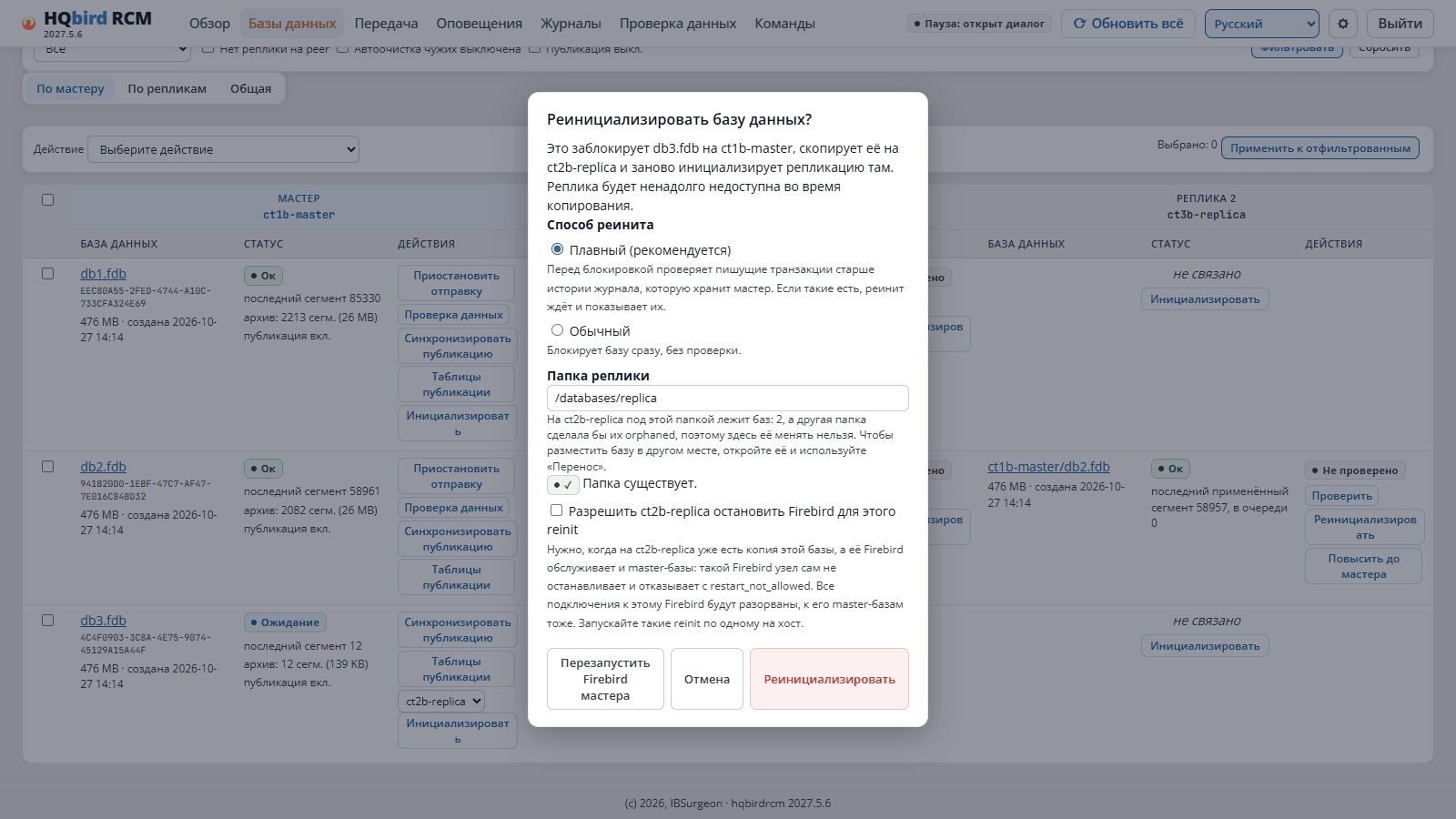
The “Reinitialize database?” window
Open Databases.
In the row of the master database, click Initialize. For an already
existing pair — Reinit in the expanded card of the
master.
In the window:
select the replica node (the list shows only free peer nodes of this
master);
check the Replica folder; if the folder does not exist — Create folder;
select the Reinit method: Smooth (recommended) or Standard
(5.4);
if the master database is still waiting for a Firebird restart, the window will say so and
show the Restart master Firebird button. Without a restart the database
is not replicated.
Confirm. RCM will report that the database will be locked on the master and
copied to the replica.
The progress of initialization is visible in the expanded card of the master on the Databases
page: steps and percentages.
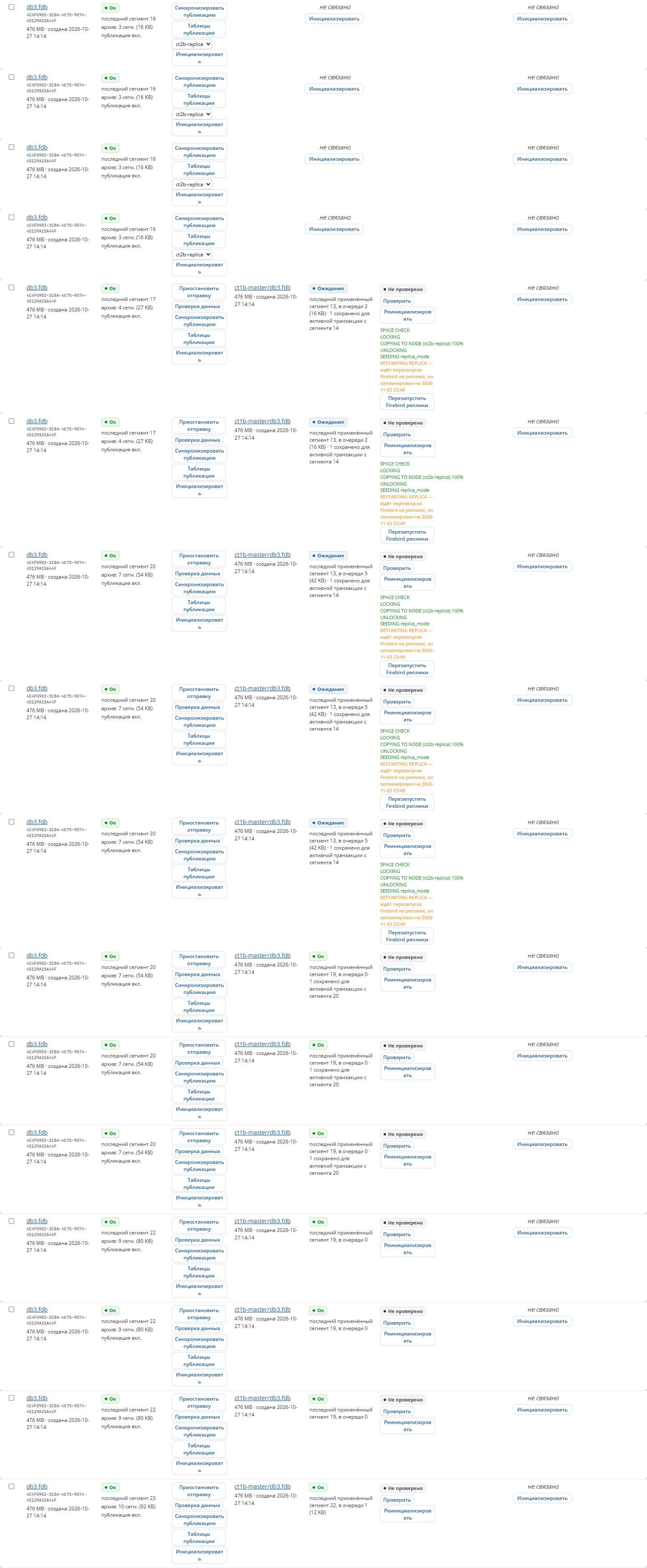
Initialization steps in the master row
Every RCM command (initialization, Firebird restart, publication
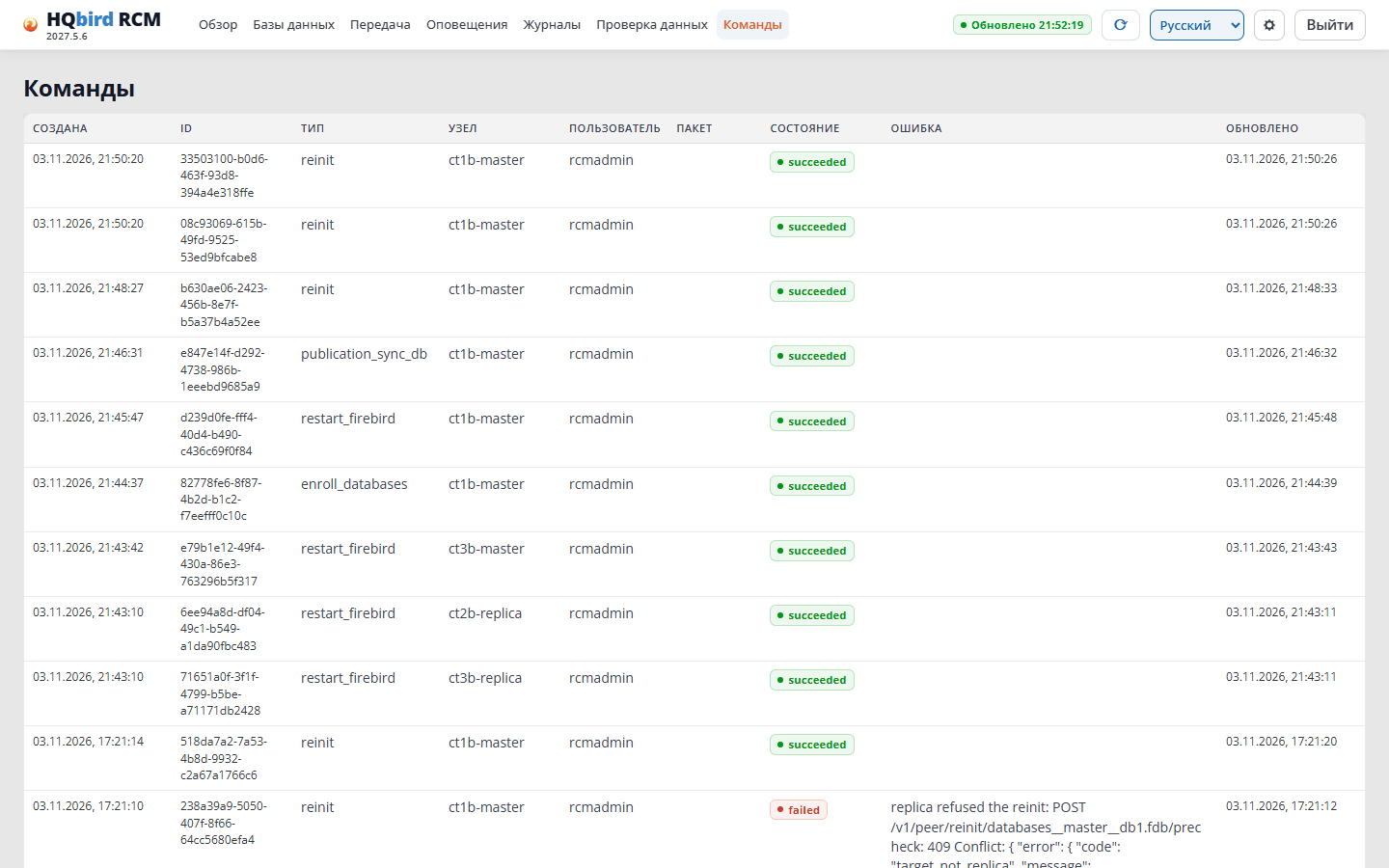
synchronization) is recorded on the Commands page with its result.
The “Commands” page
The same from the command line
Command
# one databasehqbirdrcm reinit -node node-a -db <db_id> -to node-b
# all databases of the masterhqbirdrcm reinit -node node-a -all -to node-b
Parameters: -mode smooth|standard (default smooth), -hold=false
(do not hold the archive during long transactions), -allow-restart (5.6),
-force (5.9).
-all tries all databases and collects errors instead of stopping at the first one.
5.2. Steps
No.
Step (in RCM)
What happens
1
SPACE CHECK
checks space on the master and on the replica (chapter 4.4); the replica checks in advance that it can accept the file
2
LOCKING
nbackup -L: the master’s database file is frozen, changes go to <database>.delta
3
COPYING TO NODE
transfers the file in parts: read → checksum → compression → send
4
UNLOCKING
nbackup -N immediately after the transfer: changes from .delta are returned to the database
5
SEEDING
on the replica: verify the file checksum, nbackup -FIXUP -SEQUENCE, install the file, gfix -replica, write the block to replication.conf
6
RESTARTING REPLICA
restart the replica’s Firebird if needed (5.6)
After step 6 the database reaches the IN_SYNC state. The master continues sending
segments from the point where the copy ends.
What you need to know:
The master runs all the time. Users write to the database, changes go to
.delta. The lock is released immediately after the transfer.
Transactions that coincided with the lock are not lost. The node finds
the transactions open at the moment of nbackup -L, and the replica replays them from
the segments.
The transfer continues after a break. If the connection or the replica node
restarted, the master continues from the last received part. An unfinished
transfer is kept on the replica for 24 hours (reinit_partial_keep_hours).
On error the node releases the lock, deletes the unfinished file on
the replica and sets the database to FAILED. The next attempt starts from a known
state.
nbackup only. gbak is not used: it changes the database GUID.
5.3. Impact on operation
What
Impact
Master users
keep working; during copying .delta grows, after -N the changes are transferred to the database
Other replicas of this database
do not receive segments of this database while initialisation is in progress; they catch up afterwards
Other databases of the master
not affected
Replica Firebird, new database
not stopped; restart per 5.6
Replica Firebird, re-initialisation
stopped while the file is being replaced: all databases of this Firebird are unavailable for seconds
Network and disk
load governed by the speed limits (5.5)
On Windows. A file opened by Firebird cannot be replaced. On
re-initialisation the node stops the replica Firebird via fbagent, places
the file and starts Firebird again. On Linux Firebird is also stopped before
the replacement: otherwise it would continue working with the old deleted file.
5.4. Smooth and standard methods
Smooth (default). Before locking, the node looks for long transactions: user write transactions that started before the oldest segment in the master’s archive. After initialisation, the replica will not be able to replay them and will stop at their first change (“Transaction … is not found”). Transactions without changes are not counted.
If such transactions exist, initialisation does not start: RCM displays Smooth reinit is waiting for long transactions and provides the Open list link.
Long transactions page: no long transactions
On the Long transactions page:
summary: how many transactions and connections, the oldest segment;
Top 5 connections with the oldest transactions: user, client, start, age, changes, current query;
Hold segments / Release hold — while the hold is enabled, the master’s archive is not purged and history is not truncated;
Disconnect selected and retry reinit — disconnects the connections (their transactions are rolled back) and immediately starts a smooth reinit;
Retry reinit, Check again.
The hold is enabled automatically when initialisation is refused due to long transactions. It is released after successful initialisation, manually, or when the archive grows to reinit_hold_max_segments (1000 segments by default, notification retention_hold_released).
Standard locks the database immediately, without checking. Use it only if you know there are no long write transactions.
Transactions older than the publication. Firebird does not write to segments a transaction that started before the publication was enabled. If the publication was enabled by a node, initialisation waits (6 attempts, 10 seconds apart) until such transactions finish; otherwise it fails with the reinit_pre_publication_transactions error and a list of them. After synchronising a publication that added tables, reconnect the applications, then start initialisation.
5.5. Speed
When
Speed
Setting
Within the transfer window windows.transfer_window (default 23:00-05:00)
constant
limits.reinit_window_mbps, default 100 MB/s
Outside the window
fraction of the measured disk speed
limits.reinit_day_disk_fraction, default 0.5
The node recalculates the mode every 30 seconds: an initialisation started during the day will speed up on its own at night.
The node measures the disk speed with a test. To repeat the test on the master host:
Initialisation time ≈ database size ÷ speed. Example: 100 GB at 100 MB/s — about 17 minutes of pure transfer; in practice it is limited by the network or the disk.
5.6. Restarting the Firebird replica
New database on the replica. The file is put in place without stopping Firebird. Firebird
will read the new replication.conf block only after a restart. Until then the
replica applies nothing. The RESTARTING REPLICA step shows the wait:
Label
What it means
waiting for Firebird on the replica to restart, it is scheduled for …
the node will restart Firebird itself after the last initialisation (reinit_restart_delay_sec), once the other initialisations have finished
… restart window is closed, the next one opens at …
waiting for the replica’s restart_window
… the last attempt failed, the next one at …
will retry later
the replica cannot restart Firebird itself: restart it manually
auto_restart: never, or this Firebird also serves the master’s databases
The node restarts Firebird once after a series of initialisations, not after
each database.
To restart manually, click Restart replica Firebird.
The wait ends after any successful Firebird restart or when
the replica has applied a segment newer than the copy.
Re-initialisation on a Firebird that also serves the master’s databases.
The node does not stop such a Firebird itself and refuses with:
restart_not_allowed. Start the initialisation again and tick Allow
to stop Firebird for this reinit (-allow-restart on the command
line) — at a time when this Firebird’s connections can be dropped, including
those to its master databases. Run such initialisations one at a time per host.
5.7. Queue and concurrent initializations
One database — one initialization at a time (even for different replicas). The Initialize button is disabled while an initialization of this database is in progress.
The master node enforces limits.max_concurrent_reinits initializations of different databases simultaneously (default 1). The rest wait in the queue; the response contains the queue position.
Do not run your own nbackup -L (or ALTER DATABASE BEGIN BACKUP) on a database during its initialization, and do not start an initialization during such a backup: a database can have only one lock. Initialization checks this and refuses with nbackup backup lock already active.
The queue and current transfers are visible on the Transfer page.
Transfer / queues page
- If a `.delta` file remains after a failure, make sure no backup is running and run `nbackup -N `. Do not delete the `.delta` manually.
5.8. Automatic reinitialisation
RCM can reinitialise a database in the NEEDS_REINIT state by itself, only within
a configured window. Disabled by default.
When a database enters NEEDS_REINIT:
Cause
Where it is visible
repeated unrecoverable apply error (PK, UNIQUE, FK violation) — 3 times in a row
replica, replication_unrecoverable_error alert
the master database GUID has changed (restore, file replacement)
replica, replication_guid_mismatch alert
the master archive no longer contains the segments the replica needs
master
Enabling — Settings → RCM (or rcm.json, the auto_reinit section):
Window: per database → per node → global. "always" — at any time.
Windows are calculated by the RCM host clock.
max_concurrent — how many initialisations (manual and automatic) may be
running in the cluster for RCM to start another automatic one.
Automatic initialisation goes through the same space and GUID checks as
manual. The command author is system:autoreinit.
After changing, restart RCM.
Snooze in the master card disables automatic initialisation of a single
database for 1 hour, 4 hours, 24 hours or until cancelled. Manual
initialisation remains available.
5.9. Errors
Error
Cause
What to do
insufficient disk space on master / on replica, 507
not enough space
chapter 4.4
long_transactions, “Smooth reinit is waiting for long transactions”
long write transactions are open
5.4
reinit_pre_publication_transactions
transactions started before publication was enabled
reconnect the applications, retry
duplicate_guid
two master databases with the same GUID
remove the copy; if the NEW GUID step was skipped when promoting to master — -force (chapter 8.4)
license_paused
the master’s fbagent has no licence
chapter 2.8
409 orphaned
database outside the master’s scan
chapter 3.8
incompatible_engine
different major Firebird versions
chapter 4.3
target_not_replica
a working database is in the replica’s place (it was made normal)
see below
restart_not_allowed
the replica’s Firebird also serves master databases
5.6, the “Allow … to stop Firebird” checkbox
fbagent_required
no fbagent on the replica
chapter 1
nbackup backup lock already active
an nbackup backup is in progress
5.7
reinit already in progress for this database
initialisation of this database is already under way
wait for it to finish
target_not_replica. A working database sits in the copy’s place: it was
made normal (the file <database>.hqcluster-normal.json exists) or it is not in
replica mode. The node does not overwrite a working database. If it needs to be
replaced, a request to the node’s API with
overwrite_non_replica: true (there is no button for this in RCM) will replace the file and keep the old one as
<database>.pre-reinit-<UTC time>.fdb.
5.10. How to check the result
Databases: the master — replica pair in the Ok group, state
IN_SYNC.
Verify in the master’s card: the nodes count the rows of the tables from
sync_tables (chapter 3.1) on the master and on the replica and compare them.
Run the check during a quiet period: with active writes the numbers may differ.
Periodic check (optional): the Data check page, enable for all nodes,
then restart the node services.
The nodes compare the row counts themselves when the master and replica are on the same
segment. A discrepancy produces a data_mismatch alert; then run
Verify.
A table that the operator has removed from the publication is shown as “not
published” rather than as a discrepancy.
6. Configuring publication
The publication tells the Firebird master which tables’ changes to write to the segments.
Without it, the replica receives nothing.
6.1. What the publication is
In Firebird 4 and 5, the tables to be replicated are defined by the RDB$DEFAULT publication:
Publication enabled — in RDB$PUBLICATIONS it has RDB$ACTIVE_FLAG = 1
(the ALTER DATABASE ENABLE PUBLICATION command).
Published tables — the list in RDB$PUBLICATION_TABLES.
Firebird writes changes to the segments only for published tables and only
when the publication is enabled. Registering the database (chapter 3) does not
enable the publication. It is enabled by Synchronize publication (6.2).
The master node checks the publication every hour
(limits.publication_check_interval_sec, 3600 by default). If it is
disabled, the node checks it every 2 minutes.
On the Databases page, the master database has an icon:
Icon
Meaning
publication ON
publication enabled
publication OFF
Firebird writes nothing to the segments, replicas receive no changes
publication unknown
the node could not read the state
The Publication off filter shows databases with a disabled or unknown
publication.
If a database with a disabled publication already has a replica, the master issues
the master_publication_off alert.
6.2. Synchronize publication
Master row: publication disabled
Where to click:
in the master database row on the Databases page. When the publication is
disabled, the button sits next to the icon;
on the database page;
for several databases: tick the rows, in the Action list select
Synchronize publication. RCM will send a separate command for each
database.
Publication synchronization confirmation
What the node does (a single transaction):
Enables the publication. If the operator disabled it themselves (6.4), it does not enable it.
Adds to the publication all tables with a key that are not yet in it.
Removes from the publication tables without a key and tables that the operator
excluded (6.3).
Disables the automatic addition of new tables (EXCLUDE ALL FROM
PUBLICATION, then adds the required tables). Only the node defines
the composition of the publication.
Master row after synchronization: publication enabled
A table with a key — a user permanent table that has a
primary key or an active unique index. System and temporary
tables are not published.
Synchronization also removes from the publication tables without a key that the DBA added
manually.
If the composition is already correct, the node changes nothing.
When the node refuses:
Code
Reason
no_publications
HQbird 2.5/3.0 (6.6)
not_master
the node is not the master
reinit_in_progress
initialization of this database is in progress
orphaned, database_failed, file_missing
the database is outside the scan, in error, or has no file
All databases of a node at once — from the command line only. On the Commands
page the result is shown per database: done, skipped or error.
Databases in the FAILED or SEEDING state and databases without a file are skipped.
The same from the command line
Command
hqbirdrcm setpublication -node node-a -db <db_id> # one databasehqbirdrcm setpublication -node node-a # all databases of the node
The command waits up to 5 minutes and prints a line for each database. On error the exit
code is 1. -nowait — do not wait for the result.
6.3. Publication tables
The «Publication tables» page
Open Publication tables in the master database row.
The page shows:
the publication state (on/off, disabled by operator) and the counters;
each table: name, key and state.
State
Meaning
published
changes go to the segments
not yet published
a table with a key, will be added on synchronization
excluded
the operator removed it from the publication
no key
cannot be published
In the key column — the primary key, or, if there is none, the unique index with
the smallest number of fields.
Why a table without a key cannot be published. The replica looks up the row for
UPDATE and DELETE by key. Without a key it will not find the row. Add a
primary key or a unique index, then synchronize the publication.
Exclude from publication / Return to publication:
Tick the tables.
Click Exclude from publication or Return to publication.
The node saves the list and immediately synchronizes the publication.
«Exclude from publication» confirmation
The list of excluded tables is stored on the master node. Synchronization does
not change it. When a replica is promoted to master (chapter 8), the list moves to
the new master.
Check (chapter 5.10) shows an excluded table as “not published”,
not as a discrepancy.
6.4. Enabling and disabling the publication
On the Publication tables page: Disable publication /
Enable publication.
Disabling is the operator’s choice. Synchronization does not
re-enable the publication.
Changes made while the publication is disabled (or while a table is
excluded) are not sent to the replica, even after it is enabled.
After enabling, click Check (chapter 5.10). If the data
diverges — reinitialize the replica (chapter 5).
6.5. A new table
A new table does not get into the publication by itself: the node disables
automatic addition.
After DDL:
Create a primary key or a unique index on the table.
Click Synchronize publication.
Ask the applications to reconnect if reinitialization is needed. Firebird
does not write to the segments transactions that began before the publication was enabled;
COMMIT RETAINING keeps such a transaction open. Initialization waits for
such transactions and then fails with reinit_pre_publication_transactions
(chapter 5.4).
A new table in the «not yet published» state
Rows written to the new table before synchronization will not reach the replica.
If there are any, check the data and reinitialize the replica if necessary.
6.6. HQbird 2.5 and 3.0
HQbird 2.5 and 3.0 have no publications. Firebird writes segments if the
replconf plugin file contains a master block. The publication buttons on such nodes are hidden,
and the API responds with no_publications.
The set of tables is defined by the engine parameters:
Parameter
Meaning
include_filter
which tables to replicate: names or patterns separated by commas; empty — all
exclude_filter
which tables not to replicate
The parameters are changed in Settings → Replication parameters (chapter 7.1). The
Publication tables page shows them read-only, with the Change
in engine settings link. Firebird reads the new values after a restart.
Publication tables on HQbird 3.0: engine filters
The replconf plugin. The node writes its own replconf.hqcluster.hqbird file in the
Firebird folder. Firebird reads it only when replconf.properties points to
it. The plugin must be activated once:
Settings → Nodes, the Replication plugin (HQbird 2.5 / 3.0) block. The block
shows where replconf.properties points and the problems that the node
found.
Plugin not activated: replconf.properties points to the HQbird DataGuard file
Activate… The window lists what the node will do: install the plugin,
point replconf.properties to the node’s file, carry over the entries from the old file.
Choose when: Only within the node restart window or Now, ignoring
the restart window.
Plugin activation window
After the Firebird restart, the Activated field shows “yes: the engine
reads the node’s file”.
Plugin activated
Activation restarts Firebird and affects all databases of this Firebird.
Perform it during a quiet period.
7. Other replication options
7.1. Replication parameters
Settings → Replication parameters, wizard form
The Settings → Replication parameters page changes the keys in
replication.conf for the selected databases or for the node as a whole.
Add master and replicas — select the databases. RCM groups them by
Firebird version and role: a separate form for masters and for replicas.
For each parameter, choose an action:
Action
What it does
no change
the value is not changed
set value
a new value
reset (to the next level)
remove its own value, take the value from the level above
do not write (Firebird value)
the key is not written, the Firebird value applies
Choose where to apply: To the selected databases or As the default
for their nodes.
Preview — the nodes check the values without changing anything.
Preview of changes
Apply. RCM sends the command to each node.
Where the value comes from (the Current column):
Source
Meaning
this database
set for the database
node value
set as the default for the node
built-in node value
the node value from the code
Firebird value
the key is not written
from file (not yet set here)
the value from replication.conf, RCM has not changed it yet
set by the node
read-only (paths, prefixes)
A node that does not respond shows its databases as unavailable for selection.
Changes require fbagent (otherwise fbagent_required).
Who restarts Firebird (Firebird reads replication.conf only at
startup):
Node
Who
master
you restart it: the master never restarts Firebird itself
replica with firebird.auto_restart: never
you
replica whose Firebird also serves the master’s databases
you
other replicas
the node restarts it in its restart window
For a manual restart, the page has a Restart Firebird button.
7.2. Main parameters
Master, Firebird 4/5:
Parameter
Label in RCM
Node value
Firebird
Advice
journal_archive_timeout
Archive timeout
10 s
60 s
how many seconds Firebird waits before closing an incomplete segment. Lower — the replica is closer to the master. Must be less than limits.data_check_quiet_sec (90)
journal_segment_count
Segment count
64
8
how many segments can sit in .ReplLog. Must be greater than limits.backlog_critical (48)
journal_segment_size
Segment size
—
16 MB
from 1 MB to 512 MB; the receiver will not accept more than 512 MB
buffer_size
—
1 MB
The node also writes log_errors = true (cannot be changed) and
disable_on_error = true.
Replica, Firebird 4/5:
Parameter
Label in RCM
Firebird
Value
apply_idle_timeout
Idle pause
10 s
pause when there are no new segments
apply_error_timeout
Pause after apply error
60 s
pause before retrying after an error
verbose_logging
node: true
verbose replication.log; not recommended to disable
HQbird 2.5/3.0 — the log_* keys with the same meaning: log_archive_timeout,
log_segment_count, log_segment_size (not less than 2 × buffer_size). The
alert_command key is set only in node.json.
There is a hint for each parameter in the RCM form.
7.3. Archive retention
The <database>.LogArch archive on the master is cleaned in stages:
Segments that all replicas have applied and that are older than
retention_days.
If free space is less than free_space_floor_gb — applied segments
younger than the retention period. Alert disk_serious_cleanup.
If space is still low — unapplied segments, starting with the oldest.
The replica receives NEEDS_REINIT, alert
replication_paused_reinit_scheduled.
Parameter (Settings → Nodes, Retention and files)
Default
limits.retention_days — Archive retention, days
2
limits.retention_min_kept_segments — Always keep the last segments
0 (disabled)
limits.free_space_floor_gb — Minimum free space
1 GB
Settings → Nodes, “Retention and files”
Clean the archive manually:
Command
hqbirdrcm cleanuparchive -node node-a # stages for all databases of the nodehqbirdrcm cleanuparchive -node node-a -db <db_id> # a single database
-orphaned (only together with -db) deletes all segments of the database
in the ORPHANED state (chapter 3.8). For another database the node will reply
not_orphaned. Never run -orphaned on a promotion donor (chapter 8.5).
7.4. Transfer: compression, speed, windows
Compression is set per peer: Settings → Nodes → Peers, column
compress.
Value
Meaning
empty or none
no compression (default)
zstd
zstd compression
The change takes effect immediately. Compression is useful on a slow network.
Segment transfer speed (Settings → Nodes, Transfer and
reinitialization):
Parameter
Default
When it takes effect
limits.channel_a_mbps — Segment transfer speed
50 MB/s
immediately
limits.channel_a_burst_mbps — Segment transfer burst
200 MB
immediately
The unit is mebibytes (MiB), even though the name says “mbps”. The burst cannot
be less than the speed.
Settings → Nodes, “Transfer and reinitialization”
Time windows (Time windows):
Parameter
Default
When it takes effect
What it affects
windows.restart_window — Firebird restart window
master 22:00-05:00, replica always
immediately
when a replica node may restart Firebird
windows.transfer_window — Transfer window
23:00-05:00
after the node restarts
full initialization speed (chapter 5.5)
The label next to each field shows when the change takes effect: immediately
or node restart.
Settings → Nodes, “Time windows”
7.5. Data check
Verify — a one-off comparison of the row counts on the master and the
replica (chapter 5.10).
Data check — a periodic comparison (chapter 5.10). The node compares
when the master and the replica are at the same segment.
Which tables to compare is set by sync_tables at registration (chapter 3).
Tables excluded from publication are shown as “not published” (chapter 6.3).
“Data check” page
7.6. Alerts
“Alerts” page
The Alerts page. Actions:
Acknowledge — the alert stays visible but is marked acknowledged;
Mute for 60 min — hide it for an hour;
Delete / Delete all with this code — RCM passes the deletion to the node
that raised the alert. If the cause remains, the alert will appear again.
Command
hqbirdrcm clearalerts -code backlog_warn # also -id, -acked, -all
There is no sending of alerts by email or to a webhook: watch the
Alerts page or poll the RCM API.
Main codes:
Code
Meaning
backlog_warn / backlog_critical
32 / 48 unarchived segments in .ReplLog
disk_serious_cleanup
the archive is being cleaned by stage 2 (7.3)
replication_paused_reinit_scheduled
unapplied segments were deleted, initialization is required
Confirming the pause of shippingThe master's row during a pause
The pause lasts until Resume shipping or until initialization.
The master’s Firebird keeps writing segments. The .LogArch archive grows:
while the replica is stopped, stage 1 (7.3) does not delete its segments.
A long pause may reach stage 3 and NEEDS_REINIT. Watch the space.
There is no button if the database has no replica or publication is disabled.
The Pause: no license icon is a pause due to licensing (chapter 2.8); only
a license lifts it.
7.8. Logs
Log
Where
Node
<installation folder>/logs/node-YYYYMMDD.jsonl (/opt/hqclusternode or C:\hqclusternode), 32 MB each, 20 files
Firebird replication.log, firebird.log
paths in node.json: firebird.replication_log, firebird.firebird_log
RCM
Linux: journalctl -u hqbirdrcm
RCM audit
rcm-data/audit.jsonl
Remote node log — the Logs page: select a node and a source
(replication.log, firebird.log, node agent).
8. How to transfer a replica to a regular database
There are two paths:
Path
When
Result
Turn to normal, 8.1
you need a separate working copy: reports, tests, a failure without a new master
a regular database outside replication
Promote to master, 8.3
the replica should become the new master
a database managed by the companion node with the master role
Neither path can be undone through the interface.
8.1. Turn to normal
Replica's «Action» list: the «Turn to normal» item
Databases, replica side: check the replica rows.
In the Action list, select Turn to normal, confirm.
There is no separate button in the row. There is no command in the command line either.
«Turn to normal» confirmation
3. The replica node:
- runs `gfix -replica none` (HQbird 2.5/3.0: `gfix -replica {}`). If
the database is busy applying segments, the node briefly puts it into
`single`-shutdown for a few seconds (`gfix -shut single -force 0`), removes the replica mode and
returns `gfix -online normal`. **All connections to this database
are dropped**;
- writes a marker file `.hqcluster-normal.json` (time, author, db_id,
GUID);
- starts cleaning the `.Incoming` queue (8.2).
4. RCM shows the database in the **Not a replica (normal)** group.
«Databases» page after «Turn to normal»
After this, the database is open for writing.
Remove the replica block from replication.conf. The node removes it on the next
scan, and Firebird reads the file at startup:
Until then, “database is not in replica mode” errors for this database are not issued as
notifications.
The marker file protects the database. Initialization will not overwrite such a database:
rejection target_not_replica (chapter 5.9). Deleting only the marker is not enough:
the node also checks the replica mode in the database header.
If the database needs to become a replica again — only a new initialization with
overwrite. This is done through the node API (overwrite_non_replica: true); there is no such button in
RCM. The old file is saved as
<database>.pre-reinit-<UTC time>.fdb, the marker is deleted.
8.2. What happens to the segments
Until the node has scanned the databases, the master keeps sending segments. The replica
node deletes old ones every 30 seconds and keeps only the last 100
(keep_segments).
After scanning, the database record on the replica gets the state ORPHANED.
The replica node responds to the master with unknown_database. The master stops sending
segments to this replica, stops keeping an archive for it, and checks it again every 10 minutes.
Other replicas of this database are not affected.
The ORPHANED record can be deleted (chapter 3.8): hqbirdrcm forgetdatabase. The database
file is not deleted in this case.
8.3. Promote to master
The replica becomes the new master. Its file stays in place, and management
passes to the companion node.
Conditions:
Condition
Rejection
the database is a replica
bad_request
a node with the master role is running on the same host — the companion (same host label in rcm.json, chapter 2.1)
no_companion
promotion of this database is not already in progress
already_running
there is no initialization into this database or from its master
reinit_running
RCM does not create a companion node: install it in advance (chapter 1).
How to start:
in the replica row, Promote to master, or in the Action list;
RCM will ask for confirmation and name the companion node.
«Promote to master?» confirmation
Steps (visible in the replica row, names in English):
№
Step
What it does
1
TURN TO NORMAL
same as 8.1; skipped if the database is already normal
2
NEW GUID
new database GUID in place (8.4)
3
EXCLUDE ON DONOR
the replica node (donor) excludes the file from its scanning (exclude_paths)
4
ENROLL ON
the companion node registers the file as a master database
5
PUBLICATION SYNC
publication synchronization; the list of excluded tables is carried over from the old master (chapter 6.3)
6
RESTART DONOR FIREBIRD
restart of the donor’s Firebird, without waiting for a window
7
RESTART FIREBIRD
restart of the companion’s Firebird, without waiting for a window
8
FINALIZE
the donor row becomes Ghost replica; the old master may become Master degraded (8.5)
Promotion steps in the replica row
On HQbird 2.5 and 3.0 there are no publications: the PUBLICATION SYNC step completes with the text
“this engine has no publication”.
Promotion steps on HQbird 3.0 (Windows)
If the donor and the companion work with the same Firebird, that Firebird
is restarted: connections to all of its databases are dropped.
If a step fails, the job gets failed with the error text. Fix the
cause and click Promote to master again: completed steps are not
repeated. If RCM restarted during the promotion, the job will also become
failed — check the state of the nodes and retry.
License. If fbagent on the master’s host has no license, the master
has paused sending. Promotion is still possible. RCM will warn:
changes made after the pause began will be lost.
8.4. New GUID
After promotion, the database must get its own GUID. Otherwise the new master writes
segments under the old master’s GUID, and its replicas get the rejection
duplicate_guid.
The NEW GUID step on the node:
gfix -shut single -force 0 — all connections to the database are dropped;
nbackup -L, then nbackup -F without -SEQUENCE;
deletes <database>.delta;
checks the header: new GUID, REPLICATION_SEQUENCE = 0;
gfix -online normal.
Firebird is not restarted. The method works on all versions (2.5, 3.0, 4.0,
5.0).
If the step was interrupted, the node issues the notification newguid_interrupted. The database may
remain in single-shutdown. Repeat Promote to master: the step
will continue.
The step is skipped (the text starts with skipped:), if the donor node is an old
version or the file already has its own GUID.
After the new GUID, the old nbackup chain is no longer suitable. Make a new
level 0 nbackup copy.
If the database was created with ADD DIFFERENCE FILE, its .delta is in a different
place: delete it manually.
8.5. After promotion
Donor record. On the replica node, the database remains ORPHANED, the path is in
exclude_paths, the .Incoming folder and the marker remain. In RCM this is the row
Ghost replica with the buttons Open on new master and Clear.
Donor row: «Ghost replica»
To remove the row, click Clear. This changes only RCM.
The node rejects forgetdatabase for the donor (mailbox_active) while the file
and the .Incoming folder exist.
Never run cleanuparchive -orphaned on the donor. The donor and
the companion use the same <database>.LogArch folder. The command will delete the live
archive of the new master.
Old master.
If the donor was its last working replica, RCM sets the old
master to Master degraded and pauses sending to the donor
(“sending paused: … (promotion to master)”). Do not resume
sending to the donor: there is already a working database there. To clear this state,
initialize the database to another replica.
Old master: «Master degraded», sending paused
Initialization from the old master to the donor node will be rejected
(target_not_replica): there is already a working database there.
If the NEW GUID step was skipped, the old and new master have the same GUID.
Then initialization from the old master requires -force (chapter 5.9).
You cannot automatically make the old master a replica of the new master.
Stop the applications on the old master and remove its database from management
(chapter 3.8).
New master. Connect a replica for it: replica node, peers (chapter 2),
publication (chapter 6), initialization (chapter 5).
New master: database with a new GUID, no replica yet
8.6. Planned switchover: checklist
RCM does not switch the master automatically. Promotion does not check whether
applications are writing to the old master. Procedure:
In advance. A companion node with the master role is running on the replica’s host,
both nodes have the same host label (chapter 2.1). A node for the future
replica is ready for the new master.
Stop application writes to the old master’s database.
Wait until the replica receives and applies everything: Databases →
IN_SYNC, no queue.
Check (chapter 5.10): row counts match.
Promote to master (8.3). Wait for the FINALIZE step.
Check: the database is in the companion’s master list, publication on.
Switch the applications to the new master.
Make a level 0 nbackup copy of the new database (8.4).
Clear the ghost record for the donor row (8.5).
Connect a replica to the new master and initialize it (chapter 5).
Old master: remove the database from management or leave it as an archive (8.5).
This site uses cookies to improve your experience and remember preferences.